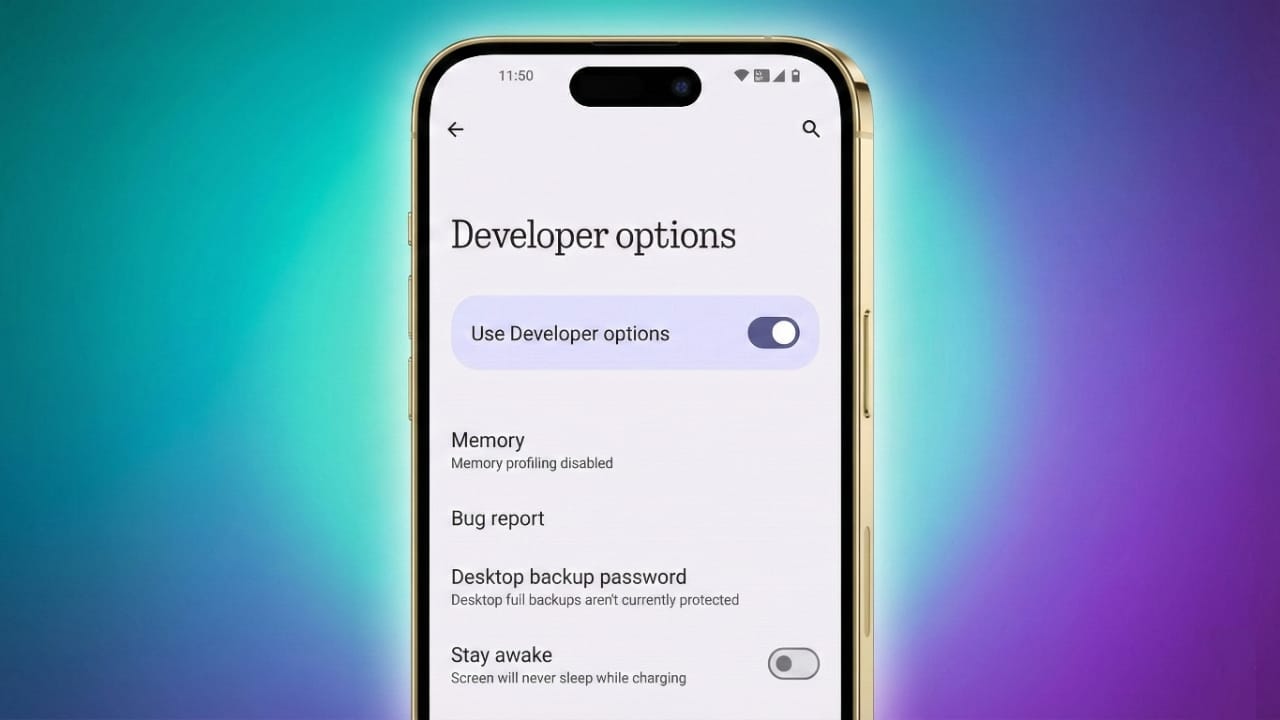
Android phones include a hidden settings panel meant mainly for testing and development. It offers several advanced controls that are normally not visible to everyday users. Once turned on, you can access useful tools for debugging, optimisation, and customisation.
This guide explains what Developer Options are, why people enable them, and how you can safely use them.
What Exactly Are Android Developer Options?
Developer Options is a hidden menu inside Android phones. It was originally created for app makers who need to test apps directly on mobile devices. The menu includes tools for debugging, checking performance, and modifying system behaviour.
Even though it is designed for developers, normal users can also benefit from some features. Performance tweaks, animation controls, and monitoring tools are some examples.
Also read: How to Stop Spam Calls in India – Simple Tips for Android, iPhone, and Landline Users
Why Do People Enable Developer Options?
Turning on the Developer Options menu gives access to several advanced features. Here are some popular uses:
- Adjusting animation speed for a smoother experience
- Viewing real-time CPU or GPU performance
- Enabling USB debugging to connect phones with computers
- Using mock location for app testing
- Keeping the screen awake while charging
- Improving Bluetooth audio quality
- Limiting background processes to save battery
These options can be helpful, but they should be used carefully. Changing things casually may affect how your phone behaves.
Steps to Enable Developer Options on Android
The process is almost the same for all Android models. Follow these steps:
- Open Settings on your phone
- Scroll down and tap About Phone
- Find the Build Number
- Tap the Build Number seven times continuously
- You will see a message confirming that Developer Options are enabled
- Go back to Settings and you will now find Developer Options under the System menu
Once enabled, the menu stays visible until you decide to turn it off.
Helpful Tools Inside Developer Options
Here are some of the commonly used tools and what they do:
USB Debugging
Allows your phone to communicate with a computer for testing, installing apps, and running ADB commands. Enable it only with systems you trust.
OEM Unlocking
Required to unlock the bootloader before installing custom software. This feature is risky and may void warranty. Use only if you know exactly what you are doing.
Animation Scale
Lets you reduce animation speed to make the phone feel quicker. Many users set the animation scale to 0.5x or turn it off to improve responsiveness.
Force GPU Rendering
Helps older apps render graphics using the GPU. It may improve visuals but can increase battery consumption.
Stay Awake
Keeps the screen on while charging. Useful during extended testing sessions.
Bluetooth Controls
Offers settings like codec adjustments to manage sound quality and stability over wireless earphones.
Mock Location
Allows fake GPS locations for testing map-based applications.
Limit Background Processes
Restricts how many apps run in the background. Useful for saving battery and reducing memory usage.
Show Touches
Displays touch points on the screen. Helpful for demonstrations and tutorials.
Wi-Fi Logging
Shows detailed network information to help analyse Wi-Fi performance.
Is Turning On Developer Options Risky?
Simply enabling Developer Options does not damage your phone. It does not increase battery usage or slow down performance by itself.
The risk only comes when incorrect settings are changed. For example:
- USB Debugging should not be left on when connected to untrusted systems
- OEM Unlocking can reduce security
- GPU rendering may use more battery
- Limiting background processes too much may cause apps to behave oddly
So, the menu is safe, but use it responsibly.
How to Turn Off Developer Options
If you no longer need it, you can switch it off easily:
- Open Settings
- Go to System
- Tap Developer Options
- Turn off the switch at the top
Everything inside the menu will be disabled instantly.
Reset App Preferences (If Required)
If any app starts behaving differently due to Developer Options changes, you can reset preferences:
- Go to Settings > Apps
- Tap the three-dot menu
- Choose Reset App Preferences
- Confirm the action
This does not delete any personal data but restores default settings.
Who Generally Uses Developer Options?
Developer Options are useful for:
- App Developers: Testing apps directly on a phone
- Tech Enthusiasts: Exploring hidden features
- Advanced Users: Tuning phone performance with custom settings
Regular users can also use these options, but it’s better to avoid settings you don’t understand.
Also read: How Instagram’s Collaborative Posts Feature Helps Creators Grow
Final Words
Android Developer Options unlock a set of powerful tools that help optimise and test your device. The menu is completely safe as long as you change settings with care.
Use the features responsibly and turn them off when they are no longer required.

Jatin Rajput (Tech Golu) — Tech blogger & YouTuber with 6+ years of experience in WhatsApp, Instagram, Facebook, and mobile guides. Founder of TechGolu.in.