Many people use Snapchat to stay connected with friends. One popular feature in the app is Snap Map, which allows users to share their live location. When this feature is active, friends can see where you are through your Bitmoji on the map.
While some users enjoy sharing their location, others prefer to keep their whereabouts private. The good news is that Snapchat offers several settings that allow you to control who can see your location—or hide it completely.
This guide explains how to turn off location sharing and protect your privacy on Snapchat.
Also read: OpenAI Introduces GPT-5.4 With Computer-Use AI Agents and a 1M Token Context Window
Using Ghost Mode to Hide Your Location
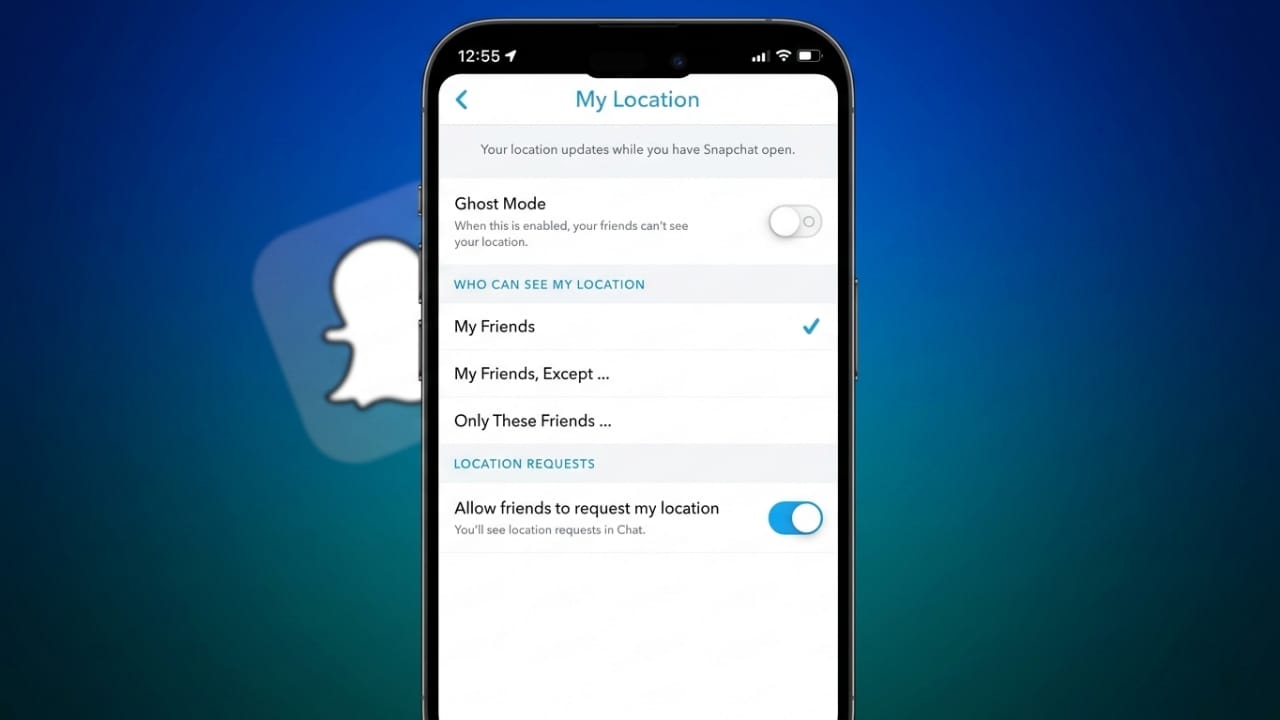
One of the easiest ways to stop sharing your location is by turning on Ghost Mode. When Ghost Mode is enabled, your location becomes invisible to everyone on Snap Map.
Your Bitmoji will disappear from the map, and other users will no longer be able to see where you are.
Even with Ghost Mode turned on, you can still open Snap Map to explore public stories, nearby snaps, and other content. The only difference is that your own location will remain hidden.
Steps to Enable Ghost Mode
Follow these steps to activate Ghost Mode in Snapchat:
- Open the Snapchat app.
- Tap the Map icon at the bottom of the screen to open Snap Map.
- Tap the Settings icon in the top corner.
- Find the option called Ghost Mode.
- Turn the toggle on.
- Select Until Turned Off if you want it to stay enabled.
Once this is done, your location will no longer appear on Snap Map.
What Happens After Ghost Mode Is Enabled
Turning on Ghost Mode changes how your location appears in Snapchat.
Here is what happens:
- Your Bitmoji disappears from Snap Map.
- Friends can no longer view your live location.
- Snapchat stops updating your visible location on the map.
- You can still open Snap Map and browse stories.
- You can still see friends who share their locations.
Ghost Mode will remain active until you turn it off manually.
Share Location With Only Certain Friends
Sometimes you may not want to hide your location from everyone. Snapchat also lets you choose exactly who can see your location.
This option allows you to share your location with trusted friends while keeping it hidden from others.
How to Hide Your Location From Specific Friends
Follow these steps:
- Open Snap Map in Snapchat.
- Tap the Settings icon.
- Go to Who Can See My Location.
- Select My Friends Except…
- Choose the friends you want to hide your location from.
- Tap Save.
Those selected friends will no longer see your location on the map, while others will still be able to view it.
Snapchat Location Privacy Options
Snapchat offers several location-sharing choices. Each one gives you different levels of control.
- My Friends – All your friends can see your location.
- My Friends Except – Hide your location from selected friends.
- Only These Friends – Share your location with specific people only.
- Ghost Mode – Hide your location from everyone.
These settings help users decide how much information they want to share.
Blocking Snapchat Location Access Through Phone Settings
Ghost Mode hides your location on Snap Map, but Snapchat may still access your device’s location if permissions are enabled.
If you want stronger privacy, you can disable location access from your phone’s system settings.
Disable Snapchat Location on iPhone
If you use an iPhone, you can stop location access in a few steps:
- Open the Settings app.
- Scroll down and tap Snapchat.
- Tap Location.
- Select Never.
After this change, Snapchat will no longer be able to access your location.
Disable Snapchat Location on Android
Android users can also block location permissions easily.
- Open Settings on your phone.
- Tap Apps.
- Select Snapchat.
- Tap Permissions.
- Choose Location.
- Select Don’t Allow.
Once disabled, the app will not be able to retrieve your location data.
How Snapchat Location Sharing Works
Snapchat shows user locations through Snap Map. When location sharing is enabled, your Bitmoji appears on the map to represent your current position.
Location updates usually happen when you open the Snapchat app. This allows the app to refresh your position and display it to friends.
Snap Map also helps users discover local snaps, events, and stories happening around their area.
What Happens When You Turn Off Location Sharing
Disabling location sharing leads to a few noticeable changes:
- Your Bitmoji disappears from Snap Map.
- Friends can no longer see your current location.
- Snapchat stops updating your position on the map.
- You can still explore public stories and nearby snaps.
This helps maintain your privacy while still allowing you to use the map features.
Does Snapchat Track Your Location When the App Is Closed?
A common concern is whether Snapchat tracks location in the background.
In most cases, the app updates your location when you open it. If you stop using the app, your last known location may stay visible on Snap Map for some time.
After a period of inactivity, Snapchat automatically removes the location from the map.
Location permissions on your phone can also affect this behavior. If location access is completely disabled, the app cannot retrieve your device’s location.
Temporarily Pause Location With Airplane Mode
Another simple trick is using Airplane Mode on your phone.
When Airplane Mode is turned on, your device disconnects from the internet. Because Snapchat needs an internet connection to update location data, your last known location will remain unchanged.
How to Use Airplane Mode
- Open the quick settings panel on your phone.
- Tap the Airplane Mode icon.
- Your internet connection will turn off.
This prevents Snapchat from sending updated location information.
How to Tell If Someone Stopped Sharing Their Location
Snapchat does not send alerts when someone changes their location settings. However, there is a simple way to notice.
If a friend’s Bitmoji disappears from Snap Map, it usually means one of these things:
- They enabled Ghost Mode.
- They stopped sharing location with you.
- They have not opened Snapchat recently.
Can Someone Track You After Location Sharing Is Turned Off?
Once location sharing is disabled, Snap Map cannot show your real-time position.
Some apps claim to track Snapchat locations, but they generally require location permissions from the device. If location access is turned off, tracking becomes extremely limited.
For the best privacy, it is recommended to review both Snapchat settings and phone permissions.
Also read: How to Use ChatGPT for the First Time: A Simple Beginner’s Guide
Final Thoughts
Turning off location sharing on Snapchat is simple and can greatly improve your privacy.
Features like Ghost Mode, custom friend settings, and device permissions allow you to control who sees your location. By adjusting these options, you can decide exactly how much information you want to share.
Checking your privacy settings regularly is a good habit and helps keep your online activity secure.

Jatin Rajput (Tech Golu) — Tech blogger & YouTuber with 6+ years of experience in WhatsApp, Instagram, Facebook, and mobile guides. Founder of TechGolu.in.