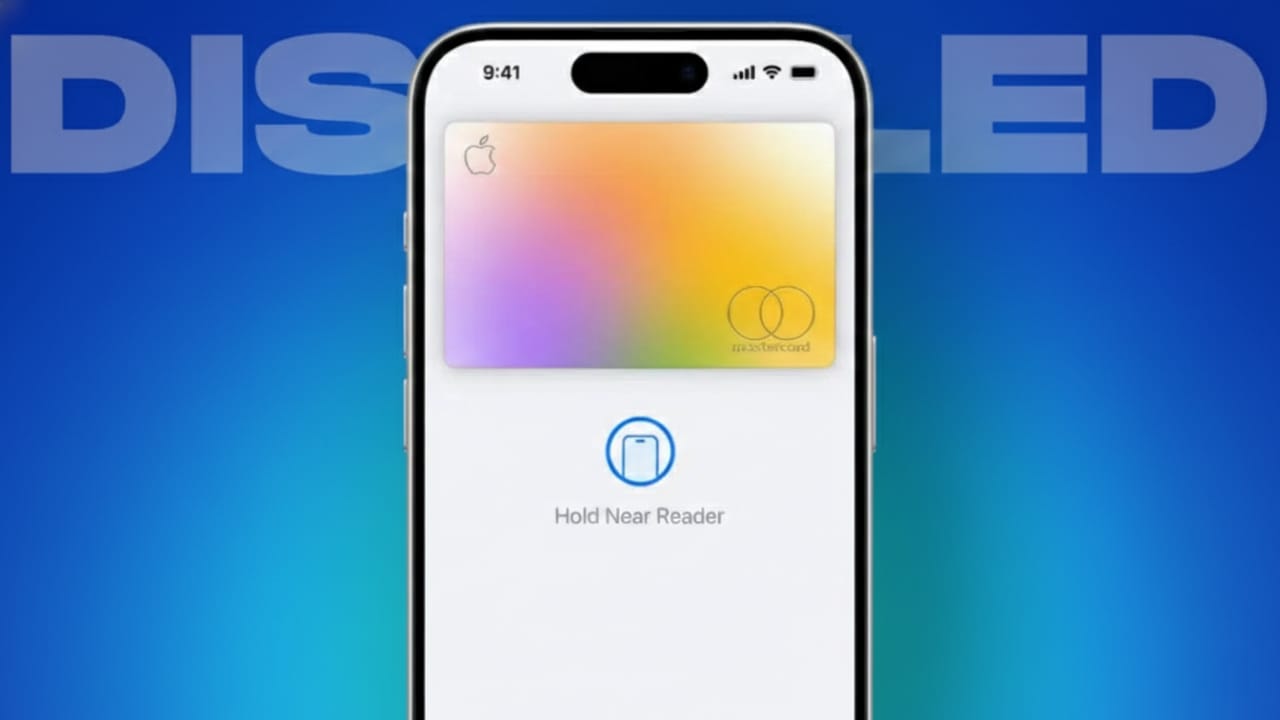
Losing an iPhone can be stressful. Along with photos and personal data, people often worry about payment cards saved in Apple Pay. The good news is that Apple Pay has strong security. Payments need Face ID, Touch ID, or a passcode. Still, acting fast gives you extra peace of mind.
This guide explains, in simple language, how to secure Apple Pay if your iPhone is lost or stolen. Follow the steps calmly and protect your money quickly.
Also read: How to Properly Set Up a New iPad in 2026 (Beginner-Friendly Guide)
Why You Should Disable Apple Pay Right Away
When your phone goes missing, every minute matters. Apple Pay is designed to be safe, but risks can still exist. If someone guesses your passcode or tries to access your Apple account, they may attempt to use saved payment methods.
Turning off Apple Pay helps you:
- Block unauthorized payments
- Protect your debit and credit cards
- Reduce the risk of fraud
- Keep your Apple account more secure
Apple Pay does not store your real card numbers. It uses encrypted tokens instead. Even so, disabling it early adds another strong layer of protection.
What You Need Before You Start
Before taking action, make sure you have the following ready:
- Your Apple ID email
- Your Apple ID password
- Access to the internet
- Another phone, tablet, or computer
- Two-factor authentication access
The backup device does not need to be an Apple product. Any browser will work.
If you cannot remember your Apple ID password, reset it at iforgot.apple.com. Create a new, strong password and avoid reusing old ones.
Important: Disabling Apple Pay does not cancel your physical cards. Your bank cards will still work unless you contact your bank separately.
Use Lost Mode (Fastest and Safest Option)
Lost Mode is the quickest way to secure your iPhone. Once activated, it locks your device and automatically suspends Apple Pay. All added cards stop working right away.
Turn On Lost Mode Using a Web Browser
- Go to icloud.com/find
- Sign in with your Apple ID
- Select Devices
- Choose your missing iPhone
- Click Mark as Lost
- Select Activate
- Enter a contact number
- Add a short message for the lock screen
- Confirm to finish
Your iPhone will lock instantly. Apple Pay will be disabled, and cards will no longer work. You can still track the phone using the Find My network, even if it is offline.
Turn On Lost Mode Using Another Apple Device
If you have access to another iPhone or iPad:
- Open the Find My app
- Tap the Devices tab
- Select your lost iPhone
- Tap Mark as Lost
- Choose Activate
- Add a contact number and message
- Confirm
This method provides the same protection and instantly blocks Apple Pay.
Remove Cards Manually (If Lost Mode Is Not Available)
If Lost Mode does not work for any reason, you can still remove your cards directly.
Remove Cards from the Apple ID Website
- Visit appleid.apple.com
- Sign in with your Apple ID
- Enter the verification code
- Open Devices
- Select the missing iPhone
- Find Wallet & Apple Pay
- Click Remove Items
- Confirm the action
This removes all cards and disables Apple Cash on that device. If you get your phone back later, you will need to add the cards again.
Remove Cards Using Another iPhone or iPad
- Open Settings
- Tap your Apple ID name
- Select the lost iPhone
- Scroll to Wallet & Apple Pay
- Tap Remove Items
- Delete all saved cards
This option works even without enabling Lost Mode.
Contact Your Bank for Extra Safety
If you cannot access your Apple ID or face login issues, call your bank immediately. Let them know your phone is lost and Apple Pay was connected.
Your bank may:
- Suspend Apple Pay virtual card numbers
- Block digital wallet payments
- Watch for suspicious transactions
- Issue a replacement card if needed
This step adds an extra layer of financial protection.
What Happens After Apple Pay Is Disabled
Once Apple Pay is turned off on the lost device:
- Payment tokens are suspended
- In-store contactless payments stop
- Online Apple Pay payments stop
- Wallet data is removed from that phone
Apple Pay will continue to work on your other Apple devices. Physical cards, subscriptions, and normal banking services remain active.
Extra Security Steps You Should Take
Disabling Apple Pay is important, but do not stop there.
Change Your Apple ID Password
Reset your password at iforgot.apple.com. Use a strong and unique password to block unauthorized access.
Check Bank Transactions
Review recent transactions carefully. Enable SMS and email alerts. Report anything suspicious immediately.
Inform Your Mobile Carrier
Contact your network provider and report the phone as lost. They can disable the SIM and block network access to prevent misuse.
Tips to Stay Safe in the Future
- Keep Find My turned on at all times
- Use a strong device passcode, not simple numbers
- Enable two-factor authentication
- Review connected devices regularly
- Keep bank alerts active for instant updates
Being prepared makes a big difference if something goes wrong.
Also read: How to Edit PDF Files on iPhone and iPad for Free (Updated for 2026)
Final Thoughts
If your iPhone is lost or stolen, disabling Apple Pay should be one of your first actions. Lost Mode is the fastest solution, but manual card removal and bank support are also effective. Combine these steps with password changes and transaction monitoring for full protection.
Quick action keeps your money safe and helps you stay worry-free.

Jatin Rajput (Tech Golu) — Tech blogger & YouTuber with 6+ years of experience in WhatsApp, Instagram, Facebook, and mobile guides. Founder of TechGolu.in.