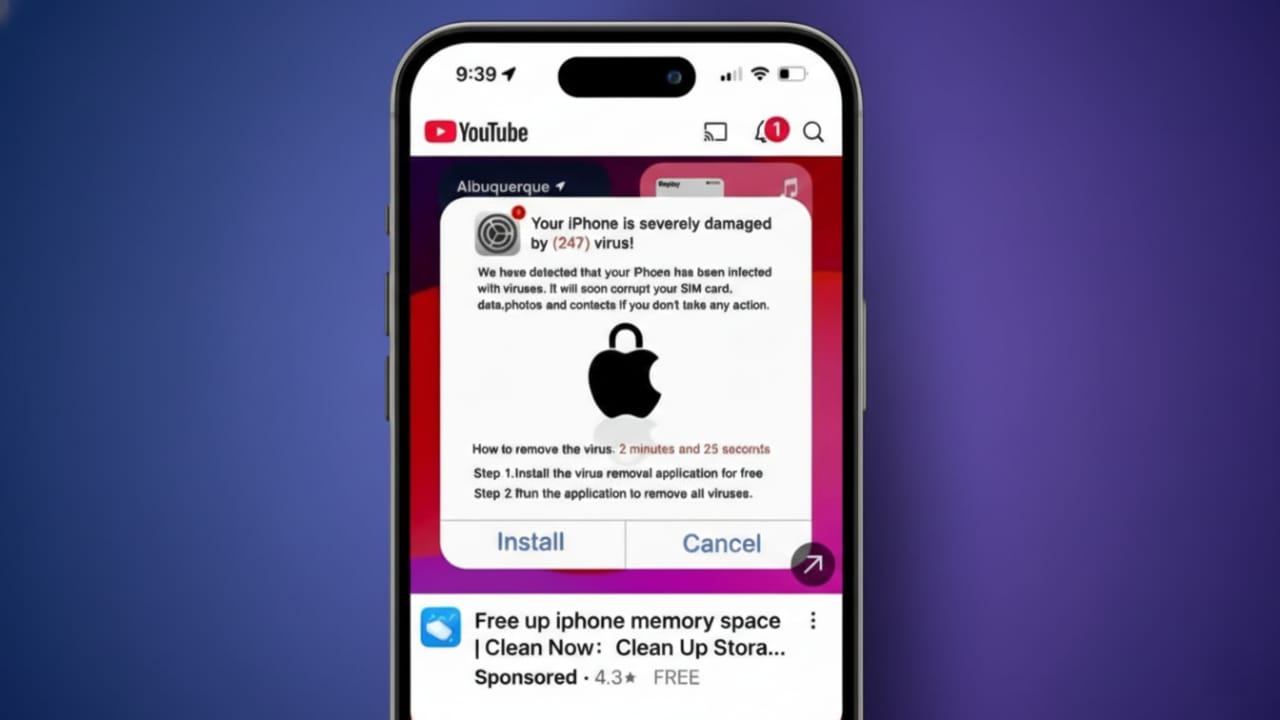
Many iPhone users suddenly see alarming pop-ups claiming their device is hacked or infected. These warnings look serious and urgent, which makes people panic. In most cases, these messages are not real. They are scams designed to scare you into clicking links or sharing personal information.
The good news is that these fake alerts are easy to remove once you know what to do. This guide explains everything in clear, simple language so anyone can follow it safely.
Also read: How to Save and Back Up Instagram Messages – A Clear Step-by-Step Guide
What Fake Apple Security Alerts Really Are
These alerts pretend to be official Apple warnings, but they are not sent by Apple. They usually appear while browsing the internet, especially on unsafe or misleading websites.
Apple does not send virus warnings through Safari pop-ups. Apple also never asks you to call support numbers or enter your Apple ID through browser alerts. Any message that does this is a scam.
Common Messages Used by Scammers
Fake alerts often repeat the same fear-based lines, such as:
- “Your iPhone has been hacked”
- “Apple Security Alert: Virus detected”
- “Your Apple ID has been locked”
- “Call Apple Support immediately”
These messages are created to pressure you into acting quickly. Their goal is to steal passwords, payment details, or trick you into installing unwanted apps or profiles.
Why These Alerts Appear on Your iPhone
Most fake alerts come from risky browsing activity, not from your iPhone itself. Common causes include:
- Visiting unsafe or fake websites
- Allowing notifications from unknown sites
- Accidentally subscribing to spam calendars
- Installing untrusted apps, profiles, or VPNs
Some websites ask for notification permission without clearly explaining why. If you tap “Allow” without checking, they can send alerts anytime. In other cases, spam calendar events are added and show warning messages every day.
What to Do Immediately When You See a Fake Alert
Do not tap any buttons inside the alert. Avoid clicking “OK,” “Cancel,” or any links.
Instead, close Safari completely.
How to Force Close Safari
- On Face ID iPhones: swipe up and hold, then swipe Safari away
- On Touch ID iPhones: double-press the Home button and swipe Safari up
This stops the scam page from running in the background.
Clear Safari Data to Stop Repeated Alerts
Removing browsing data deletes saved cookies and scripts that trigger these pop-ups.
Clear Safari History and Website Data
- Open Settings
- Go to Safari
- Tap Clear History and Website Data
- Confirm your choice
Remove Website Data Only
- Open Settings → Safari
- Tap Advanced
- Select Website Data
- Tap Remove All Website Data
Remove Spam Calendar Subscriptions
Some scams add calendars that send fake warnings as events or notifications.
Delete Spam Calendars from Settings
- Open Settings
- Go to Calendar
- Tap Calendar Accounts
- Select Subscribed Calendars
- Remove any unknown calendars
Delete Using the Calendar App
- Open the Calendar app
- Tap Calendars at the bottom
- Remove any suspicious entries
Check and Remove Unknown Safari Extensions
Certain extensions can inject ads or pop-ups into Safari.
How to Check Extensions
- Open Settings → Safari
- Tap Extensions
- Disable or remove anything you don’t recognize
Only install extensions from trusted developers.
Remove Unknown Profiles and VPNs
Some scam sites install configuration profiles that change how your phone behaves.
How to Check
- Open Settings → General
- Tap VPN & Device Management
- Remove any profile or VPN you did not install
If this option is not visible, your device has no profiles installed.
Restart Your iPhone and Update iOS
After completing all steps, restart your iPhone. Then check for software updates.
- Open Settings → General → Software Update
- Install the latest update if available
Apple regularly improves security through iOS updates, especially for Safari.
Turn On Built-In Safari Protection
Safari has features that block many scam sites automatically.
Enable Pop-up Blocking
- Open Settings → Safari
- Turn on Block Pop-ups
Enable Fraudulent Website Warnings
- Open Settings → Safari
- Turn on Fraudulent Website Warning
Use Reader Mode for Safer Browsing
Reader Mode removes ads and pop-ups from supported websites.
Enable Reader Mode on a Page
- Open a webpage in Safari
- Tap the aA icon
- Select Show Reader
Enable Reader Mode for All Websites
- Open Settings → Safari
- Tap Reader
- Turn on All Websites
Block Risky Websites Using Screen Time
Screen Time lets you stop known bad websites from opening again.
Steps to Block Websites
- Open Settings → Screen Time
- Turn on Content & Privacy Restrictions
- Tap Content Restrictions → Web Content
- Select Limit Adult Content
- Add sites under Never Allow
If You Already Interacted with a Fake Alert
If you clicked something, act quickly.
If You Entered Apple ID Details
- Change your Apple ID password immediately
- Open Settings → Your Name → Sign-In & Security
- Check the list of connected devices
If You Installed an App
- Delete the app right away
- Check subscriptions under your Apple ID
- Cancel anything you don’t recognize
If You Shared Payment Information
- Contact your bank or UPI provider immediately
- Block cards and secure your accounts
Report Fake Alerts
Reporting scams helps protect other users.
You can report suspicious messages or websites by emailing:
If you received scam calls, report them to local authorities.
Also read: How to Resolve the ChatGPT Blocked Error (Simple & Safe Guide)
Final Thoughts
Fake Apple security alerts are meant to scare you, not protect you. They usually come from unsafe websites, not from Apple. Never trust virus warnings shown inside Safari.
Regularly clear Safari data, remove unknown permissions, and keep iOS updated. With safe browsing habits and a little awareness, your iPhone will stay secure and stress-free.

Jatin Rajput (Tech Golu) — Tech blogger & YouTuber with 6+ years of experience in WhatsApp, Instagram, Facebook, and mobile guides. Founder of TechGolu.in.