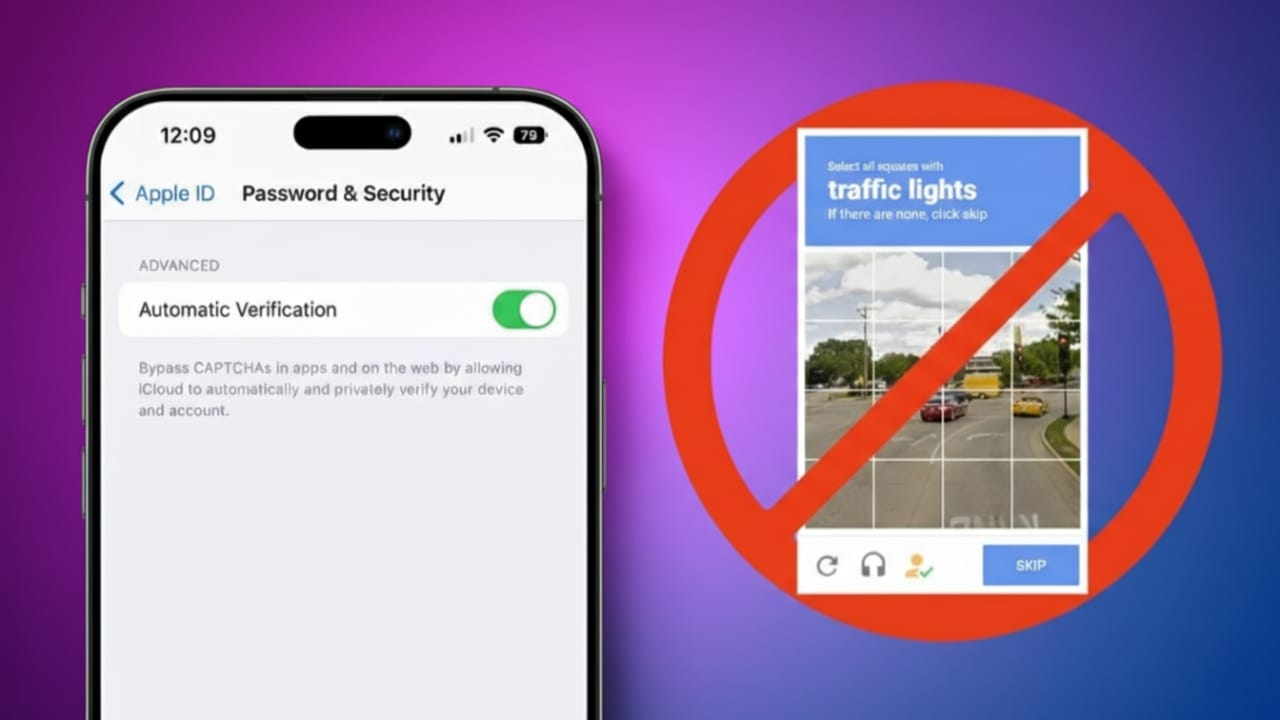
CAPTCHA tests are everywhere. You see them when logging in, signing up, or submitting forms. They ask you to prove you are human by solving image puzzles or clicking checkboxes. While they help protect websites, they also slow things down and break your browsing flow.
Apple has a built-in feature that quietly handles these checks for you. When supported, it verifies that you’re a real user without showing any puzzles. This makes browsing faster and far less annoying on iPhone, iPad, and Mac.
Also read: 10 Must-Play Skateboarding Games for Android and iPhone (2026 Edition)
What CAPTCHA Is and Why Websites Use It
CAPTCHA is a small security test used on websites. Its main goal is to stop automated bots. These bots try to send spam, create fake accounts, or guess passwords.
Common CAPTCHA tests include:
- Selecting images like traffic lights or buses
- Typing unclear letters
- Clicking a box that says “I’m not a robot”
Most humans pass these tests easily. Bots usually fail. But when you see CAPTCHAs again and again, even for simple tasks, it becomes frustrating and time-consuming.
That’s where Apple’s automatic verification system helps.
Apple’s Automatic Verification Explained
Apple introduced a privacy-focused feature that reduces how often you see CAPTCHA challenges. Instead of asking you to solve puzzles, your device confirms that you are a real user in the background.
This happens silently. You don’t tap anything. You don’t see any images. Your browsing continues without interruption.
How Automatic Verification Works
1. A Website Requests Verification
When you visit a supported website, it asks for human verification. Normally, this would trigger a CAPTCHA.
With Apple’s system enabled, your device takes over instantly.
2. Your Device Creates a Secure Token
Your iPhone, iPad, or Mac generates a Private Access Token.
This token confirms that:
- The request comes from a genuine Apple device
- The device passes security checks
- A real person is using it
All of this happens on your device. You don’t need to do anything.
3. Secure Validation Happens in the Background
Your device contacts Apple’s secure servers. Apple confirms that the device and Apple ID are valid.
A trusted server then approves the token.
No personal identity is shared during this step.
4. Your Privacy Stays Protected
Privacy is a core part of this process:
- Apple doesn’t see what websites you visit
- Websites don’t get your Apple ID
- No tracking data or personal details are shared
The website only receives confirmation that you’re a legitimate user.
5. CAPTCHA Is Skipped Automatically
If the website supports this system, it accepts the token and skips the CAPTCHA completely. You move forward without delays.
How to Check or Enable Automatic Verification
In most cases, this feature is already turned on. Still, it’s a good idea to check your settings. Make sure your device is updated and you’re signed in with your Apple ID.
On iPhone (iOS 16 or later)
- Open Settings
- Tap your name at the top
- Go to Sign-In & Security
- Tap Automatic Verification
- Turn it on if it’s off
If it’s already enabled, you’re good to go.
On iPad (iPadOS 16.1 or later)
The steps are similar:
- Open Settings
- Tap your Apple ID banner
- Select Password & Security
- Find Automatic Verification
- Enable it if needed
Supported apps and websites will now skip CAPTCHA.
On Mac (macOS Ventura or later)
- Open System Settings
- Click your name
- Choose Sign-In & Security
- Select Automatic Verification
- Turn the feature on
- Click Done
Once enabled, browsing becomes smoother on supported sites.
Why You Might Still See CAPTCHA Sometimes
You may still encounter CAPTCHA in certain cases. This is normal.
Possible reasons include:
- The website doesn’t support Apple’s verification system
- You’re not signed in with your Apple ID
- Your device software is outdated
Automatic Verification only works on supported websites. If a site hasn’t adopted this system, it will still show traditional CAPTCHA tests.
Keeping your device updated and staying signed in helps reduce these interruptions.
Also read: Apple Year of the Horse 2026 Wallpapers: How to Download and Use Them
Final Thoughts
Automatic CAPTCHA bypass on iPhone and Mac makes everyday browsing faster and less frustrating. You no longer have to solve the same image puzzles again and again.
The process runs quietly in the background and keeps your privacy intact. Just make sure your Apple ID is active and your device software is up to date.
On supported websites, CAPTCHA simply disappears — and browsing feels smooth again.

Jatin Rajput (Tech Golu) — Tech blogger & YouTuber with 6+ years of experience in WhatsApp, Instagram, Facebook, and mobile guides. Founder of TechGolu.in.