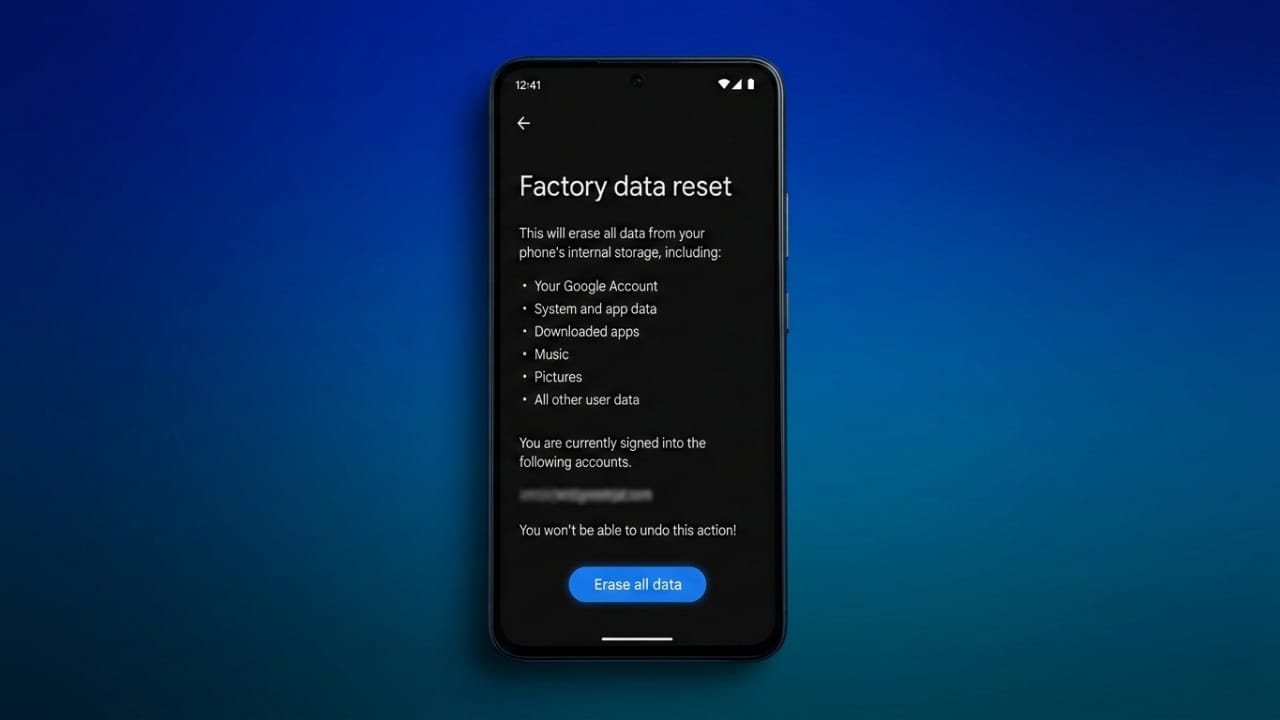
Sometimes an Android phone starts running slowly, apps crash frequently, or the system feels cluttered. In many cases, resetting the phone can solve these problems. However, people often worry that a reset will erase their photos, contacts, and other important files.
The good news is that you can reset your Android device safely if you prepare properly. By creating a backup and restoring it afterward, your personal information can remain protected.
This guide explains a simple and safe way to reset your Android phone while keeping your important data secure.
Also read: How to Create AI Images with Midjourney: A Simple Step-by-Step Guide (2026)
Key Points to Remember
- Always create a full backup before resetting your device.
- Cloud services such as Google Backup help restore your information later.
- A reset can improve phone performance and clear unnecessary system files.
Why People Reset Their Android Phones
As you use your phone, apps and system processes create temporary files. Over time, these files can build up and affect performance. You may notice slower speeds, lagging apps, or occasional system glitches.
Resetting the device removes this accumulated data and gives the system a fresh start.
Common reasons people reset their phones include:
- Fixing slow performance or freezing issues
- Removing unwanted files and system errors
- Preparing the phone before selling or giving it to someone else
- Solving software problems caused by crashes or bugs
Although resetting can help improve performance, doing it without preparation may remove all your personal data. That is why backing up your information is the most important step.
Steps to Reset an Android Phone Safely
Resetting your device while keeping your data safe usually involves three stages:
- Backing up your information
- Performing the factory reset
- Restoring your data after the reset
Let’s go through each step.
1. Back Up Your Data First
Before starting a reset, make sure your important files are saved somewhere safe. This includes contacts, photos, messages, apps, and settings.
One of the easiest ways to do this is by using the built-in Google backup feature.
How to back up your Android phone:
- Open Settings on your device.
- Tap Google and select Backup.
- Choose Back up now.
- Wait until the process finishes.
The first backup may take a little time, especially if you have many photos or apps. It is recommended to connect to Wi-Fi and keep your phone plugged in during the process.
Back Up Authentication Apps
If you use two-factor authentication apps such as Google Authenticator, Authy, or Microsoft Authenticator, make sure their codes are backed up as well. Many of these apps offer cloud backup options that allow you to restore your login access later.
Additional Things to Do Before Resetting
Taking a few extra precautions can make the process smoother:
- Disconnect any paired Bluetooth devices
- Sign out of apps and accounts if needed
- Remove your SIM card and memory card
- Turn off features like Find My Device
These steps help protect your privacy and prevent issues during the reset.
2. Perform the Factory Reset
After your backup is complete, you can safely reset the phone. The exact steps may vary slightly depending on the device brand.
For Most Android Phones
- Open Settings.
- Go to System.
- Select Reset options.
- Tap Erase all data (Factory reset).
- Choose Reset phone.
- Enter your PIN or password to confirm.
For Samsung Devices
- Open Settings.
- Tap General Management.
- Select Reset.
- Choose Factory data reset.
- Enter your security PIN or password.
- Tap Delete All.
If your microSD card is encrypted, decrypt it before resetting the phone. This option is usually available in the storage or security settings.
Once the reset begins, the phone will restart and return to its original system state.
3. Restore Your Data After the Reset
After the phone turns on again, the setup process will start. During this stage, you can restore the information that you backed up earlier.
To restore your data:
- Connect the phone to Wi-Fi.
- Sign in with your Google account.
- Select Copy apps & data when the option appears.
- Choose A backup from an Android phone.
- Select the most recent backup.
- Pick the apps and data you want to restore.
Your phone will begin downloading your apps, contacts, and settings automatically. Some data may restore immediately, while the rest continues in the background.
Also read: Samsung Galaxy Unpacked 2026: Galaxy S26 Series, AI Upgrades, and Buds4 Revealed
Final Thoughts
Resetting an Android phone can help fix performance problems and remove unnecessary files. The key is to prepare properly before starting the process.
Always back up your important information using a trusted cloud service. After the reset, restore the backup during the setup process. This simple approach allows you to refresh your device while keeping your personal data safe.

Jatin Rajput (Tech Golu) — Tech blogger & YouTuber with 6+ years of experience in WhatsApp, Instagram, Facebook, and mobile guides. Founder of TechGolu.in.