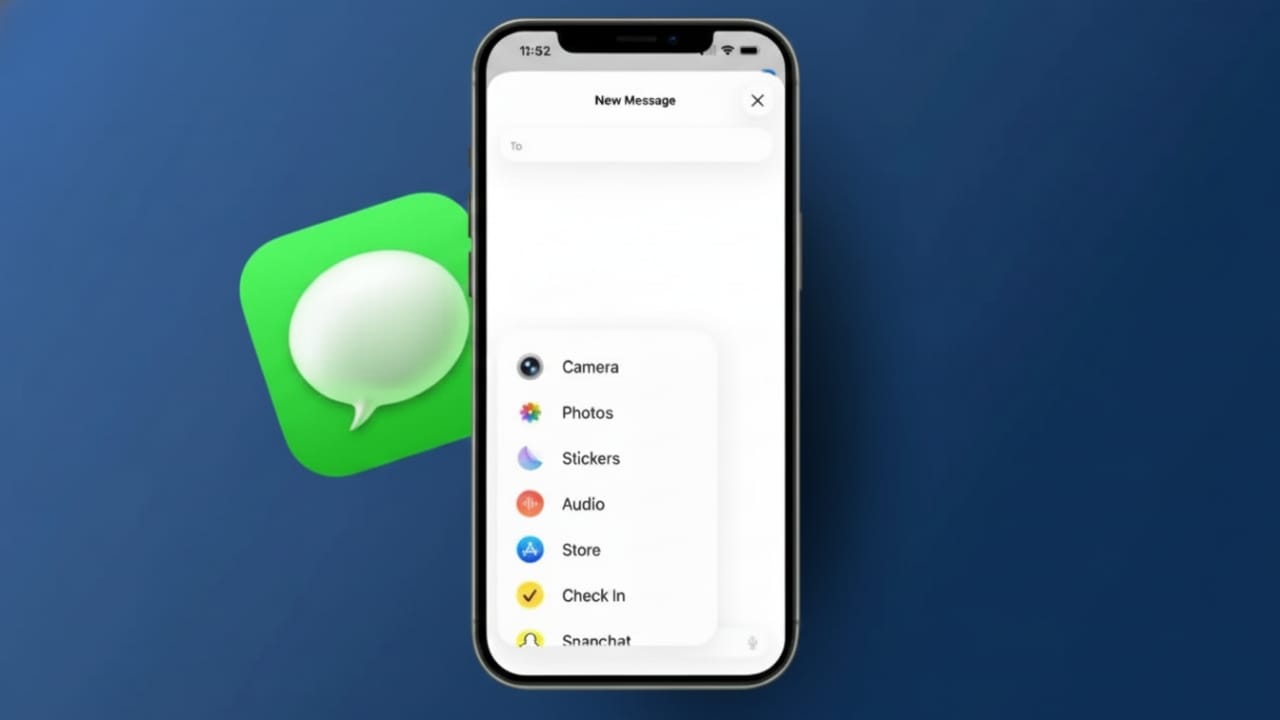
Apple has changed how iMessage apps appear in recent iOS versions. The new design looks clean, but many users feel confused at first. Apps now sit inside a drawer instead of showing above the keyboard. If you don’t manage them, the list can quickly feel crowded.
This guide explains everything in clear and easy language. You will learn what iMessage apps are, how to arrange them, hide unused ones, remove apps you don’t need, and download new tools. No technical knowledge is required.
Also read: How to Check Parts and Service History on an iPhone (2025 Guide)
What Are iMessage Apps?
iMessage apps are small features that work inside the Messages app. They let you do more without leaving a chat. You can send stickers, GIFs, photos, voice messages, or even play games with friends.
Some apps help with practical tasks. For example, Apple Cash allows money transfers in chats. Other apps share locations, music, or social media content. Many regular apps automatically add an iMessage extension when installed on your device.
This saves time during setup, but it also fills the app drawer with tools you may never use. When too many apps appear together, finding the right one becomes slow and frustrating.
The New Messages App Layout Explained
In newer iOS versions, Apple removed the old horizontal app bar. Instead, you now see a Plus (+) button next to the message box. Tapping it opens a vertical list of apps.
System features like Photos, Audio, and Stickers appear at the top. Third-party apps show below them. Everything stays in one place, which looks neat but feels different from earlier designs.
Apple also adds new features over time. Some versions include creative tools that let users generate images or characters directly in Messages. These features aim to make conversations more fun, but they also add more items to the app drawer.
To keep things simple, it helps to understand how to manage this list properly.
How to Rearrange iMessage Apps
Changing the order of apps makes daily messaging faster. You can move frequently used tools to the top and push rarely used ones lower.
Steps to reorder apps:
- Open the Messages app
- Open any conversation
- Tap the Plus (+) button
- Scroll through the app list
- Press and hold an app icon
- Drag it up or down
- Release to save the new position
The order updates instantly. No confirmation is needed. This does not uninstall or hide the app. It only changes where it appears.
Keep essential apps like Photos near the top. Fun apps like games can stay lower if you don’t use them often. A simple order reduces scrolling and saves time.
Using Favorites for Faster Access
You can mark certain apps as favorites. Favorite apps always appear at the top of the drawer.
Only add apps you truly use often. Keeping too many favorites defeats the purpose. Three or four apps are usually enough for smooth access.
This small step makes a big difference during daily conversations.
How to Hide iMessage Apps You Rarely Use
Sometimes rearranging is not enough. If you want fewer apps visible, hiding them is a good option. Hidden apps stay installed but disappear from the drawer.
Steps to hide iMessage apps:
- Open Settings
- Scroll down and tap Apps
- Select Messages
- Tap iMessage Apps
- Find the app you don’t use
- Turn off its toggle
The app will no longer appear in Messages. You can turn it back on anytime.
Note: Some sticker packs or special apps cannot be hidden. In those cases, deletion is the only solution.
How to Delete iMessage Apps Completely
If you never use an app, removing it is the best way to reduce clutter. iMessage extensions are removed by deleting their main app.
Steps to delete an app:
- Go to the Home Screen
- Find the app linked to the iMessage feature
- Press and hold the app icon
- Tap Delete App
- Confirm the deletion
Once deleted, the iMessage app disappears automatically. No extra steps are needed.
If changes do not appear immediately, restart your device or check that your iOS version is up to date.
How to Download New iMessage Apps
You can also add new apps designed specifically for iMessage.
Steps to download apps:
- Open Messages
- Start or open a chat
- Tap the Plus (+) button
- Tap the Store icon
- Browse available apps
- Tap Get or the price button
- Enter your Apple account details if asked
- Close the store and return to chat
Some apps include optional in-app purchases. If you use Family Sharing, features like Ask to Buy help control downloads for children.
Simple Habits to Keep Messages Clean
Keeping your iMessage drawer organized is easy if you follow small habits:
- Review the app list regularly
- New apps may add extensions automatically
- Keep only a few favorites
- Hide apps used occasionally
- Delete apps you never open
- Move important tools to the top
These steps take only a minute but greatly improve your messaging experience.
Also read: Face ID Not Working on iPhone? Simple and Complete Fix Guide
Final Thoughts
Managing iMessage apps on iPhone or iPad does not have to be confusing. Apple’s new layout gives users full control once they know where to look. You can reorder, hide, remove, or add apps anytime.
A clean app drawer keeps chats focused and distraction-free. With a little organization, messaging becomes faster, smoother, and more enjoyable every day.

Jatin Rajput (Tech Golu) — Tech blogger & YouTuber with 6+ years of experience in WhatsApp, Instagram, Facebook, and mobile guides. Founder of TechGolu.in.