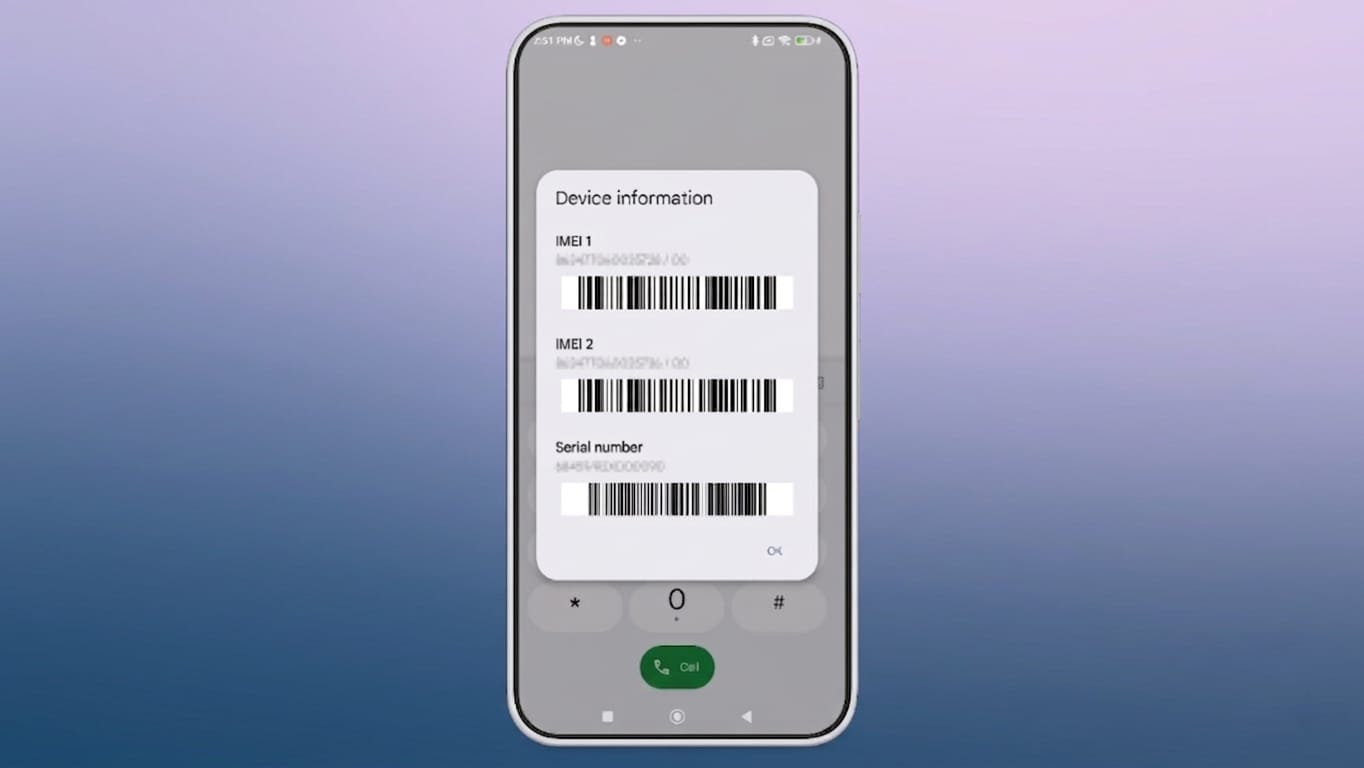
Every mobile phone comes with a special identification number known as the IMEI (International Mobile Equipment Identity). This 15-digit number is unique to your device and is often needed for tasks like reporting a lost phone, blocking it, or getting service support.
In this guide, you’ll learn simple and practical ways to check your IMEI number on any Android phone.
Also read: Fix OneDrive Not Running on Windows 11 (Easy Step-by-Step Guide)
What is an IMEI Number and Why It Matters
The IMEI works like an ID for your phone. It helps mobile networks recognize your device. You may need it when:
- Your phone is lost or stolen
- You want to block your device
- You visit a service center
- You need proof of ownership
If your phone supports two SIM cards, it will usually have two IMEI numbers.
1. Check IMEI Using Phone Settings
The easiest way to find your IMEI is through your phone’s settings. This method works on most Android devices.
For Standard Android Phones:
- Open Settings
- Tap on About Phone
- Scroll down to find IMEI details
You will see the IMEI number along with other device information.
For Xiaomi Phones:
- Open Settings
- Tap About Phone
- Go to Detailed info and specs
- Tap Status
- View your IMEI number
For Samsung Phones:
- Open Settings
- Tap About Phone
- Check the IMEI number displayed
On some older Samsung devices, you may need to tap Status to see it.
2. Use the Dial Code (Fastest Method)
This is the quickest way to check your IMEI.
- Open the Phone (Dialer) app
- Type *#06#
- The IMEI number will appear instantly
You don’t need to press the call button. You can also copy the number directly from the screen.
3. Check the SIM Tray
Some phones have the IMEI printed on the SIM card tray.
- Remove the SIM tray using the ejector tool
- Look for small printed numbers on the tray
- Dual SIM phones may show two IMEI numbers
Be careful while inserting the tray back.
4. Look at the Back of the Phone
Older devices sometimes have a sticker on the back with device details.
- Check for a label with a barcode
- The IMEI is usually printed near it
You can scan the barcode using apps to avoid typing the number manually.
5. Check the Phone Box
If your phone isn’t with you, the original box can help.
- Look for a label on the box
- You’ll find IMEI numbers and barcodes printed there
This is useful if your phone is lost or damaged.
6. Find IMEI on Purchase Bill
Sometimes, the IMEI is mentioned on your purchase invoice.
- Check the bill given by the seller
- Look for device details or IMEI number
Always keep your invoice safe for future use.
7. Find IMEI Without the Phone
Even if your phone is missing, you can still access the IMEI using your accounts.
Using Your Google Account:
- Open your browser and go to your Google account
- Search for Find your phone
- Select your device from the list
- Click on device details
You’ll see the IMEI along with options to ring, lock, or erase your device.
For Samsung Users:
- Install the Samsung Members app on another device
- Log in with your Samsung account
- Tap Support → My Products
- Select your device
- View IMEI details
Also read: How to Install Google Play Store on Windows 11 (Simple Guide – 2026)
Final Thoughts
Knowing your IMEI number is important for your phone’s safety and identification. It can help in emergencies like theft or loss and is often required for repairs or verification.
Make sure to note it down and store it somewhere secure. It’s a small step that can save you a lot of trouble later.

Jatin Rajput (Tech Golu) — Tech blogger & YouTuber with 6+ years of experience in WhatsApp, Instagram, Facebook, and mobile guides. Founder of TechGolu.in.