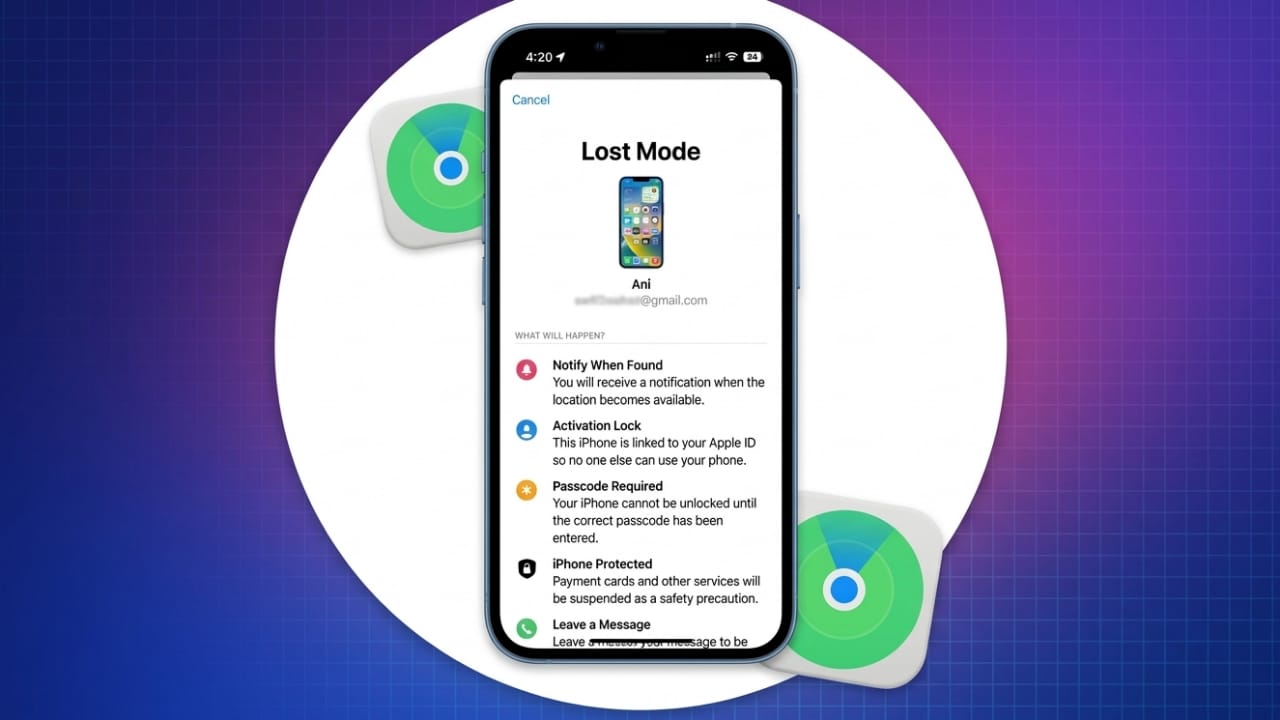
Losing your iPhone or iPad can feel stressful, but acting fast can keep your personal data safe. Apple provides a feature called Lost Mode that helps you lock your device, stop payments, and track its location. This guide explains how it works, how to turn it on, and what steps to take next.
Also read: How to Understand the Meaning of Emojis on iPhone
What Is Lost Mode and Why It Matters
Lost Mode is a security feature built into Apple’s Find My system. When you activate it, your device becomes locked and harder for anyone else to use.
Here’s what happens when Lost Mode is turned on:
- Your device locks using your passcode
- You can set a passcode if you didn’t have one before
- Apple Pay and stored cards are temporarily disabled
- Notifications are muted, but calls can still come through
- A custom message with your contact number appears on the screen
- The device location updates when it connects to the internet
- You receive a confirmation email from Apple
Your data stays safe because Lost Mode does not delete anything. It simply prevents unauthorized access.
When Lost Mode Works (Important Conditions)
Lost Mode only works if certain settings were already enabled before the device went missing:
- Find My must be turned on
- Your device must be signed in to your Apple account
- The device should have battery and internet access
If your device is offline, don’t worry. Lost Mode will activate automatically once it connects to Wi-Fi or mobile data.
If Find My was never enabled, you won’t be able to track or lock the device remotely. In that case, change your Apple account password immediately to protect your information.
How to Turn On Lost Mode
You can enable Lost Mode in two simple ways: through a web browser or another Apple device.
Method 1: Using iCloud (Browser)
Follow these steps from any phone or computer:
- Open icloud.com/find
- Sign in to your Apple account
- Click on All Devices
- Select your lost iPhone or iPad
- Choose the Lost Mode option
- Enter a phone number and message (for example: “This device is lost. Please call me.”)
- Tap Activate
Method 2: Using the Find My App
If you have another Apple device:
- Open the Find My app
- Go to the Devices section
- Select your missing device
- Tap Lost Mode
- Press Continue
- Add your contact number and message
- Tap Activate
Once done, your device locks immediately.
What Happens After Activation
After you enable Lost Mode, your device enters a protected state:
- It locks right away
- Your message shows on the screen
- Payment cards are disabled
- Location updates appear when online
- Apple sends you a confirmation email
If the device moves, you’ll see updated locations whenever it connects to the internet.
What to Do If Your Device Was Stolen
If your device appears in an unknown location, do not try to recover it yourself. Your safety comes first.
Take these steps instead:
- Contact local authorities and report the theft
- Inform your mobile carrier and suspend your SIM
- File a claim if you have theft coverage
- Keep the device listed in Find My
Also, be careful of scams. Apple will never call or message you asking for your passcode or verification code.
When to Erase Your Device Remotely
If you believe you won’t get your device back, you can erase it remotely. This deletes all your data permanently.
You can do this from iCloud or the Find My app by selecting the Erase option.
Important:
Do not remove the device from Find My after erasing it. Keeping it there ensures Activation Lock stays on, making it harder for anyone else to use or sell the device.
How to Turn Off Lost Mode
Once you recover your device, you can disable Lost Mode easily.
Option 1: Using iCloud
- Go to icloud.com/find
- Select your device
- Click Lost Mode
- Choose Stop Lost Mode and confirm
Option 2: Directly on the Device
- Unlock your iPhone or iPad using your passcode
- Lost Mode will turn off automatically
After that, your Apple Pay cards will start working again once you sign back in.
Final Safety Check
If your device was lost or stolen, take a few extra minutes to secure your account:
- Review your Apple account settings
- Remove any unknown devices
- Update your password if needed
Also read: What Is Switch Control on iPhone and iPad? A Simple Guide to Using It
Conclusion
Acting quickly is the key to protecting your data. Lost Mode gives you control over your device within minutes. If you haven’t enabled Find My yet, it’s a good idea to turn it on now so you’re prepared in case anything happens in the future.

Jatin Rajput (Tech Golu) — Tech blogger & YouTuber with 6+ years of experience in WhatsApp, Instagram, Facebook, and mobile guides. Founder of TechGolu.in.