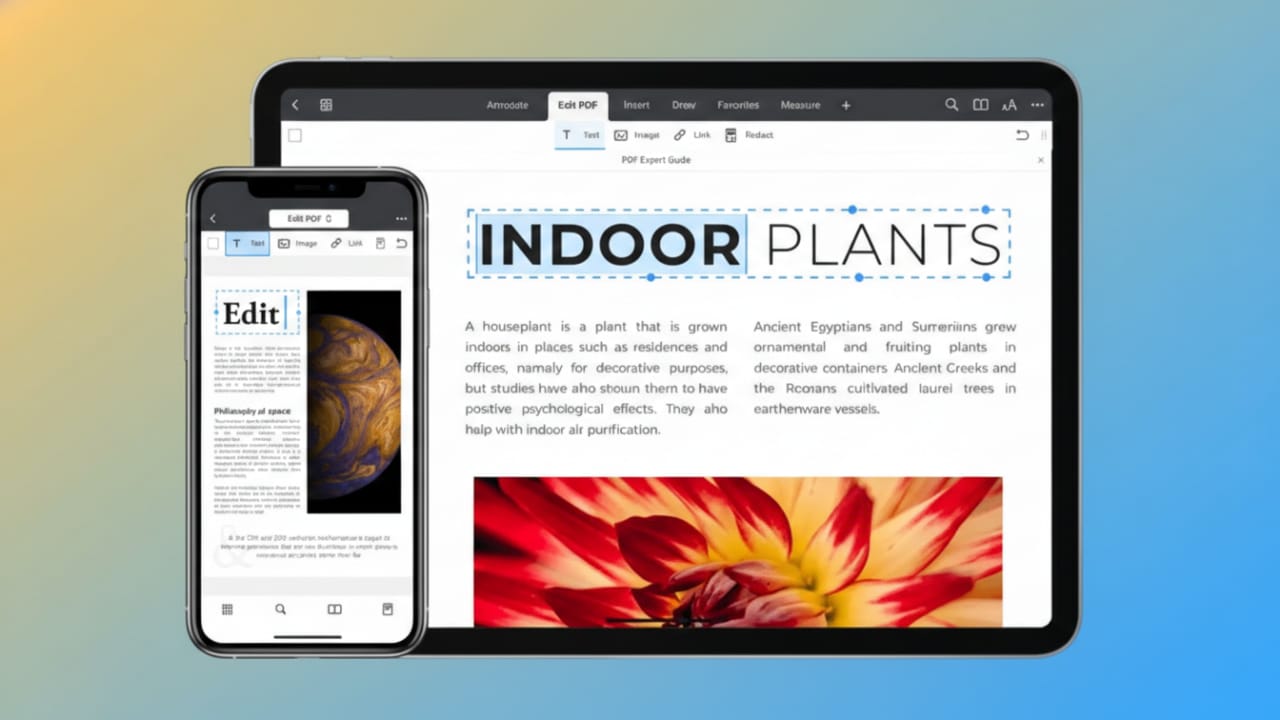
PDF files are part of daily life now. People use them for school notes, office work, bills, contracts, and application forms. Often, you just need to highlight a line, add a comment, sign a document, or fill out a form quickly.
The good news is that you can do all of this directly on your iPhone or iPad. There’s no need to open a laptop or pay for expensive software. Apple already provides free tools, and there are also reliable third-party options when you need more control.
Let’s go through the best and safest ways to edit PDFs on iPhone and iPad in 2026.
Also read: How to Properly Set Up a New iPad in 2026 (Beginner-Friendly Guide)
Edit PDFs Using the Preview App
Preview has become the main PDF editing tool on iOS and iPadOS. It focuses on annotations and markup rather than rewriting full paragraphs. The interface is designed for touch, so it works smoothly on mobile screens.
How to Open a PDF in Preview
- Open the Preview app on your device
- Find and tap your PDF file
- Tap the Markup (pen) icon
- Editing tools will appear instantly
What You Can Do in Preview
Preview is great for everyday PDF tasks. You can:
- Draw freely using pen tools
- Highlight or underline important text
- Add text boxes anywhere on the page
- Insert a digital signature
- Place shapes like arrows or boxes
- Zoom into small areas using the loupe tool
Managing Pages in Preview
Preview also lets you control pages in multi-page PDFs.
- Open page thumbnails from the top corner
- Insert blank pages or pages from another file
- Scan new pages using the camera
- Delete pages you don’t need
- Rotate pages left or right
All changes are saved automatically when you exit the file, so you don’t need to worry about losing your work.
Edit PDFs Through the Files App
The Files app works as a document manager on iPhone and iPad. When you open a PDF from Files, it launches Preview automatically for editing.
Steps to Edit a PDF in Files
- Open the Files app
- Locate your PDF
- Tap the file to open it
- Press the Markup (pen) icon
Available Editing Options
Using Preview inside Files, you can:
- Highlight or underline text
- Add notes and text boxes
- Draw annotations
- Insert signatures
- Fill out fillable PDF forms
- Rotate or delete pages
Edits are saved directly to the same location. If the document is important, it’s a smart idea to create a copy before making major changes.
Edit PDFs Using the Notes App
The Notes app is useful when you want to review a document and add explanations alongside it. This method does not change the original PDF file.
How to Add a PDF to Notes
- Open Notes
- Create a new note
- Tap the attachment icon
- Choose Attach File
- Select your PDF
Editing Inside Notes
Once the PDF is inside the note:
- Tap the Markup icon
- Highlight or underline text
- Add comments and text boxes
- Draw or sign the document
All edits stay inside the note. The original PDF remains untouched. This method is especially helpful for teachers, students, and reviewers.
Edit PDFs Online Without Creating an Account
Online PDF editors are useful when you don’t want to install an app. Some services allow free editing directly in the browser.
How Online PDF Editing Works
- Upload your PDF to the editor
- Choose editing tools from the menu
- Make changes like highlights or comments
- Download the edited file
You can usually:
- Highlight, underline, or strike text
- Add comments and shapes
- Insert text or stamps
- Sign documents digitally
Keep in mind that online tools require an internet connection, and very large files may have size limits.
Offline PDF Editing with Dedicated Apps
If you want deeper editing without relying on the internet, offline PDF apps are a better choice. These apps allow more control over text and layout.
What Offline Editors Can Do
- Add new text directly inside the PDF
- Edit existing text blocks
- Insert shapes, lines, and comments
- Keep formatting intact
- Export files without watermarks
Offline editing is faster and more reliable for large documents.
Using Advanced PDF Editing Apps
Built-in Apple apps are perfect for basic tasks. However, they have limits. For complex work, advanced PDF editors are more suitable.
These apps are useful when you need to:
- Edit paragraph text
- Merge multiple PDFs
- Rearrange pages across files
- Adjust layout and formatting
- Work with large documents
Most professional tools offer free basic features, with advanced options available through paid plans.
What You Can and Can’t Edit on iPhone
Knowing the limits helps you choose the right tool.
Things You Can Edit Easily
- Highlight and underline text
- Add comments and notes
- Draw annotations
- Sign documents
- Fill PDF forms
- Rotate or delete pages
Things That Need Special Apps
- Changing original paragraph text
- Modifying fonts and typography
- Redesigning page layout
- Merging multiple PDFs
- Batch editing files
Simple Tips for Faster PDF Editing
Editing on a small screen can feel tricky, but these tips help a lot:
- Use a stylus for better accuracy
- Zoom in before highlighting small text
- Always duplicate important files
- Use different colors for highlights
- Save files in organized folders
- Rename edited PDFs clearly
These small habits reduce mistakes and save time.
Also read: How to Turn On Live Captions on iPhone, iPad, and Mac
Final Thoughts
Editing PDF files on iPhone and iPad has become easy and practical. Free tools like Preview, Files, and Notes cover most daily needs. Online editors offer quick fixes, while offline apps give more control.
Choose the method that matches your task. Whether it’s signing a form or reviewing a document, you can now handle PDFs confidently—right from your phone or tablet.

Jatin Rajput (Tech Golu) — Tech blogger & YouTuber with 6+ years of experience in WhatsApp, Instagram, Facebook, and mobile guides. Founder of TechGolu.in.