Is your Facebook app feeling slow or freezing while you scroll? This can often happen when temporary files stored by the app start piling up. Clearing the cache is a quick way to refresh the app, remove unnecessary data, and improve performance.
The best part is that clearing the cache does not delete your account, posts, messages, or personal data. It only removes temporary files that help the app load faster.
In this guide, you’ll learn what Facebook cache is, why it can sometimes cause issues, and how to clear it easily on both iPhone and Android devices.
Also read: How to Remove Someone from Your Facebook Friends List (Easy Guide)
What Is Facebook Cache?
When you use Facebook to browse posts, watch videos, or open photos, the app saves certain temporary files on your device. These files are known as cache.
The purpose of this data is to make the app load faster. For example, if you view the same image again, Facebook can load it from the stored cache instead of downloading it again.
Facebook mainly uses three types of cached data:
1. In-App Browser Cache
When you tap links inside Facebook, they open in the app’s built-in browser. This browser stores cookies and website data to speed up future visits.
2. Web Browser Cache (Desktop Use)
If you use Facebook in browsers like Chrome, Safari, or Firefox on a computer, the browser saves images and files related to Facebook.
3. App Cache
The Facebook app itself stores temporary files such as thumbnails, images, and videos on your phone, especially on Android devices.
While this data helps the app work faster, it can build up over time and sometimes lead to performance problems.
Why Clearing Facebook Cache Helps
Removing cached files occasionally can improve how the app works. Here are some reasons why clearing the cache can be useful:
1. Frees Up Storage Space
Every video you watch or profile you open may leave temporary data on your device. Over time, these files take up storage space. Clearing the cache removes unnecessary files and frees up memory.
2. Fixes Minor App Issues
If the app freezes, images fail to load, or buttons stop responding, corrupted cache files may be responsible. Removing them allows the app to create fresh files and function normally again.
3. Shows Updated Content
Sometimes Facebook may continue showing older cached data instead of new updates. Clearing the cache forces the app to download the latest posts, pages, and updates.
4. Removes Stored Browsing Data
Links opened inside Facebook can store cookies and browsing information. Clearing the cache removes these traces and helps maintain better privacy.
5. Helps After App Updates
When Facebook releases a new version, older cached files might conflict with updated features. Clearing the cache helps the updated app run smoothly.
How Often Should You Clear Facebook Cache?
There is no strict rule, but regular users may benefit from clearing the cache occasionally.
A simple guideline:
- Heavy users or frequent video watchers: every 1–2 weeks
- Average users: every 3–4 weeks
- Occasional users: only when the app feels slow
Since clearing cache only removes temporary files, it is safe to do whenever needed.
How to Clear Facebook Cache on iPhone and iPad
Apple devices do not include a direct option to clear cache for individual apps. However, you can remove cached data by offloading or reinstalling the app.
Method 1: Offload the App
- Open Settings on your device.
- Tap General.
- Select iPhone Storage (or iPad Storage).
- Find and tap Facebook.
- Tap Offload App.
This removes the app but keeps its documents and personal data.
Method 2: Delete and Reinstall the App
- Open Settings.
- Tap General → iPhone Storage.
- Select Facebook.
- Tap Delete App.
- Reinstall Facebook from the App Store.
You can also delete it directly from the Home Screen:
- Press and hold the Facebook app icon.
- Tap Remove App.
- Select Delete App and confirm.
Reinstalling the app removes all cached files and gives it a clean start.
How to Clear Facebook Cache on Android
Android devices allow you to clear app cache directly through system settings.
Follow these steps:
- Open Settings on your phone.
- Tap Apps or Application Manager.
- Find and select Facebook.
- Tap Storage or Storage & Cache.
- Tap Clear Cache.
This deletes temporary files only. Your login details, messages, photos, and posts remain unchanged.
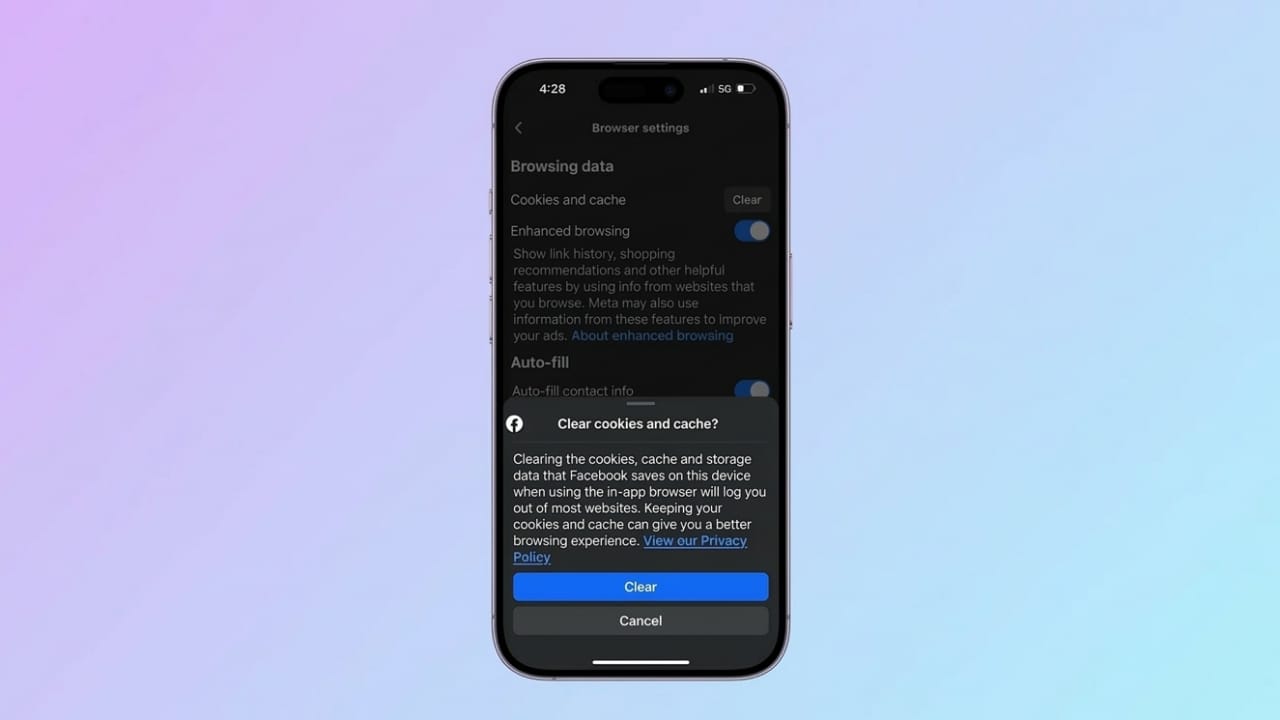
How to Clear Facebook In-App Browser Cache
Facebook has its own built-in browser that opens links within the app. This browser stores cookies and browsing data separately.
The steps are the same on both iPhone and Android.
- Open the Facebook app.
- Tap the Menu (☰) icon.
- Select Settings & Privacy.
- Tap Settings.
- Scroll to the Preferences section.
- Tap Browser.
- Tap Clear next to Cookies and Cache.
If prompted, confirm by selecting Clear.
What Happens After Clearing Facebook Cache?
After removing cached data, you may notice several improvements:
- Your device gains extra storage space
- Facebook downloads fresh data when opened again
- Your feed refreshes with updated posts and images
- The app may feel faster and smoother
- Minor glitches may disappear
Most importantly, your account information and personal content remain safe.
Extra Tips to Make Facebook Run Faster
If the app still feels slow, these simple adjustments may help:
- Try Facebook Lite (Android): This lighter version uses less storage and data.
- Disable video autoplay: Go to Settings → Media → Autoplay and turn it off.
- Update the app regularly: Updates often include performance improvements.
- Limit background activity: On Android, reducing background data usage may improve performance.
Also read: How to Change Your Name and Username on a Facebook Profile
Final Thoughts
Over time, Facebook stores temporary data that helps the app load faster. However, when this cache becomes too large or outdated, it can slow the app down.
Clearing the cache is a quick and safe way to refresh the app, free storage space, and resolve small performance issues. Whether you use an iPhone, iPad, or Android device, regularly removing temporary files can help keep Facebook running smoothly.

Jatin Rajput (Tech Golu) — Tech blogger & YouTuber with 6+ years of experience in WhatsApp, Instagram, Facebook, and mobile guides. Founder of TechGolu.in.