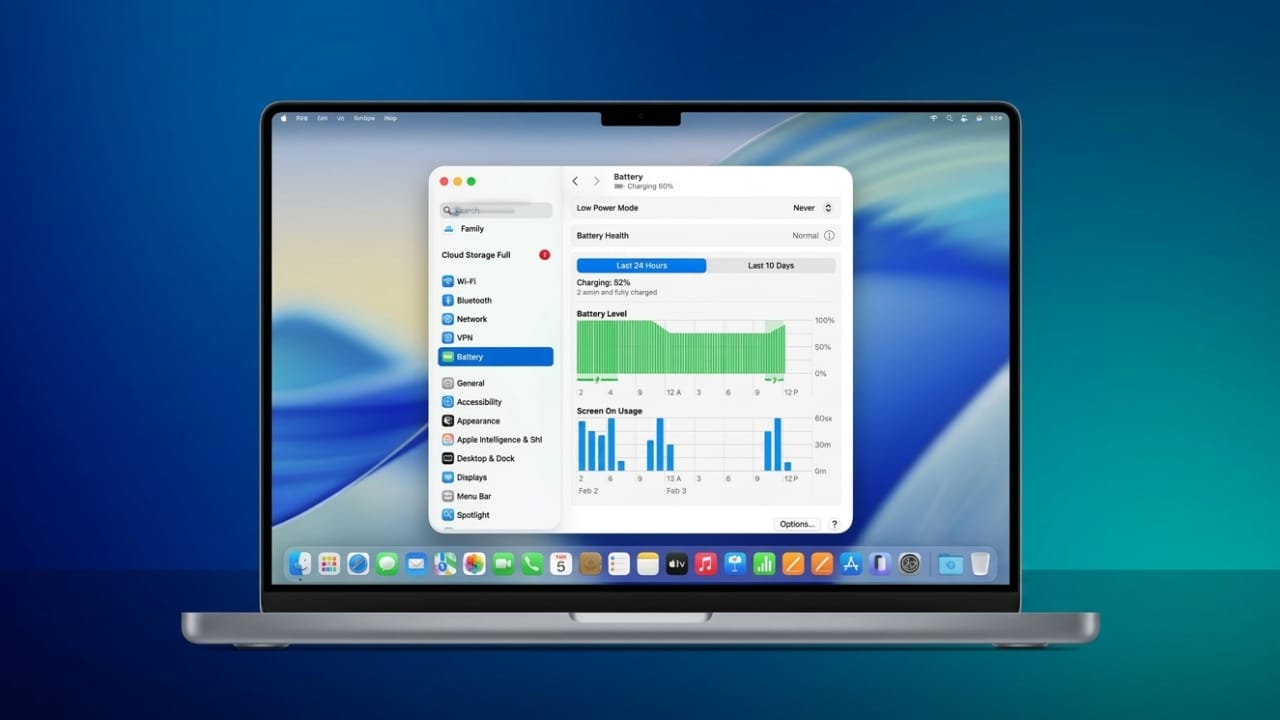
If your MacBook battery is running out quicker than usual, don’t worry—you can easily find out what’s causing it. macOS includes built-in tools that show how your battery is being used, helping you spot problems and improve battery life.
Let’s break it down in a simple way.
Also read: What Is Switch Control on iPhone and iPad? A Simple Guide to Using It
Why Battery Usage Matters
Your Mac’s battery affects everything you do—work, meetings, browsing, or travel. When it drains too fast, it can be frustrating.
Battery usage data helps you understand:
- What is using the most power
- How your usage affects battery life
- Whether your battery health is declining
Even though macOS doesn’t show long-term history like iPhones, it still gives enough information to make smart decisions.
What Battery Data You Can See on Mac
Mac shows short-term battery details, not long-term history.
Here’s what you can check:
- Battery level changes over time
- Screen usage (how long display stays on)
- Daily energy consumption
However, it does not provide:
- Full history over weeks or months
- Detailed app-wise battery history in one place
How to Check Battery Usage in System Settings
This is the easiest way to view battery data.
Steps:
- Click the Apple menu
- Open System Settings
- Select Battery
You can also click the battery icon in the top bar and open settings from there.
What You’ll See:
- Last 24 Hours → Recent activity
- Last 10 Days → Usage trends
These two views help you understand both short-term and slightly longer patterns.
Understanding the Battery Graph
The battery section shows useful visuals:
- Battery level graph → Shows how fast battery drops
- Charging periods → Highlighted sections when charging
- Screen usage bars → Show when display was active
- Energy usage → Indicates how hard your Mac was working
This makes it easier to identify when and why battery drops happen.
Screen On vs Screen Off Usage
This part is important.
- Screen On → When display is active (uses more battery)
- Screen Off → When Mac is idle or sleeping
If battery drops quickly during screen-off time, background apps might be the reason.
Can You See App-Wise Battery Usage?
Not exactly.
macOS does not show detailed battery history per app like iPhone does. Instead, it focuses on overall usage.
To check app activity, you need another tool.
Use Activity Monitor to Find Power-Hungry Apps
Activity Monitor helps you see which apps are currently using the most energy.
Steps:
- Open Activity Monitor
- Go to the Energy tab
Key things to check:
- Energy Impact → Current power usage
- 12-hour Power → Average usage over time
- Apps preventing sleep or using high performance
This tool is best for spotting apps that are draining battery right now.
Can You See Long-Term Battery History?
No, macOS only shows up to 10 days of data.
If you want longer tracking:
- You’ll need third-party apps
- Or track usage manually
Check Battery Health Using Terminal (Advanced)
If you want deeper battery details, you can use Terminal.
It can show:
- Current battery capacity
- Maximum capacity
- Charge cycle count
This helps you understand battery condition, but it does not show usage graphs.
Should You Use Third-Party Apps?
Some apps offer:
- Long-term tracking
- Charging history
- More detailed insights
But keep in mind:
- They may use extra resources
- Privacy can be a concern
- Data may not always be perfectly accurate
For most users, built-in tools are enough.
Common Reasons Your Mac Battery Drains Fast
Fast battery drain is usually caused by usage, not hardware failure.
Common reasons include:
- Old or worn-out battery
- High screen brightness
- Too many apps running in background
- Connected devices (USB, Bluetooth, etc.)
- Outdated macOS
Checking battery usage helps confirm the real cause.
Tips to Improve Battery Life
Once you understand your usage, try these simple fixes:
- Reduce screen brightness
- Enable Low Power Mode
- Close unused apps
- Disconnect unnecessary accessories
- Keep macOS updated
- Check battery condition regularly
Small changes can make a big difference.
Also read: How to Enable Lost Mode on iPhone or iPad (Quick Guide to Secure Your Device)
Final Thoughts
Mac may not show detailed long-term battery history, but its built-in tools are still very useful.
- Battery Settings → Show usage patterns
- Activity Monitor → Shows active power usage
- Terminal → Gives battery health info
By checking these regularly and adjusting your habits, you can reduce battery drain and make your MacBook last longer throughout the day.

Jatin Rajput (Tech Golu) — Tech blogger & YouTuber with 6+ years of experience in WhatsApp, Instagram, Facebook, and mobile guides. Founder of TechGolu.in.