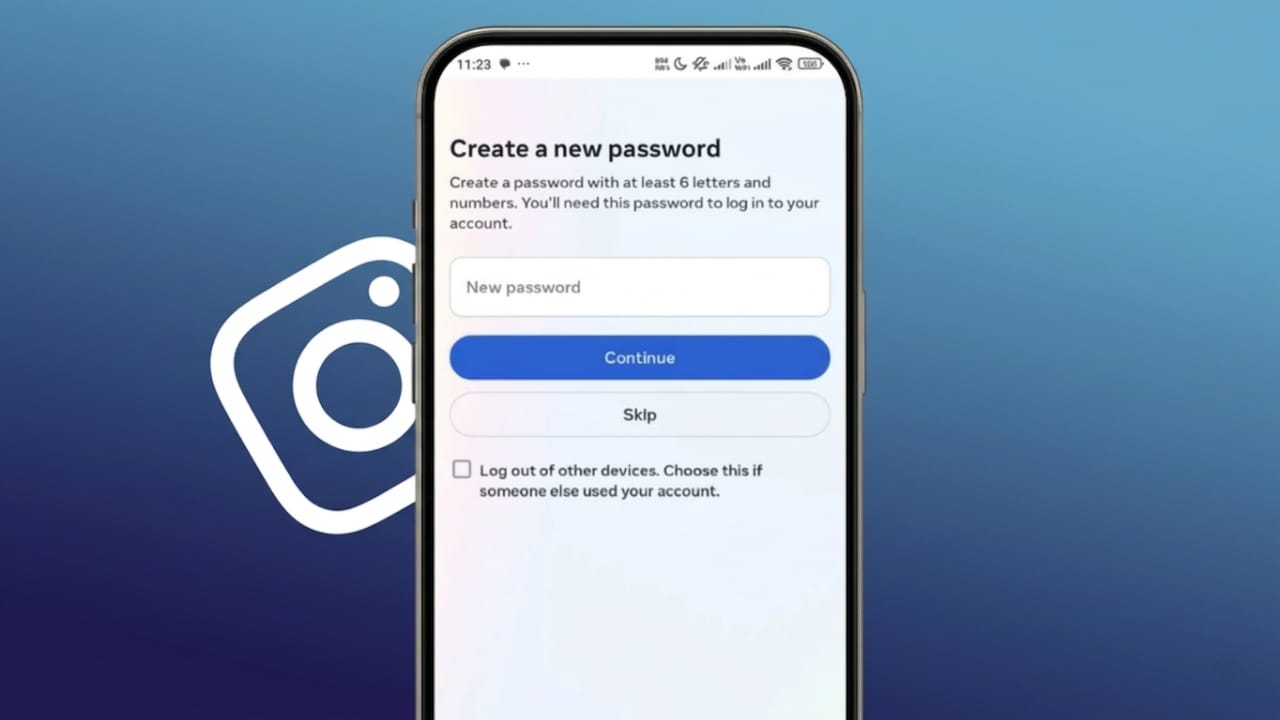
Keeping your Instagram password updated is one of the easiest ways to protect your account. Many people forget their passwords or get locked out, but the good news is that Instagram provides simple ways to fix this.
In this guide, you’ll learn how to reset your password, change it, and recover your account step by step. Everything is explained in a clear and beginner-friendly way.
Also read: How to Change Your Instagram Business Account Back to Personal
If You Forgot Your Password
Forgetting a password is very common. Instagram allows you to reset it using your email, phone number, or username.
Here’s how to do it:
- Open the Instagram login page.
- Tap on “Forgot password?”
- Enter your email, phone number, or username.
- Tap “Send login link.”
Instagram will send you either:
- A reset link via email, or
- A security code via SMS
Open the message and follow the instructions:
- If you receive a link, tap on “Reset your password.”
- If you get a code, enter it on the screen.
Now you can create a new password. Make sure to:
- Type it carefully
- Use a strong combination of letters, numbers, and symbols
Once done, confirm the change and log in again with your new password.
Tip: Always keep your email and phone number active. They are important for account recovery.
If You Don’t Have Access to Email or Phone
Sometimes, you may lose access to your registered email or phone number. In that case, the process takes a bit longer, but recovery is still possible.
Steps to follow:
- Visit Instagram’s Help Center.
- Go to the account recovery section.
- Submit a request for help.
Instagram may ask you to verify your identity. This can include:
- Recording a short selfie video
- Answering questions about your account
- Providing details of linked accounts (like Facebook)
These steps help confirm that you are the real owner.
Keep in mind:
- The process may take a few days or longer
- Incorrect details can delay approval
If your account was hacked, you can also use Instagram’s recovery page to reset your password again and regain access.
If You Are Already Logged In
If you can access your account, changing your password is quick and easy. This is a good habit to keep your account secure.
On Mobile App
- Open the Instagram app.
- Tap your profile icon.
- Tap the menu (three lines).
- Go to Accounts Center.
- Tap Password and Security.
- Select Change Password.
Now:
- Enter your current password
- Enter your new password twice
- Tap Change Password
Done! Your password is updated.
On Web Browser
- Go to Instagram’s website and log in.
- Click on More (bottom left).
- Open Settings.
- Go to Accounts Center.
- Click Password and Security.
- Select Change Password.
Then:
- Enter your old password
- Enter the new one twice
- Save the changes
Your password will be updated successfully.
Tips to Keep Your Password Safe
A strong password is your first line of defense. Here are some simple tips:
- Use at least 12 characters
- Mix letters, numbers, and symbols
- Avoid using your name or personal details
- Don’t reuse passwords across different accounts
- Change your password regularly
You can also use a trusted password manager to store your passwords securely.
Also read: Instagram Was Lagging — Clearing Cache Fixed It Instantly
Final Thoughts
Changing or resetting your Instagram password is simple, but very important. It helps protect your account from unauthorized access.
Make sure your recovery details are always up to date. If you ever notice unusual activity, act quickly and secure your account.
By following these steps and tips, you can keep your Instagram account safe and under your control.

Jatin Rajput (Tech Golu) — Tech blogger & YouTuber with 6+ years of experience in WhatsApp, Instagram, Facebook, and mobile guides. Founder of TechGolu.in.