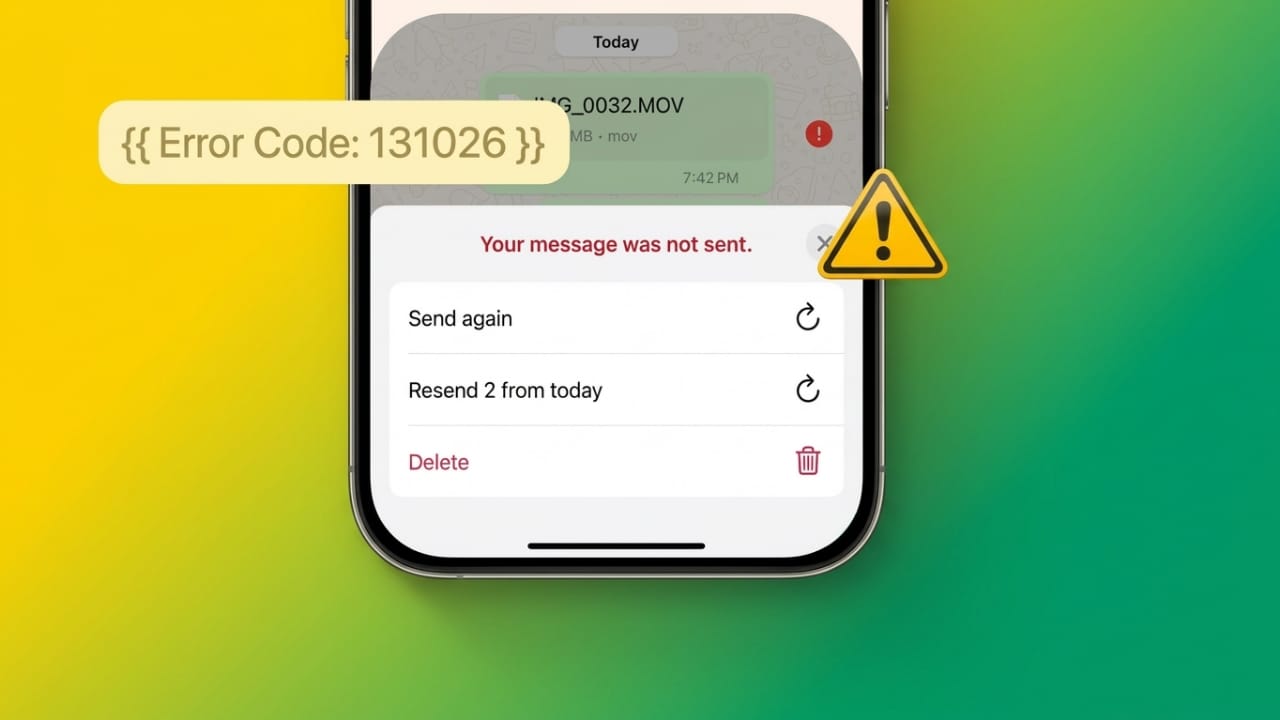
If your WhatsApp messages are not reaching someone and you see error 131026, it simply means the message could not be delivered. This problem can happen in both personal chats and business messaging.
The good news is that in most cases, it’s easy to understand and fix once you know the reason behind it.
Also read: Why WhatsApp Keeps Crashing on iPhone in 2026 — And How to Fix It
What Does WhatsApp Error 131026 Mean?
Error 131026 appears when WhatsApp is unable to send your message to the receiver. This can happen due to issues related to the recipient, app settings, or WhatsApp’s messaging rules.
In simple terms, the message is blocked or cannot reach the other person.
Common Reasons Behind This Error
Here are the most common causes of this issue:
- The phone number is not registered on WhatsApp
- The recipient is using an outdated version of WhatsApp
- The user has not accepted the latest terms and policies
- Message templates (like OTP or verification messages) have formatting issues
- Too many promotional messages are being sent in a short time
- The recipient’s settings are restricting messages
Sometimes, the issue is on the receiver’s side, so you may not always be able to fix it alone.
WhatsApp Frequency Limits (Important)
WhatsApp has introduced rules to reduce spam and improve user experience.
- Businesses cannot send too many marketing messages in a short time
- Repeated or low-quality messages are more likely to fail
- These limits mostly apply to promotional messages, not normal chats
Understanding this helps avoid delivery failures in the future.
Related Error Code 131049
Another similar error is 131049.
- It appears when you send messages too frequently
- WhatsApp temporarily blocks further messages
- Sending messages again immediately can worsen the issue
It’s best to wait before trying again.
Step-by-Step Fixes
Follow these simple steps to solve the problem:
1. Check the Phone Number
Make sure the number is correct and active on WhatsApp.
If no profile appears, the number may not be registered.
2. Update WhatsApp
Always use the latest version of WhatsApp.
Also, ask the receiver to update their app.
3. Confirm Terms Are Accepted
If the receiver hasn’t accepted WhatsApp’s latest policies, messages may fail.
Ask them to open the app and accept updates.
4. Review Message Templates
If you’re sending automated or verification messages:
- Keep the format simple and clear
- Avoid suspicious or misleading content
- Follow proper structure
5. Reduce Message Frequency
Sending too many messages can trigger restrictions.
- Avoid spamming
- Send only relevant messages
- Maintain a natural pace
6. Send Messages in Small Batches
If you are messaging multiple contacts:
- Divide them into smaller groups
- Send messages step by step
- This helps identify problem contacts
7. Use Valid Contact Lists
Remove invalid or inactive numbers from your list regularly.
This improves delivery success.
8. Check App Permissions
Ensure WhatsApp has access to:
- Contacts
- Storage
- Notifications
Incorrect settings can block messaging.
Extra Tips to Avoid This Error
Improve Message Quality
Write simple, clear, and useful messages.
Avoid too many links or confusing content.
Follow WhatsApp Guidelines
Stick to WhatsApp’s messaging rules.
Avoid sending repeated or unwanted messages.
Retry Smartly
If a message fails:
- Don’t resend immediately
- Wait for some time
- Try again later
Spacing out retries increases success chances.
Stay Updated
WhatsApp updates its policies regularly.
Keep yourself informed to avoid future issues.
Clear App Cache
Sometimes small bugs cause issues.
- Go to your phone settings
- Clear WhatsApp cache
- This can improve performance
Contact the Recipient Another Way
If possible, reach out through another app or call.
Ask them to:
- Check their WhatsApp settings
- Update the app
- Confirm their number is active
Also read: How to Unblock Yourself on WhatsApp Using WA Unblocker: Fact or Myth?
Final Thoughts
WhatsApp Error 131026 usually happens due to incorrect numbers, outdated apps, or messaging limits.
To fix it:
- Double-check contact details
- Keep apps updated
- Follow WhatsApp rules
- Avoid sending too many messages at once
By making small changes and following best practices, you can improve message delivery and avoid this error in the future.

Jatin Rajput (Tech Golu) — Tech blogger & YouTuber with 6+ years of experience in WhatsApp, Instagram, Facebook, and mobile guides. Founder of TechGolu.in.