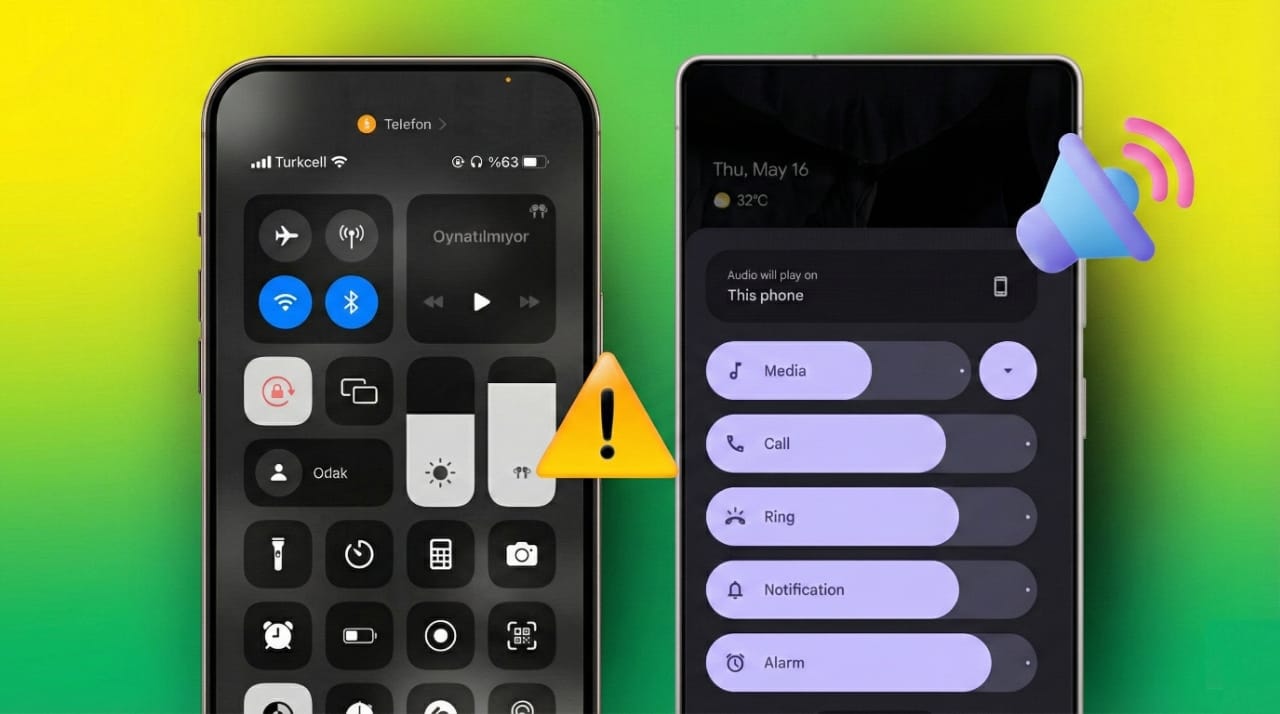
When your phone’s volume starts rising without you touching anything, it can be annoying and disruptive. Many iPhone and Android users deal with this issue, and it often affects calls, music, videos, and even notifications.
The good news is that this problem usually comes from a few simple causes, and most of them can be fixed with easy steps. Below is a clear guide to help you understand why this happens and how to stop your device from adjusting the volume on its own.
Also read: Google Year in Search 2025: What the World Looked Up in AI, Gaming, Movies, and More
Why Your Phone Volume Increases Automatically
Before trying to fix the issue, it helps to know what might be causing it.
- Bluetooth devices like wireless earphones or speakers can change your phone’s volume without you noticing.
- Nearby connected devices may also accidentally trigger volume changes.
- Dust or debris stuck around the physical volume buttons can make them press on their own.
- Tight or poorly fitting cases sometimes press against the buttons constantly.
- Outdated software may contain bugs that interfere with audio controls.
- Features such as Attention Aware, Audio Ducking, or quick gestures may also adjust the volume automatically.
Understanding these causes makes it easier to apply the right fix.
How to Stop iPhone Volume from Going Up Automatically
iPhone users often report sudden volume changes. Try the following solutions one by one:
1. Restart Your iPhone
A simple restart can clear small bugs.
- Turn off your iPhone using the side button.
- Wait a few seconds and power it back on.
2. Update iOS
Apple fixes many issues through software updates.
- Go to Settings → General → Software Update
- Install the latest version.
3. Move the Volume Slider Slowly
Quick swiping in Control Center sometimes causes the volume to jump back up.
Press and hold the volume bar to expand it, then drag it smoothly.
4. Remove or Replace the Phone Case
Cases that are too tight can push the volume buttons.
Take off the case and observe if the issue disappears.
5. Clean the Volume Buttons
Use a toothpick or soft brush to remove dirt or lint stuck around the buttons.
6. Turn Off Attention Aware (iPhone 11 and newer)
This feature adjusts audio based on eye detection.
- Settings → Face ID & Passcode → Attention Aware Features → Off
7. Disable Audio Ducking (iOS 17.2 and above)
This can make volume rise or fall depending on notifications or speech.
- Settings → Accessibility → VoiceOver → Audio → Audio Ducking → Off
8. Set a Maximum Volume Limit (iOS 18.2 and above)
- Settings → Sounds & Haptics → Volume Limit
9. Disable “Change with Buttons” for Ringer Volume
If the ringer volume is fluctuating:
- Go to Settings → Sounds & Haptics
- Turn off Change with Buttons
10. Reset All Settings
If nothing helps:
- Settings → General → Transfer or Reset iPhone → Reset All Settings
This resets system settings but does not delete personal data.
How to Fix Android or Computer Volume Issues
Android devices can face similar problems, and the solutions are just as simple.
1. Turn Off Bluetooth
Sometimes connected devices change the phone’s volume automatically.
Disable Bluetooth or remove unused paired devices.
2. Check and Clean Physical Buttons
Remove the phone case and clean around the volume keys to ensure nothing is stuck.
3. Disable VPN or Background Apps
Some apps running in the background can control sound settings.
Turn off VPN apps temporarily to test if the issue goes away.
4. Change Android Sound Settings
Some phones include auto-volume or button-control features.
- Go to Settings → Sound
- Adjust or disable options that may modify the volume automatically.
Computer Volume Issues
Computers can also face sudden audio changes:
- Disconnect extra audio devices.
- Use Windows sound troubleshooter by right-clicking the speaker icon.
- Update audio drivers or install the latest version of macOS.
How to Prevent Volume Problems in the Future
Here are simple habits that can stop the issue from returning:
- Clean ports and buttons regularly.
- Avoid cheap or overly tight cases.
- Remove unused Bluetooth connections.
- Keep your device updated.
- Review features like Attention Aware, Audio Ducking, or auto-volume.
- Limit apps that take control of sound settings.
A little maintenance goes a long way in keeping your phone or computer audio stable.
Also read: How to Get Verified on Threads Without Paying: Complete Beginner Guide
Final Thoughts
Unexpected volume increases can interrupt your daily use, but most of the causes are easy to fix. Whether the problem comes from Bluetooth devices, software bugs, or physical buttons, applying the steps above usually solves it.
By keeping your device clean, updating its software, and monitoring connected accessories, you can maintain smooth and controlled audio performance on both iPhone and Android.

Jatin Rajput (Tech Golu) — Tech blogger & YouTuber with 6+ years of experience in WhatsApp, Instagram, Facebook, and mobile guides. Founder of TechGolu.in.