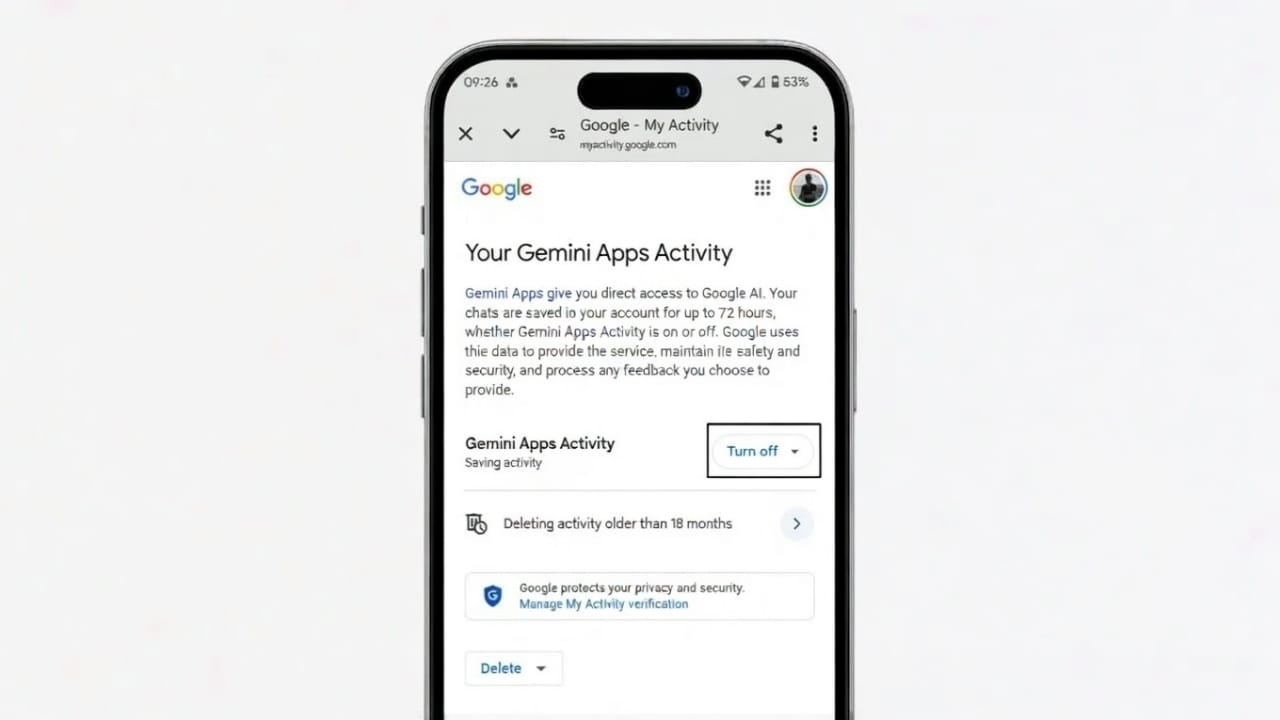
If online privacy matters to you, learning how to turn off chat history in Google Gemini is important. AI tools are getting smarter every year. But along with better answers, they also store more user data in the background.
Some people like personalized replies. Others prefer private, one-time conversations. If you do not want an AI assistant to remember what you said earlier, you should manage Gemini’s memory settings properly.
This guide explains everything in a clear and beginner-friendly way.
Also read: Safari Not Working on iPhone or iPad? Simple Fixes That Actually Work (2026)
What Is Google Gemini and Why Chat History Exists
Google Gemini is Google’s AI assistant that helps with questions, writing, summaries, and everyday tasks. In the past, Gemini treated each chat separately. Once a conversation ended, it had no effect on future replies.
That has changed. Gemini can now remember parts of your previous conversations. This helps it give more relevant suggestions later, but it also means your data is being reused.
For users who care about control and privacy, understanding chat history settings is essential.
What “Personal Context” Means in Google Gemini
Google introduced a feature called Personal Context. This system allows Gemini to automatically remember certain details from earlier chats. These details can influence future answers without clearly showing what was saved.
Earlier, Gemini only reacted to what you typed at that moment. Now, past interactions can quietly shape new responses. While this can feel helpful, it also reduces transparency.
How Personal Context Works in the Background
Personal Context runs silently. Users do not manually choose what Gemini remembers. The system decides on its own what information might be useful later.
For example:
- If you often ask about novels, Gemini may suggest books later.
- If you talk about events or hobbies, future replies may reflect those interests.
There is no visible list showing what data is stored. You cannot edit or remove specific memories. This hidden behavior makes many users uncomfortable.
Who Gets the Personal Context Feature
This memory system was first available only to paid users under the Gemini Advanced plan, now called Google AI Pro.
Google is slowly expanding it to free users. Availability depends on your country, account type, and rollout stage. Some users may not see this feature yet.
Users Who Do Not Get Personal Context
Personal Context is not available for:
- Users under 18 years old
- School-managed Google accounts
- Work-managed Google accounts
The feature first appeared in Gemini 2.5 Pro and later reached Gemini 2.5 Flash.
Why Privacy-Focused Users Are Concerned
The biggest issue with Personal Context is lack of control. Unlike other settings, it works automatically. Users cannot view what Gemini remembers or delete individual data points.
Casual conversations could influence future replies in unexpected ways. Over time, Gemini may build a profile without users fully realizing it.
For people who value privacy, this invisible data collection feels risky.
Personal Context vs Saved Info: Key Differences
Many users confuse Personal Context with Saved Info, but they are not the same.
Saved Info
- Manually added by the user
- Fully visible and editable
- Can be deleted anytime
Personal Context
- Saved automatically
- Not visible to users
- Cannot be edited or selectively removed
Because of this, many users prefer using Saved Info only and disabling Personal Context completely.
How to Turn Off Chat History in Google Gemini
Turning off chat history in Google Gemini is easy and works the same on web and Android.
Steps to Disable Chat History
- Open Google Gemini
- Go to Settings
- Find Personal Context
- Turn off “Your past chats with Gemini”
Once disabled, Gemini will stop using old conversations to personalize new replies. The change applies immediately.
Important: Turning Off Memory Does Not Delete Old Chats
Disabling chat history only stops future personalization. It does not remove existing conversations.
Old chats remain saved in Gemini App Activity unless you delete them manually. For full privacy, this step is necessary.
How to Delete Old Gemini Chats on Android
- Open the Gemini app
- Tap the speech bubble icon
- Find the chat you want to remove
- Tap the three-dot menu
- Select Delete and confirm
The conversation is permanently erased. Any linked files or Canvas documents are also removed.
How to Delete Gemini Chats on the Web
- Open Gemini in your browser
- Go to your chat list or activity page
- Click the X icon next to a conversation
- Confirm deletion
Deleted chats will no longer affect future responses.
Controlling Gemini App Activity
Gemini App Activity controls whether chats are saved at all.
You can:
- Turn off activity to stop saving new chats
- Turn off activity and delete all past data at once
This option gives the highest level of control over your data.
Auto-Delete Settings Explained
Google automatically deletes Gemini data after 18 months by default. You can change this.
Available options:
- 3 months – stronger privacy
- 18 months – default balance
- 36 months – longer personalization
Shorter periods reduce stored data and limit long-term tracking.
What Happens After Deleting or Disabling Activity
Even after deletion, some data may remain temporarily. Google keeps chats for up to 72 hours for technical and security reasons.
Some conversations may be reviewed by human evaluators to improve quality. These reviews are stored separately and are not linked to your account. Reviewed samples can be kept for up to three years.
Organizing Gemini Chats for Better Control
Privacy is not only about deletion. Organization helps too.
You can:
- Pin important chats
- Rename conversations for clarity
- Unpin or delete outdated chats
Since Gemini does not offer advanced chat search, good naming makes management easier.
Best Chat Management Tips
If you use Gemini for multiple topics:
- Rename chats based on purpose
- Delete old or irrelevant conversations regularly
- Keep only what you truly need
On Android, use the speech bubble icon to switch chats. On the web, the sidebar gives quick access.
Use Temporary Chat for Maximum Privacy
Temporary Chat is ideal for sensitive or one-time questions.
Features:
- Chats are not saved
- No personalization
- Automatically deleted after 72 hours
This mode is perfect when you want zero long-term record.
Also read: How to Change Google Maps Voice on Android and iPhone (Updated 2026 Guide)
Final Thoughts
Turning off chat history in Google Gemini gives you better control over your personal data. By disabling memory, deleting old chats, managing activity settings, and using Temporary Chat, you can enjoy Gemini without sacrificing privacy.
Regular cleanup and smart organization help keep the assistant useful while protecting your information.

Jatin Rajput (Tech Golu) — Tech blogger & YouTuber with 6+ years of experience in WhatsApp, Instagram, Facebook, and mobile guides. Founder of TechGolu.in.