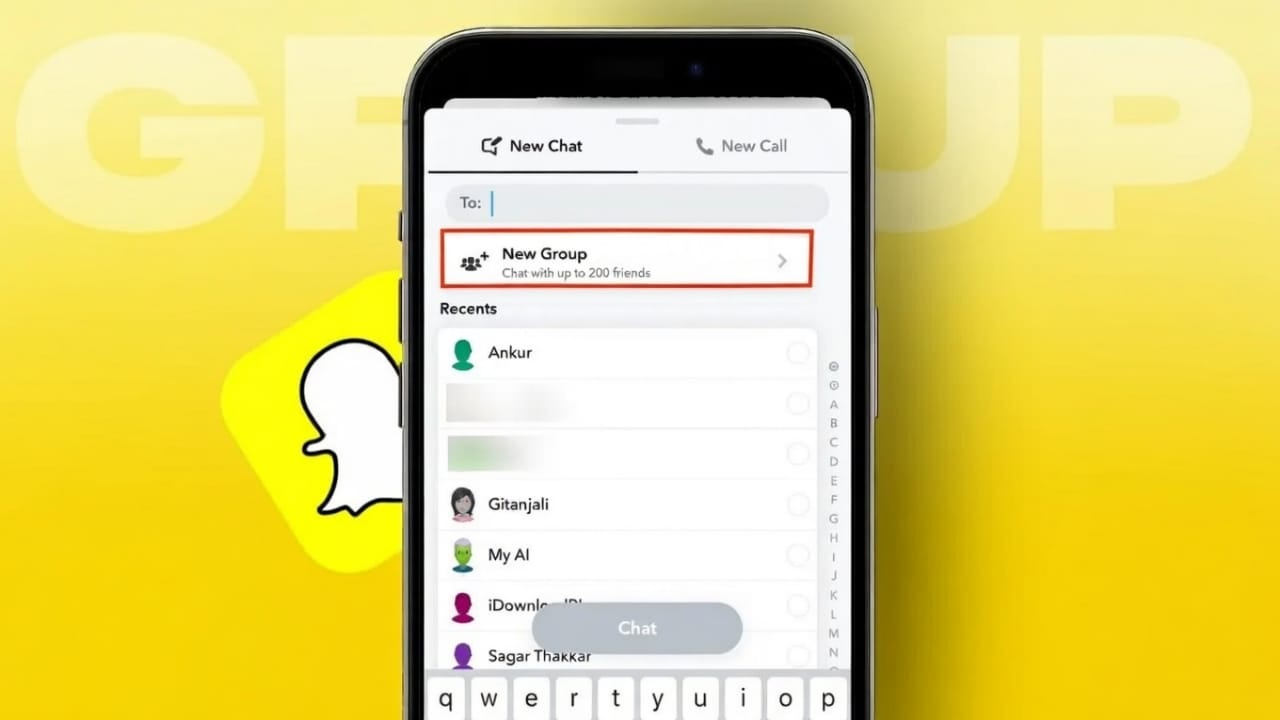
Snapchat makes it easy to stay connected with friends through photos, videos, and messages. When you want to talk to many friends at the same time, sending separate snaps can become tiring. That is where group chats help. A Snapchat group chat lets everyone communicate in one place, saving time and effort.
Group chats are useful for planning, sharing moments, and having fun together without repeating the same message again and again.
Also read: How to Disable Motion Photos on Android (Simple Guide for Beginners)
What Is a Snapchat Group Chat?
A Snapchat group chat is a shared conversation that includes multiple friends. Every member can see the messages sent in the group. You can send text messages, photos, and videos, just like in a private chat.
Group chats also support Bitmojis, stickers, and voice notes to make conversations more lively. You can even start voice or video calls with everyone in the group at once.
Snapchat now allows large groups with up to 200 members. This limit was smaller earlier, but newer updates have expanded it.
Messages in group chats usually disappear after 24 hours unless someone saves them. Saved messages stay visible to all group members. Any participant can save messages, not just one person.
One important thing to remember is that group chats do not increase Snapstreaks. Snapstreaks only work through private snaps sent directly to one person.
Group chats work on both Android and iPhone devices. While the layout may look slightly different, the main features remain the same.
How to Create a Group Chat on Snapchat
Creating a group chat is simple and takes only a few steps.
- Open the Snapchat app on your phone.
- Swipe right from the camera screen or tap the chat icon to open your chats.
- Tap the pencil icon to start a new chat.
- Choose the New Group option.
- Enter a name for your group. You can choose any name you like.
- Select the friends you want to add using the list or search bar.
- Tap Create to finish setting up the group.
Once the group is created, it becomes active right away. Everyone added can start chatting immediately.
What You Can Share in Group Chats
Snapchat group chats support many types of content:
- Photos and videos sent to everyone at once
- Text messages for quick discussions
- Bitmojis to show emotions
- Stickers to add fun
- Voice notes for short spoken messages
- Voice calls and video calls with all members
These features make group chats perfect for planning events, sharing updates, or simply chatting together.
Group Chat Customization
Snapchat does not assign a group admin. All members have equal control over the group. Anyone can change certain settings, including the group name.
To rename a group:
- Open the group chat.
- Tap the group name or Bitmoji at the top.
- Tap the current group name.
- Enter a new name and save it.
The updated name will appear for everyone in the group.
Adding New Members to a Group
You can add more friends to a group at any time.
Steps may vary slightly by device, but the process is similar:
- Open the group chat.
- Tap the group name or icon.
- Select Add Members.
- Choose the friends you want to include.
- Confirm your selection.
New members are added instantly and can see future messages in the group.
Removing Someone from a Group
If a situation changes, members can also remove someone from the group.
To remove a member:
- Open the group chat details.
- Scroll to the members list.
- Tap and hold the person’s name.
- Select the Remove option.
Once removed, the person will no longer have access to the group chat.
Managing Group Notifications
Group chats can be active, which may lead to frequent notifications. Snapchat offers options to control alerts.
From the group settings, you can:
- Mute notifications completely
- Allow alerts only when someone mentions you
- Turn on silent mode
- Mute group calls separately
- Change notification sounds
These options help reduce distractions while staying connected.
Custom Wallpapers (Snapchat Plus Feature)
Snapchat Plus users can personalize group chats with custom wallpapers.
To change the wallpaper:
- Open the group chat settings.
- Tap the group name or Bitmoji.
- Select the wallpaper option.
- Choose from Snapchat’s designs, upload your own image, or use AI-generated wallpapers.
Wallpaper changes only apply to your view, not to other members.
Leaving a Snapchat Group
If you no longer want to be part of a group, leaving is quick and easy.
Steps to leave a group:
- Open the group chat.
- Tap the group name or Bitmoji.
- Open the menu options.
- Select Leave Group and confirm.
After leaving, you will stop receiving messages from that group.
Also read: Snapchat AI Dreams Feature Explained: What It Does, How to Use It, and What to Expect
Final Thoughts
Creating a group chat on Snapchat is a smart way to communicate with multiple friends at once. It saves time, keeps conversations organized, and makes sharing moments easier.
With flexible settings, notification controls, and fun features, Snapchat group chats are great for everyday communication. Follow the steps above and enjoy chatting together in one shared space.

Jatin Rajput (Tech Golu) — Tech blogger & YouTuber with 6+ years of experience in WhatsApp, Instagram, Facebook, and mobile guides. Founder of TechGolu.in.