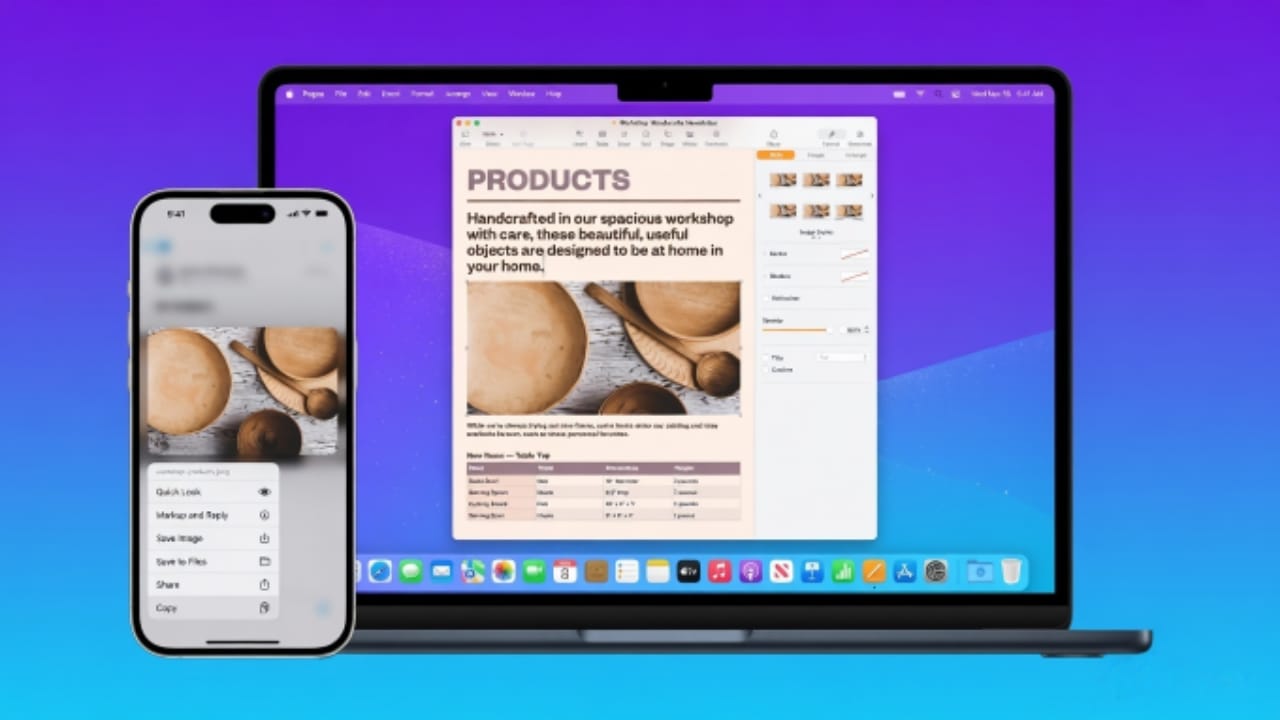
Moving content between devices can be frustrating when you have to send files or links to yourself. Apple solved this problem with a feature called Universal Clipboard, which allows you to copy something on one Apple device and paste it on another almost instantly.
With this feature, you can copy text, images, or links on your iPhone and paste them directly on your Mac. It works quietly in the background and feels just like the normal copy-and-paste action you already use.
This guide explains how Universal Clipboard works, how to set it up, and how to fix common issues if it stops working.
Also read: How to Use ChatGPT for the First Time: A Simple Beginner’s Guide
What Is Apple Universal Clipboard?
Universal Clipboard is part of Apple’s Continuity system. Continuity connects Apple devices so they can work together more smoothly during everyday tasks.
Once it is enabled, anything you copy on your iPhone can be pasted on your Mac or iPad within a short time. The process is automatic and does not require email, messaging apps, or file transfers.
For example, you might:
- Copy a website link on your iPhone and paste it into Safari on your Mac
- Copy a photo from your iPhone and paste it into a document on your Mac
- Copy text from a note on your phone and paste it into an email on your computer
This makes it much faster to move small pieces of content between devices while working.
One thing to remember is that copied items only stay in the shared clipboard briefly. In most cases, the content is available for about two minutes before it disappears.
Requirements Before Using Universal Clipboard
Before using this feature, both devices must meet a few basic conditions. These requirements allow the devices to connect and communicate properly.
Make sure the following points are satisfied:
- Both devices are signed in with the same Apple ID
- Wi-Fi is turned on
- Bluetooth is enabled
- Handoff is turned on
- The devices are placed near each other
- iPhone is running iOS 10 or later
- Mac is running macOS Sierra or later
The devices also need to stay within normal Bluetooth range, which is usually about 10 meters or less.
If different Apple accounts are used, the shared clipboard will not work.
How to Enable Universal Clipboard
Setting up Universal Clipboard only takes a few minutes. You simply need to enable the Handoff feature on both devices.
Setup on iPhone
- Open the Settings app on your iPhone.
- Tap General.
- Select AirPlay & Handoff.
- Turn Handoff on.
Once this is enabled, your iPhone is ready to share clipboard content.
Setup on Mac
- Open System Settings on your Mac.
- Select General.
- Click AirDrop & Handoff.
- Turn on Allow Handoff between this Mac and your iCloud devices.
After completing these steps, Universal Clipboard should activate automatically.
How to Copy on iPhone and Paste on Mac
Using Universal Clipboard is very simple because it works exactly like regular copy and paste.
Step 1
Open the item on your iPhone. This can be text, a link, a photo, or another supported piece of content.
Step 2
Select the content and tap Copy.
Step 3
Switch to your Mac and open the app where you want to paste the content.
Step 4
Press Command (⌘) + V on the keyboard or right-click and choose Paste.
After a moment, the copied item will appear. Sometimes the Mac briefly shows a message such as “Pasting from iPhone…”, which confirms that the devices are connected.
Common Everyday Uses
Universal Clipboard is helpful in many small daily tasks. Some practical examples include:
- Copying recipe links on your iPhone and pasting them into Safari on your Mac
- Copying a photo from the iPhone Photos app and placing it in a Pages document
- Copying text from iPhone Notes and pasting it into an email on your Mac
These simple actions save time and remove the need to send files to yourself.
Tips for Better Performance
To ensure the feature works smoothly, keep these tips in mind:
- Paste the copied item within two minutes
- Keep both devices unlocked
- Place the devices close to each other
- Wait a moment when copying large images
Text usually transfers almost instantly, while large photos may take a few extra seconds.
Troubleshooting Universal Clipboard
If Universal Clipboard suddenly stops working, the problem is usually related to settings or connections. The following checks often solve the issue.
Confirm the Apple Account
Both devices must use the same Apple ID. If different accounts are logged in, the shared clipboard will not function.
Check Wi-Fi and Bluetooth
Wi-Fi and Bluetooth must stay turned on. If the connection drops, the devices cannot communicate.
Try turning both settings off and back on to refresh the connection.
Make Sure Handoff Is Enabled
Handoff must remain active on both devices.
On iPhone:
- Settings → General → AirPlay & Handoff
On Mac:
- System Settings → General → AirDrop & Handoff
Confirm that the Handoff option is switched on.
Check the Distance Between Devices
The devices must stay within Bluetooth range. If they are too far apart, the clipboard may not sync.
Try bringing them closer and testing again.
Restart the Devices
Sometimes a simple restart fixes temporary system problems.
Restart your iPhone and Mac, then test the feature again.
Disable VPN or Firewall Temporarily
Some VPN services or firewall settings may block local device communication. Turning them off temporarily can help identify the issue.
An Alternative for Cross-Platform Sharing
Universal Clipboard works well within the Apple ecosystem. However, it only supports Apple devices.
If you need to move content between different platforms—such as Windows, Android, or iOS—a tool like AirDroid Web can be useful.
AirDroid Web allows users to connect a phone to a computer through a browser and share content between devices.
Some features include:
- Copying text from a phone and pasting it on a computer
- Sending photos, videos, and documents quickly
- Viewing phone notifications on a desktop browser
- Accessing certain phone functions remotely
This option can be helpful when working across multiple operating systems.
Also read: How to Turn Off Location Sharing on Snapchat (Enable Ghost Mode)
Final Thoughts
Apple’s Universal Clipboard makes it much easier to move small pieces of content between devices. With the feature enabled, you can quickly copy text, links, or images on your iPhone and paste them on your Mac without sending files manually.
As long as both devices are signed in to the same Apple account and remain close together, the process works almost instantly.
For situations that involve non-Apple devices, tools like AirDroid Web provide another way to share content across different platforms.

Jatin Rajput (Tech Golu) — Tech blogger & YouTuber with 6+ years of experience in WhatsApp, Instagram, Facebook, and mobile guides. Founder of TechGolu.in.