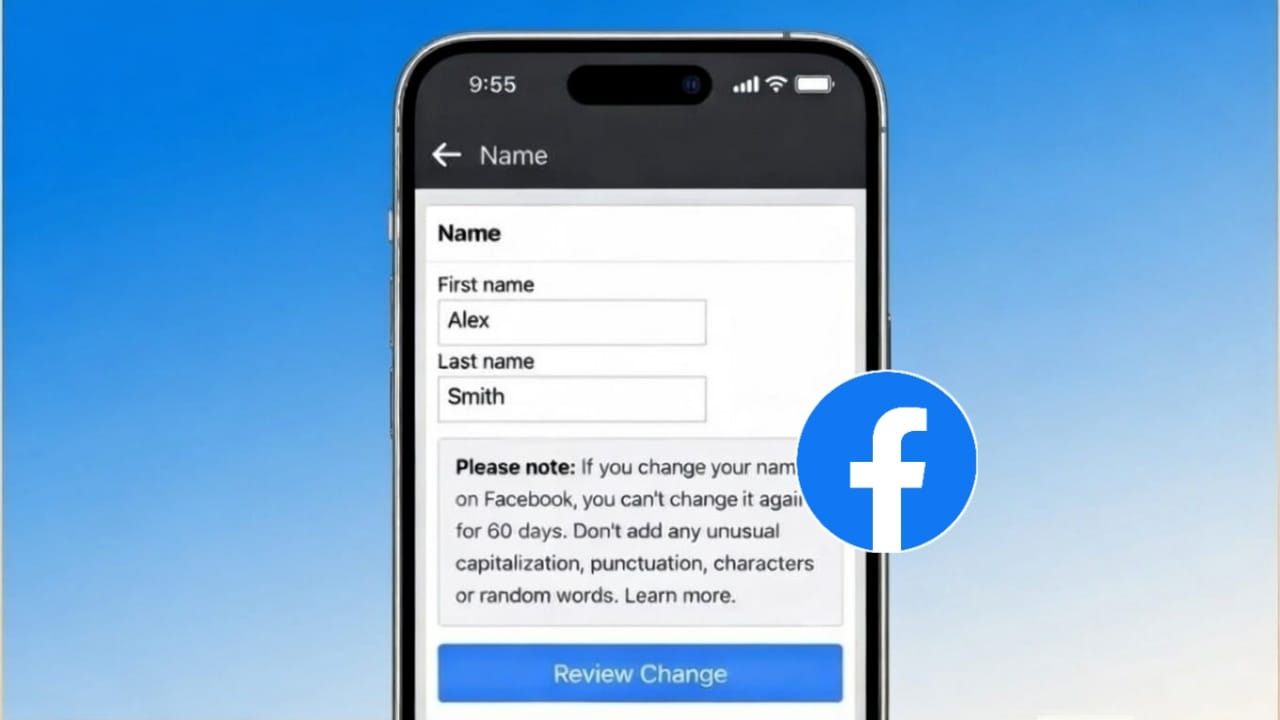
Your Facebook profile is often the first thing people see when they search for you. If your name is spelled wrong, looks unprofessional, or no longer reflects who you are, Facebook gives you an option to update it. You can also change your username, which controls your profile link.
Below is a simple and clear guide to help you edit both your Facebook name and username the right way, without breaking any rules.
Also read: How to Link WhatsApp with Your Facebook Page for Better Business Results
Difference Between Facebook Name and Username
Facebook uses two separate identifiers on your profile. Many people confuse them, but they serve different purposes.
Profile Name
This is the name shown on your posts, comments, timeline, and in search results. It is how people recognize you on Facebook.
Username
This creates your profile URL, like facebook.com/username. It is unique and often used for sharing your profile link.
Changing your name will not change your username, and changing your username will not update your name automatically.
How to Change Your Facebook Profile Name
You can update your name from both the mobile app and a desktop browser.
Using the Facebook App (Android or iPhone)
- Open the Facebook app
- Tap the menu icon
- Go to Settings & privacy
- Open Settings
- Tap Personal details
- Select Name
- Enter your new first and last name
- Review and confirm the change
Facebook may review the update before it becomes visible.
Using a Desktop or Laptop
- Open Facebook in your browser
- Click your profile picture
- Choose Settings & privacy
- Open Settings
- Go to Personal details
- Click on Name
- Enter your updated name
- Save the changes
Important Rules for Changing Your Name
Before updating your name, keep these points in mind:
- You can change your name only once every 60 days
- Numbers, symbols, and unusual formatting are not allowed
- Your name should reflect how people know you in real life
- Facebook may ask for identity proof if your name looks suspicious
Following these rules helps avoid delays or rejection.
How to Change Your Facebook Username
Your username controls your profile link, so it must be unique.
Steps to Update Your Username
- Open Facebook
- Go to Settings & privacy
- Open Settings
- Tap Personal details
- Select Username
- Enter a new available username
- Save the changes
If the username is already taken, Facebook will ask you to try a different one.
What Happens After Changing Your Username
- Your profile link updates instantly
- Old profile links may stop working
- Your friends and followers stay the same
- If you use Facebook for work or sharing, update the new link wherever needed
Why People Change Their Facebook Name or Username
Some common reasons include:
- Correcting spelling mistakes
- Switching to a professional name
- Updating a name after marriage
- Creating a shorter and cleaner profile link
Facebook allows these updates as long as its guidelines are followed.
Also read: How to Remove Someone from Your Facebook Friends List (Easy Guide)
Final Words
Updating your Facebook name or username is easy when you use the official settings. Just remember that name changes are limited, and usernames must be unique. Keeping your profile details accurate makes it easier for people to find and recognize you online.

Jatin Rajput (Tech Golu) — Tech blogger & YouTuber with 6+ years of experience in WhatsApp, Instagram, Facebook, and mobile guides. Founder of TechGolu.in.