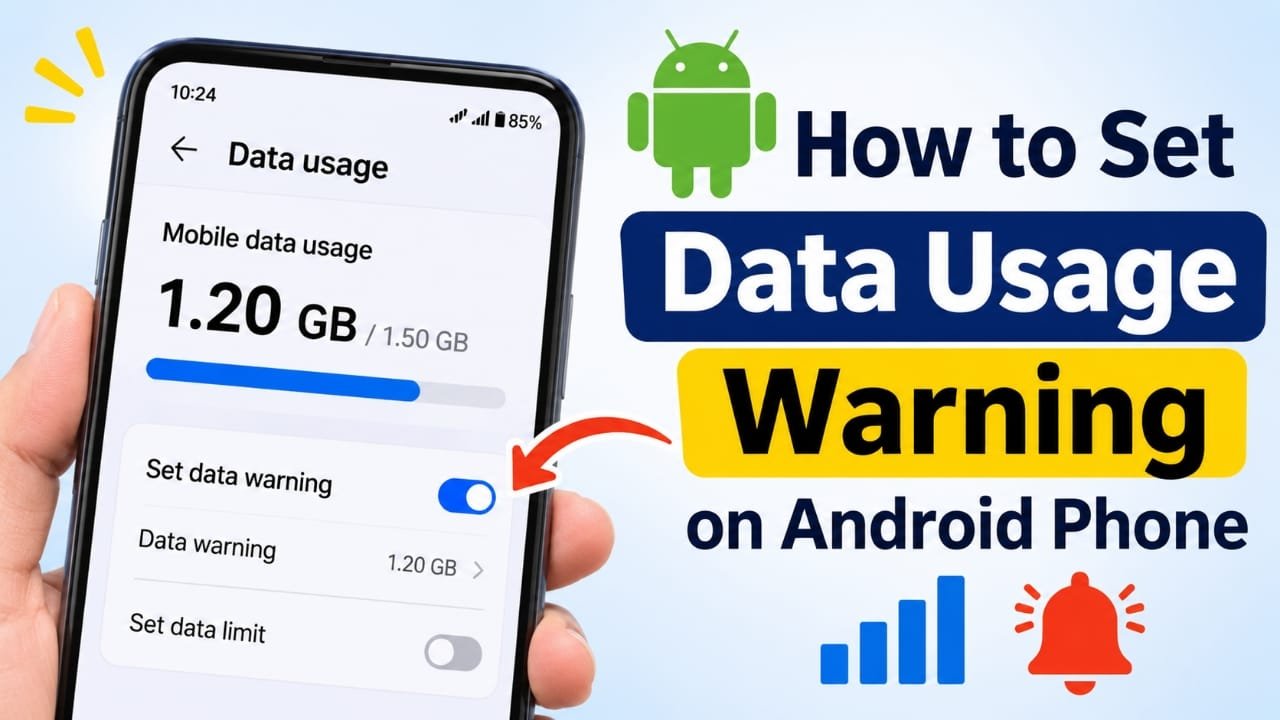
Mobile data can disappear faster than expected, especially when you spend time watching YouTube videos, using Instagram Reels, downloading files, or making video calls. If your daily recharge includes 1.5GB or 2GB of data, reaching the limit before the end of the day can be frustrating.
Android phones include built-in tools that can help you keep track of mobile data. You usually do not need to install a separate data-monitoring app. Depending on your phone brand and Android version, you can set a warning, choose a usage cycle, and in some cases even set a daily limit.
Here is how to use these features.
Also read: Nothing Teases Its First Screenless AI Device With a Metallic Design and LED Indicators
How to Turn On a Mobile Data Warning
The exact menu names can vary between Samsung, Xiaomi, Vivo, OPPO, Realme, Motorola, OnePlus, and other Android phones. However, the settings are usually found under the mobile network or SIM section.
Step 1: Open Mobile Network Settings
Open Settings on your Android phone.
Look for an option such as:
- Mobile Network
- Connections
- SIM Card & Mobile Network
- Network & Internet
Tap the option that manages your mobile connection.
Step 2: Open Data Usage
Find Data Usage, Mobile Data Usage, or a similar option.
On some phones, you may need to select the SIM card you use for mobile data before the usage information appears.
Step 3: Enable the Data Warning
Look for an option such as Data Warning, Billing Cycle & Data Warning, or Data Warning & Limit.
Turn on Set Data Warning.
You can then enter the amount of data at which you want to receive an alert. For example, if your daily plan is 1.5GB, you could choose a lower amount such as 1.2GB as an early warning.
The phone will notify you when its mobile-data counter reaches the amount you selected.
Note: Settings and menu names can be different depending on the phone manufacturer and Android version.
Data Warning vs Data Limit: What Is the Difference?
Android may show two separate options: Data Warning and Data Limit. They do different things.
Data Warning is simply an alert. When your usage reaches the selected amount, Android displays a notification. Your mobile internet normally continues working.
Data Limit is more restrictive. When the selected limit is reached, Android may turn off mobile data automatically.
If you only want a reminder about your usage, enable Data Warning and leave Data Limit turned off.
This is especially useful if you do not want your internet connection to stop unexpectedly while using an important app.
How to Set a Daily Data Warning
Some Android phones provide additional controls for daily mobile-data usage. These options are more common on certain customized Android interfaces.
For example, your phone may have a Daily Data Usage Limit or similar setting.
To check:
- Open Settings.
- Go to Mobile Network or SIM Card & Mobile Network.
- Open Data Usage.
- Look for Data Usage Limit or a similar option.
- If a daily warning option is available, enable it.
- Enter the amount at which you want to receive an alert.
For a 1.5GB daily plan, you might choose around 1.2GB as your warning point. This gives you some remaining data for the rest of the day.
However, not every Android phone provides a separate daily warning. On some devices, the built-in Android setting is based around a monthly billing cycle instead.
Set the Data Cycle According to Your Recharge Date
Android’s data counter often works according to a selected billing cycle. If the cycle does not match your actual recharge period, the usage figure may not be very useful.
For example, suppose your prepaid plan starts on the 14th of each month. If your phone resets its data counter on the 1st, the displayed monthly usage will not match your actual plan period.
To adjust it:
- Open Settings.
- Go to Mobile Network or Data Usage.
- Open Data Warning & Limit or a similar menu.
- Find Mobile Data Usage Cycle or Billing Cycle.
- Select the date on which your data plan starts.
- Save the setting.
The exact steps can vary by manufacturer.
How to Check Mobile Data Usage
You can also check which apps are consuming the most mobile data.
Go to:
Settings → Mobile Network → Data Usage
You should see a list of apps along with their mobile-data consumption.
This can help you identify apps that are using a large amount of data in the background.
For example, video and social-media apps can consume considerably more data than messaging apps, especially when videos automatically play or stream at a high quality.
Display Data Usage in the Notification Panel
Some phones provide a feature that displays mobile-data usage directly in the notification or status bar.
Depending on the device, look under:
Settings → Notifications & Status Bar
or:
Settings → Display → Status Bar
You may find an option such as Show Data Usage, Display Data Usage in Notification Panel, or Real-Time Network Speed.
If available, enable the data-usage option.
The name and location of this feature vary significantly between Android brands, so it may not be present on every phone.
Use Data Saver to Reduce Background Usage
If you receive a data warning earlier than expected, Android’s Data Saver feature can help reduce background mobile-data consumption.
To find it, try:
Settings → Mobile Network → Data Usage → Data Saver
Turn on Data Saver if the option is available.
Data Saver can restrict how apps use mobile data in the background. Some apps may not update normally until you open them.
This can be useful when you have limited data remaining and want to reduce unnecessary background activity.
What If a Data Warning Notification Keeps Appearing?
Sometimes Android continues showing a data-warning notification because your usage has crossed the warning amount you previously selected.
To change it, open:
Settings → Mobile Network → Data Usage → Data Warning & Limit
Then either:
- Increase the warning amount, or
- Turn off the data-warning feature if you no longer need it.
On some phones, tapping the warning notification itself may take you directly to the relevant data-usage settings.
What Happens If You Use Two SIM Cards?
If your phone has two SIM cards, the data counter may depend on which SIM is currently selected for mobile data.
For example, if SIM 1 is used for mobile data, Android will track usage for that connection. If you later switch mobile data to SIM 2, you should check the data settings for that SIM as well.
The exact behavior depends on your Android version and phone manufacturer.
Why Is Android’s Data Usage Different From My Telecom App?
It is normal for the usage shown by your phone and your mobile operator’s app to differ slightly.
Your Android phone and telecom provider measure usage at different points in the network. Differences can also occur because of how data sessions and network traffic are counted.
Therefore, a small difference between the Android counter and the figure shown in your operator’s app does not necessarily mean there is a problem.
For the most accurate information about your remaining recharge allowance, check your operator’s official app or account.
Can I Set a 1.5GB Daily Warning on Every Android Phone?
Not necessarily.
Android features vary by manufacturer, software version, and region. Some phones offer more detailed daily data controls, while others mainly provide a monthly usage cycle and warning.
If your phone does not have a daily warning option, you can still use its built-in data-usage counter to monitor consumption. Your mobile operator’s app may also provide information about your remaining plan data.
Why Did Mobile Data Stop After I Set a Warning?
A warning by itself should not normally turn off mobile data. Check whether Set Data Limit is also enabled.
Open:
Settings → Mobile Network → Data Usage → Data Warning & Limit
If a data limit has been enabled, turn it off if you want mobile data to continue after reaching the warning amount.
Keep in mind that menu names and available options can differ between Android devices.
Also read: Realme 17 Pro Leak Suggests a Huge 10,000mAh Battery and 1.5K 120Hz AMOLED Display
Final Thoughts
Android’s built-in data controls are useful for anyone using a limited mobile-data plan. A properly configured warning can help you notice high usage before your daily or monthly allowance runs out.
For the best results, set the usage cycle to match your recharge period, choose a warning amount below your actual allowance, and check which apps are consuming the most data. If your phone supports Data Saver, you can also use it when your remaining data is low.
Most importantly, don’t assume that every Android phone has exactly the same settings. The available options depend on the phone brand, Android version, and software interface.

Jatin Rajput (Tech Golu) — Tech blogger & YouTuber with 6+ years of experience in WhatsApp, Instagram, Facebook, and mobile guides. Founder of TechGolu.in.