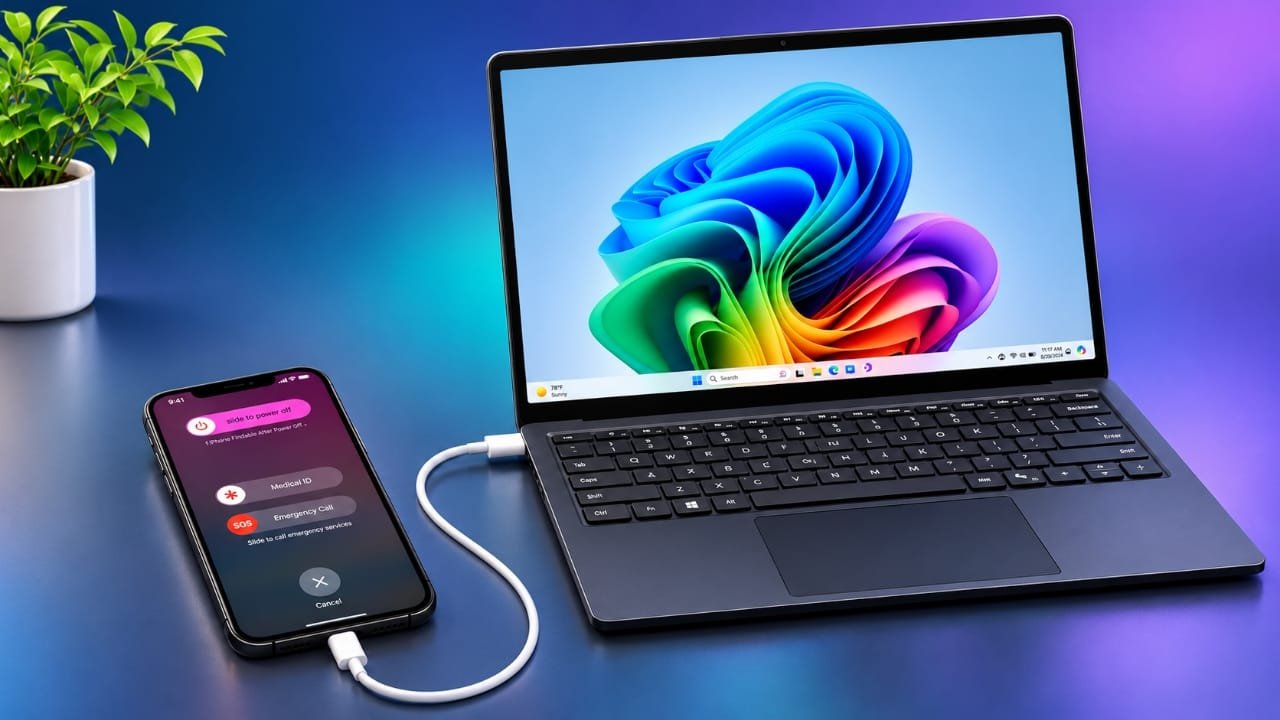
If you want to switch off your iPhone using a computer, there is something important you should know: Apple does not provide a direct shutdown option in Finder, iTunes, or the Apple Devices app for Windows.
However, you can use a computer to manage certain iPhone problems. For example, you can troubleshoot a phone that is stuck, protect a lost device, or control a working iPhone through a Mac.
The right method depends on your situation. Some options only restart or lock the device, while others can permanently erase your personal data.
In this guide, we will explain the available methods, how they work, and when you should use them.
Also read: How to Know If Someone Blocked You on Snapchat: Signs and What to Do Next
Advertisements
Which Method Should You Choose?
Before trying anything, check which situation matches your problem.
| Your Situation | Recommended Method | Does It Shut Down? |
|---|---|---|
| iPhone is frozen | Force restart | No, it restarts |
| iPhone is stuck on Apple logo | Recovery mode | No |
| iPhone is lost or stolen | Find My through iCloud | No |
| Company or school iPhone | MDM management | Yes, if supported |
| Working iPhone controlled through Mac | Switch Control | Yes |
How to Turn Off an iPhone Without Using a Computer
If your iPhone is working normally, using its built-in controls is the easiest option. You do not need to connect it to a computer.
Here are a few ways to shut it down.
Using the physical buttons
- Face ID models: Press and hold the Side button and either Volume button together. When the power slider appears, drag it to switch off the device.
- Home button models: Press and hold the Side or Top button until the power slider appears. Move the slider to turn off your iPhone.
Using Settings
If your physical buttons are damaged or not responding, try this method:
- Open Settings on your iPhone.
- Select General.
- Scroll down and tap Shut Down.
- Drag the power slider.
Using Siri
You can also ask Siri to turn off your iPhone. Follow the confirmation instructions displayed on the screen.
How to Force Restart a Frozen iPhone
Sometimes an iPhone stops responding to touch, and you cannot access the Settings menu. In this situation, a force restart can help.
This process does not normally remove your photos, apps, contacts, or other saved information.
The button combination depends on your iPhone model.
iPhone 8 and newer models, including iPhone SE (2nd and 3rd generation):
- Quickly press and release the Volume Up button.
- Quickly press and release the Volume Down button.
- Press and hold the Side button.
- Release it when the Apple logo appears.
iPhone 7 and iPhone 7 Plus:
Press and hold the Volume Down and Side buttons together. Release them when the Apple logo appears.
iPhone 6s and older models:
Press and hold the Home button and the Side or Top button together until the Apple logo appears.
After the phone restarts, check whether the screen is responding. If everything works properly, you can shut it down through Settings.
Method 1: Use Recovery Mode With Finder, iTunes, or Apple Devices
If your iPhone keeps restarting or remains stuck on the Apple logo, recovery mode may help.
You can use a computer to reinstall iOS and troubleshoot certain software problems.
The application you need depends on your computer:
- Mac with macOS Catalina or newer: Use Finder.
- Mac with macOS Mojave or older: Use iTunes.
- Windows computer: Use the Apple Devices application. iTunes may also be used on systems where Apple Devices is not being used.
Steps to Enter Recovery Mode
- Connect your iPhone to your computer using a compatible USB cable.
- Open Finder, Apple Devices, or iTunes, depending on your system.
- Keep the iPhone connected.
- Follow the force restart button combination for your model.
- Continue holding the required button even after the Apple logo appears.
- Release the button when the recovery mode screen appears.
- Find your iPhone in the computer application.
You should now see two options: Update and Restore.
Choose Update first. This option attempts to reinstall iOS without deleting your personal data.
Restore is different. It removes the information stored on your iPhone and installs a fresh version of iOS. Use it only when necessary and preferably after creating a backup.
If the software download takes longer than 15 minutes, your iPhone may leave recovery mode automatically. Allow the download to finish and repeat the recovery mode steps if required.
If your computer does not recognise the iPhone, try another USB port or cable. Also make sure your computer software is updated.
Method 2: Use Find My to Protect a Lost or Stolen iPhone
If your iPhone has gone missing, you can manage it remotely from almost any computer using Apple’s Find My service.
This feature cannot switch off the phone, but it can help protect your personal information.
Follow these steps:
- Open a browser on your computer.
- Visit iCloud Find Devices.
- Sign in using the Apple Account associated with your iPhone.
- Open All Devices.
- Select the missing iPhone.
You will find options to manage your device.
Mark As Lost: This locks your iPhone and allows you to display a contact number or message on its screen. It is generally the better first option when you think you may recover your device.
Erase This Device: This remotely removes personal information from the iPhone. Use this option when protecting your data is more important than recovering the device.
If the iPhone is offline, the requested action may remain pending until the device connects to the internet.
Remember that Find My is designed for locating and protecting devices, not remotely powering them off.
Method 3: Shut Down a Company or School iPhone Using MDM
Some businesses and educational institutions manage their Apple devices through Mobile Device Management (MDM) systems.
These management platforms allow authorised IT administrators to control certain device settings remotely.
For example, supported and properly enrolled iPhones may receive a remote shutdown command through an MDM service.
However, this option is not available to ordinary personal iPhone users.
If your iPhone belongs to your company or school, contact the IT department and ask whether its device management system supports remote shutdown.
Method 4: Control an iPhone From a Mac Using Switch Control
Apple provides an accessibility feature called Switch Control. It allows users to operate Apple devices using alternative controls.
With the appropriate setup, you can use a Mac to control a working iPhone and access its shutdown settings.
Before starting, make sure:
- Both devices are connected to the same Wi-Fi network.
- Both devices are signed in with the same Apple Account.
- Switch Control is enabled on your Mac.
How to Connect Your iPhone
- Open System Settings on your Mac.
- Go to Accessibility.
- Select Switch Control.
- Turn on Switch Control.
- Open the Switch Control Home panel.
- Select Devices.
- Choose your iPhone from the available devices.
- Select Connect.
Once connected, you can use the available controls to navigate your iPhone.
Open Settings, select General, and tap Shut Down. Move the power slider to turn off the phone.
To end the connection, open Devices and select Disconnect.
Keep in mind that this method requires an iPhone that is powered on and responsive. It will not solve problems caused by a completely frozen device.
Why You Should Back Up Your iPhone Before Restoring It
Before performing a major software repair, it is a good idea to create a backup of your important information.
You can back up your iPhone using iCloud or a computer, provided the device is accessible.
Pay particular attention to photos, videos, contacts, and important documents.
The biggest risk of data loss usually comes from selecting Restore instead of Update during recovery mode.
If you have not created a backup, avoid restoring your device unless you understand that the existing data may be permanently erased.
Frequently Asked Questions
1. Can I switch off my iPhone directly from a computer?
No. Finder, iTunes, and the Apple Devices application do not offer a standard shutdown button. However, certain methods, such as MDM management or Mac Switch Control, can help shut down supported devices.
2. Does entering recovery mode delete iPhone data?
No. Entering recovery mode does not automatically erase your information. The Update option attempts to reinstall iOS while keeping your data. Restore, on the other hand, erases the device.
3. Can I turn off a stolen iPhone using Find My?
No. Find My cannot remotely power off an iPhone. It can help you locate the device, mark it as lost, or erase its information.
4. How can I turn off an iPhone if its buttons are broken?
If the touchscreen still works, open Settings, select General, and tap Shut Down. You can also try asking Siri to turn off your device.
5. Can I turn off a frozen iPhone using iTunes?
iTunes does not have a direct shutdown feature. If the iPhone is frozen, try a force restart first. If the problem continues, recovery mode may help you repair its software.
6. Does force restarting an iPhone remove personal data?
No. A force restart is designed to restart an unresponsive device. It does not normally erase saved information.
Also read: Siri Not Working on Apple Watch? 12 Easy Ways to Fix It
Final Thoughts
Turning off an iPhone directly from a computer is not a standard feature provided by Apple. However, there are several ways to manage different iPhone problems using a computer.
If your phone is frozen, try a force restart. If it remains stuck, use recovery mode and select Update before considering Restore. For a missing device, Find My can help protect your information. Company and school devices may also support remote shutdown through an authorised MDM system.
Always check your backup before choosing any option that could erase your personal data. Choosing the correct method can save time and help you avoid unnecessary data loss.

Jatin Rajput (Tech Golu) — Tech blogger & YouTuber with 6+ years of experience in WhatsApp, Instagram, Facebook, and mobile guides. Founder of TechGolu.in.