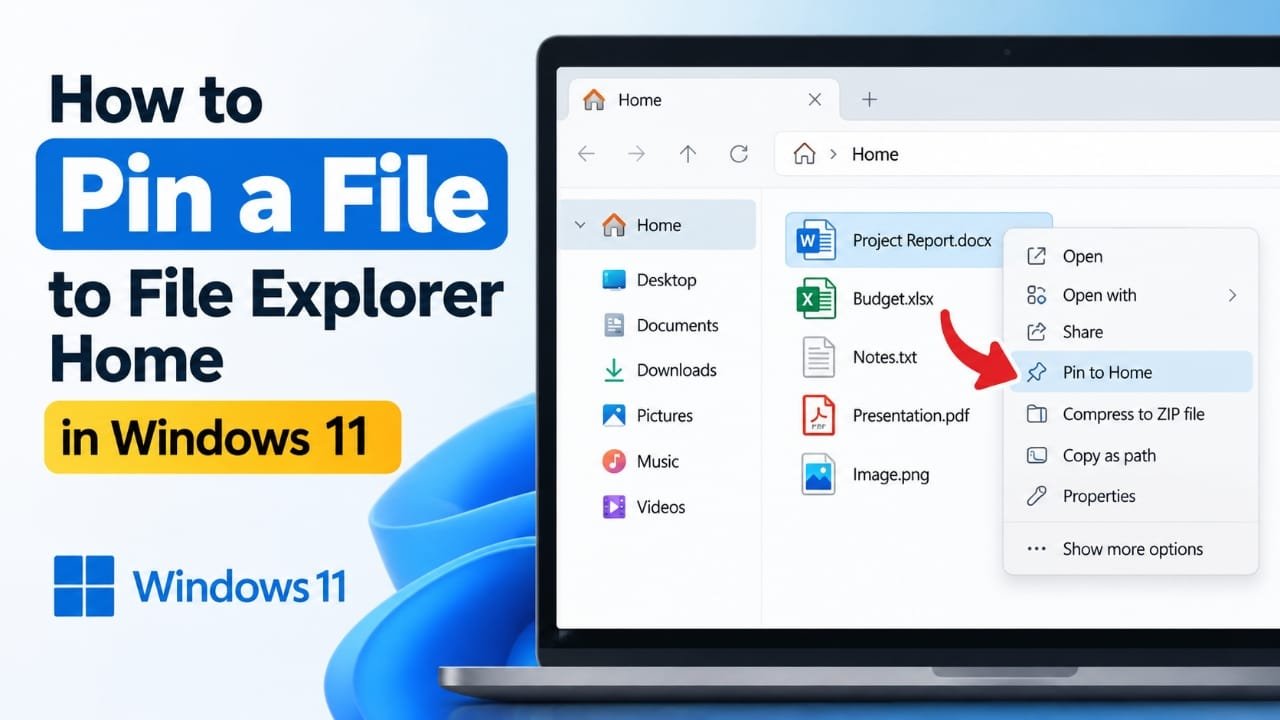
If there are certain files you open regularly, finding them through multiple folders can quickly become frustrating. Windows 11 offers a simple way to keep frequently used files within easy reach by adding them to the Home section of File Explorer.
Once a file is pinned, you can access it from File Explorer Home without having to search through its original folder every time. This can be especially useful for documents, spreadsheets, PDFs, project files, and other items you work with frequently.
In this guide, you will learn how to pin a file to File Explorer Home in Windows 11, along with a few things you can try if the pinning option is not available.
Also read: How to Use Passkeys in Windows 11: A Simple Step-by-Step Guide
Quick Steps
- Open File Explorer.
- Locate the file you want to pin.
- Right-click the file.
- Select Pin to Home.
- Open File Explorer > Home and check the Pinned section.
How to Pin a File to File Explorer Home
The process only takes a few seconds. You do not need to install any additional software or change advanced Windows settings.
Step 1: Open File Explorer
First, launch File Explorer on your Windows 11 PC.
You can open it from the taskbar or Start menu. Another quick option is to press Windows + E on your keyboard.
If File Explorer opens directly to a particular folder instead of the Home page, there is no problem. You can still locate and pin a file from there.
Step 2: Locate the File
Navigate through your folders until you find the file you want to keep easily accessible.
It could be a Word document, Excel spreadsheet, PDF, image, text file, or another type of file you use regularly.
Before continuing, check that you have selected the correct file.
Step 3: Right-Click the File
Once you have found the file, right-click it.
Windows 11 uses a redesigned context menu, so you may not see every available command immediately. If the option is not visible, check the Show more options menu.
Step 4: Choose “Pin to Home”
Look for Pin to Home in the available options and select it.
Windows should then add the file to the Pinned area of File Explorer Home. The original file is not moved or copied to another location.
Step 5: Check the Pinned Section
Now open File Explorer > Home.
Look for the Pinned section. The file you just selected should appear there.
You can then open it directly from Home whenever you need it.
If the file does not appear immediately, close and reopen File Explorer and check again.
What to Do If “Pin to Home” Is Missing
The Pin to Home option may not always appear exactly where you expect it to. Here are some things you can try.
Check “Show more options”
Right-click the file and select Show more options.
Windows 11 sometimes places additional commands in the classic context menu. Check there for the pinning option.
Check the File Explorer Home Page
If the file is already showing under Recent, you can open it from there.
Keep in mind that a recent file and a pinned file are not the same thing. Recent files are based on your activity, while a pinned file is intended to remain easily accessible.
Update Windows 11
If you are running an older Windows 11 version, some File Explorer features or menu options may look different.
You can check for updates by opening:
Settings > Windows Update
Install available updates and then check the File Explorer menu again.
Use a Desktop Shortcut
If pinning is not available for a particular file, you can create a desktop shortcut instead.
This does not place the file in File Explorer Home, but it can provide similarly quick access without changing the location of the original file.
Check Files Stored in OneDrive or Network Locations
Files stored in OneDrive or network locations can sometimes behave differently depending on their availability.
If a file is only available online, make sure it is properly synced and accessible when you need it. This can help avoid problems when trying to open the file later.
Frequently Asked Questions
Can I pin any type of file to File Explorer Home?
Many common file types, including documents, spreadsheets, PDFs, and images, can be pinned. However, the available options can vary depending on the file, Windows version, and how the file is stored.
Does pinning a file move it?
No. Pinning a file does not move the original file.
The file remains in its existing folder. File Explorer Home simply provides an easier way to access it.
Is a pinned file the same as a recent file?
No. Recent files are shown based on your recent activity. A pinned file is manually added so you can keep it easily accessible.
Tips for Keeping File Explorer Home Useful
It is better to pin only the files you regularly need rather than adding everything.
A few useful habits include:
- Pin files you open frequently.
- Use clear and descriptive file names.
- Remove files from the Pinned section when they are no longer relevant.
- Keep important OneDrive files synced if you need reliable access to them.
- Use Quick access or desktop shortcuts when they are more convenient for your workflow.
Think of the Pinned section as a convenient shelf for your current work. It is not meant to replace your normal folder structure or file organization system.
Also read: Google Maps Not Working on iPhone? Try These Simple Fixes
Conclusion
Pinning frequently used files to File Explorer Home can save time when working on Windows 11. Instead of repeatedly searching through folders, you can keep important files available from one convenient location.
The usual process is straightforward: find the file, right-click it, choose Pin to Home, and then check the Pinned section in File Explorer Home.
If the option is missing, checking Show more options, updating Windows, or using an alternative such as a desktop shortcut can help. Once you organize your frequently used files, File Explorer Home can become a much more convenient starting point for everyday tasks.

Jatin Rajput (Tech Golu) — Tech blogger & YouTuber with 6+ years of experience in WhatsApp, Instagram, Facebook, and mobile guides. Founder of TechGolu.in.