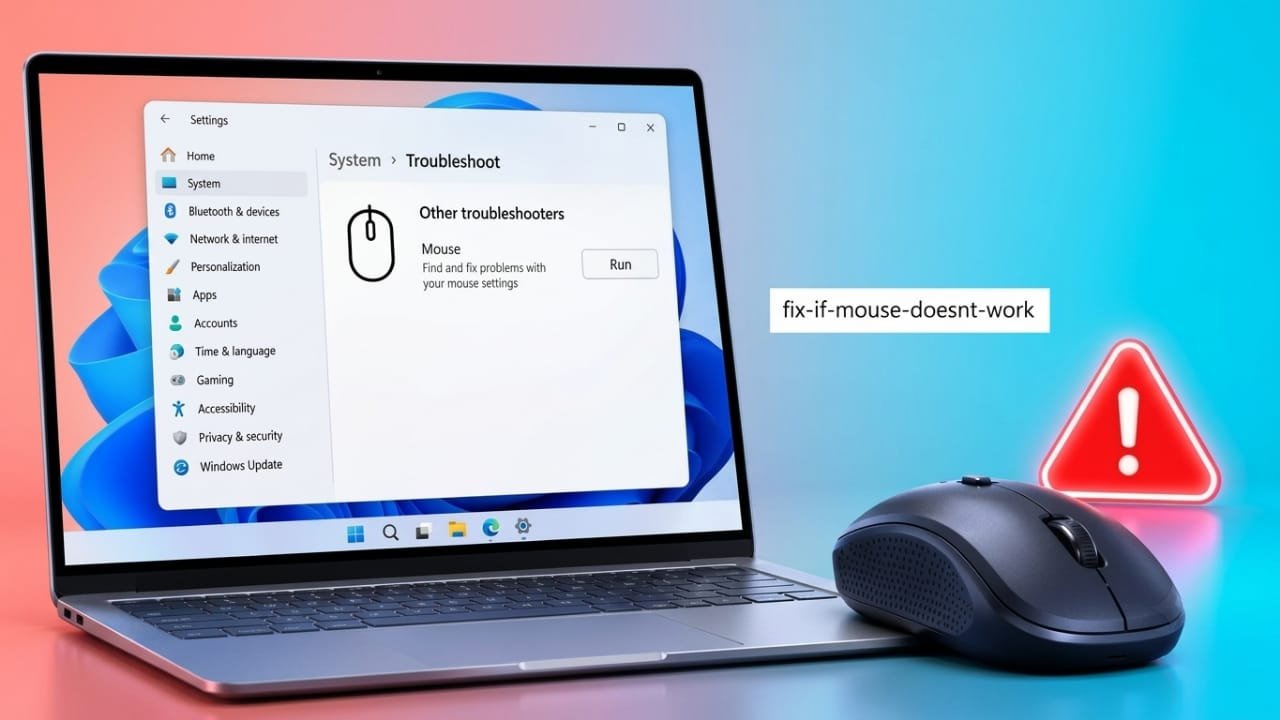
A mouse that suddenly stops working can be frustrating, whether you’re using a Windows PC or a Mac. Fortunately, most mouse problems are easy to fix and don’t require buying a new device. In many cases, the issue is related to power, connections, software, or dirt blocking the sensor.
Follow the troubleshooting steps below to identify the problem and get your mouse working again.
Also read: Telegram’s .gram Domains Could Transform Usernames into Personal Websites
1. Check the Mouse Power
Before changing any computer settings, make sure your mouse is powered on.
Advertisements
For wireless mice:
- Confirm the power switch is turned on.
- Turn the mouse off for a few seconds, then switch it back on.
- Check if the LED indicator lights up, as this often shows whether the mouse is receiving power.
A simple restart of the mouse can sometimes restore the connection.
2. Replace or Recharge the Battery
Low battery power is one of the most common reasons a wireless mouse stops working.
If your mouse uses replaceable batteries:
- Remove the old batteries.
- Insert a fresh set, making sure the positive and negative ends are aligned correctly.
- Even new batteries can occasionally be faulty, so try another pair if needed.
If your mouse has a built-in rechargeable battery:
- Connect it to the charging cable.
- Allow it to charge for at least 30 minutes.
- Check whether the charging indicator appears.
3. Inspect the Cable on Wired Mice
If you’re using a wired mouse:
- Make sure the USB connector is fully inserted.
- Disconnect it and plug it back in securely.
- Gently move the cable while testing. If the connection keeps dropping, the cable may be damaged.
Tip: Always check the physical connection before changing software settings.
4. Verify the USB Connection
Wireless mice often use a small USB receiver.
- Ensure the receiver is plugged into your computer.
- Some mice store the receiver inside the battery compartment, so check there if you can’t find it.
- Reconnect the receiver and test the mouse again.
5. Try a Different USB Port
Sometimes the USB port—not the mouse—is the problem.
- Plug the mouse into another USB port.
- On desktop PCs, test both the front and rear ports.
- If possible, connect another USB device to the same port to see whether it works.
Avoid using external USB hubs while troubleshooting. Connect the mouse directly to the computer whenever possible.
6. Clean the USB Port
Dust and debris inside a USB port can interrupt the connection.
Inspect the port carefully and remove any visible dirt without damaging the internal contacts. Never force sharp objects into the port.
7. Reconnect a Bluetooth Mouse
Bluetooth mice may lose their pairing after updates, restarts, or long periods of inactivity.
On Windows
- Open Settings.
- Go to Bluetooth & devices.
- Select Add device.
- Choose Bluetooth.
- Put your mouse into pairing mode.
- Select the mouse from the list and connect.
On Mac
- Open System Settings.
- Select Bluetooth.
- Put the mouse into pairing mode.
- Find the mouse in the device list.
- Click Connect.
Keep the mouse close to the computer during the pairing process for the best results.
8. Disable the Laptop Trackpad
Some laptops may prioritize the built-in trackpad over an external mouse.
If you’re using a laptop:
- Temporarily disable the trackpad in your system settings.
- Reconnect the external mouse.
- Check whether the issue is resolved.
9. Clean the Mouse
Dust and dirt can interfere with normal operation.
Clean the following areas:
- Mouse buttons
- Scroll wheel
- Bottom surface
- Optical or laser sensor
Use a soft, dry cloth or a microfiber cloth. Avoid using excessive moisture.
10. Check the Optical Sensor
The sensor underneath the mouse must remain clean for accurate tracking.
Inspect the sensor and remove:
- Dust
- Hair
- Paper particles
- Tape or other obstructions
If your mouse uses an older rollerball design, clean the internal ball and rollers as well.
11. Test a Different Surface
Some surfaces make it difficult for optical sensors to track movement correctly.
For the best performance:
- Use a flat, non-reflective surface.
- Avoid glass or glossy desks.
- If the cursor jumps or stutters, try using a mouse pad.
A quality mouse pad often improves tracking accuracy, especially with older optical mice.
12. Update Mouse Drivers (Windows)
Outdated or corrupted drivers can affect mouse performance.
To update the driver:
- Open Device Manager.
- Expand Mice and other pointing devices.
- Right-click your mouse.
- Select Update driver.
- Follow the on-screen instructions.
Reinstall the Driver
If updating doesn’t help:
- Open Device Manager.
- Right-click the mouse.
- Select Uninstall device.
- Restart your computer.
Windows will usually reinstall the correct driver automatically after restarting.
13. Install Manufacturer Software
Some advanced mice require dedicated software to unlock all features.
If you use a gaming or programmable mouse, download the latest software or drivers from the manufacturer’s official website. Avoid downloading drivers from unknown sources.
14. Update Your Operating System
Operating system updates often include fixes for hardware compatibility and device stability.
On Windows
- Open Settings.
- Go to Windows Update.
- Click Check for updates.
On Mac
- Open System Settings.
- Select Software Update.
- Install any available updates.
15. Restart Your Computer
After installing updates or changing settings, restart your computer.
A reboot refreshes system processes and reloads device drivers, which can often resolve temporary hardware issues.
Common Reasons a Mouse Stops Working
A mouse may stop working for several reasons, including:
- Low or dead batteries
- Loose USB connections
- Faulty USB ports
- Lost Bluetooth pairing
- Dirty optical sensor
- Unsuitable tracking surface
- Outdated or damaged drivers
- Operating system issues
- Incorrect settings
- Physical hardware damage
If your mouse has visible cracks, liquid damage, broken buttons, or no sensor light, replacing it may be the most practical solution.
Recommended Troubleshooting Order
For the fastest results, try these steps in order:
- Check the power switch.
- Replace or recharge the battery.
- Verify the cable or USB receiver.
- Try another USB port.
- Connect directly without a USB hub.
- Reconnect Bluetooth.
- Clean the mouse and sensor.
- Test another surface or mouse pad.
- Update or reinstall the driver.
- Install operating system updates.
- Restart the computer.
- Replace the mouse if hardware damage is confirmed.
Also read: How to Add Bluetooth to Your Computer Using a USB Adapter
Final Thoughts
Most mouse issues can be solved without replacing the device. Start with the simplest checks, such as power, batteries, and connections, before moving on to software troubleshooting. Cleaning the sensor, updating drivers, and keeping your operating system up to date can also prevent many common problems.
If none of these solutions work and the mouse shows signs of physical damage, replacing it is usually the most reliable option.

Jatin Rajput (Tech Golu) — Tech blogger & YouTuber with 6+ years of experience in WhatsApp, Instagram, Facebook, and mobile guides. Founder of TechGolu.in.