Knowing when your computer was last started can help you understand how your system is performing. It also helps you spot unexpected restarts, crashes, or slow startup issues.
Whether you use Windows, Mac, or Linux, there are simple ways to check your system’s boot time and uptime information.
Also read: ChatGPT on Apple CarPlay: Useful Idea, but Not Fully There Yet
Check Last Boot Time on Windows
Use Task Manager for a Quick Check
Task Manager offers one of the easiest ways to view startup information.
Follow these steps:
- Press Ctrl + Shift + Esc to open Task Manager.
- Select the Startup apps tab from the left side.
- Look at the top-right corner for Last BIOS time.
This value shows how long your system took to start. In most cases, a startup time under 15 seconds is considered good. If the number is much higher, background programs or hardware issues may be slowing down the boot process.
Check Boot Time Using Command Prompt
You can also use Command Prompt to see the exact time your computer last started.
Steps:
- Press Win + R to open the Run box.
- Type cmd and press Ctrl + Shift + Enter.
- Enter this command:
wmic path Win32_OperatingSystem get LastBootUpTime
- Press Enter.
Windows will display the last startup date and time, including timezone details.
View Boot History with Event Viewer
Event Viewer stores detailed system activity logs, including startup and shutdown records.
Here’s how to access them:
- Press Win + R and type:
eventvwr
- Open Windows Logs and select System.
- Click Filter Current Log from the right panel.
- Enter these Event IDs:
6005, 6006, 6009, 6013
These logs help track startups, shutdowns, and uptime activity. They are useful for identifying unexpected restarts or system errors.
Use Reliability Monitor
Reliability Monitor gives a visual overview of system events and stability.
To open it:
- Search for Reliability Monitor in the Windows search bar.
- Open the tool.
- Review the timeline for crashes, restarts, or warning symbols.
You can hover over events to see detailed information related to system startups and errors.
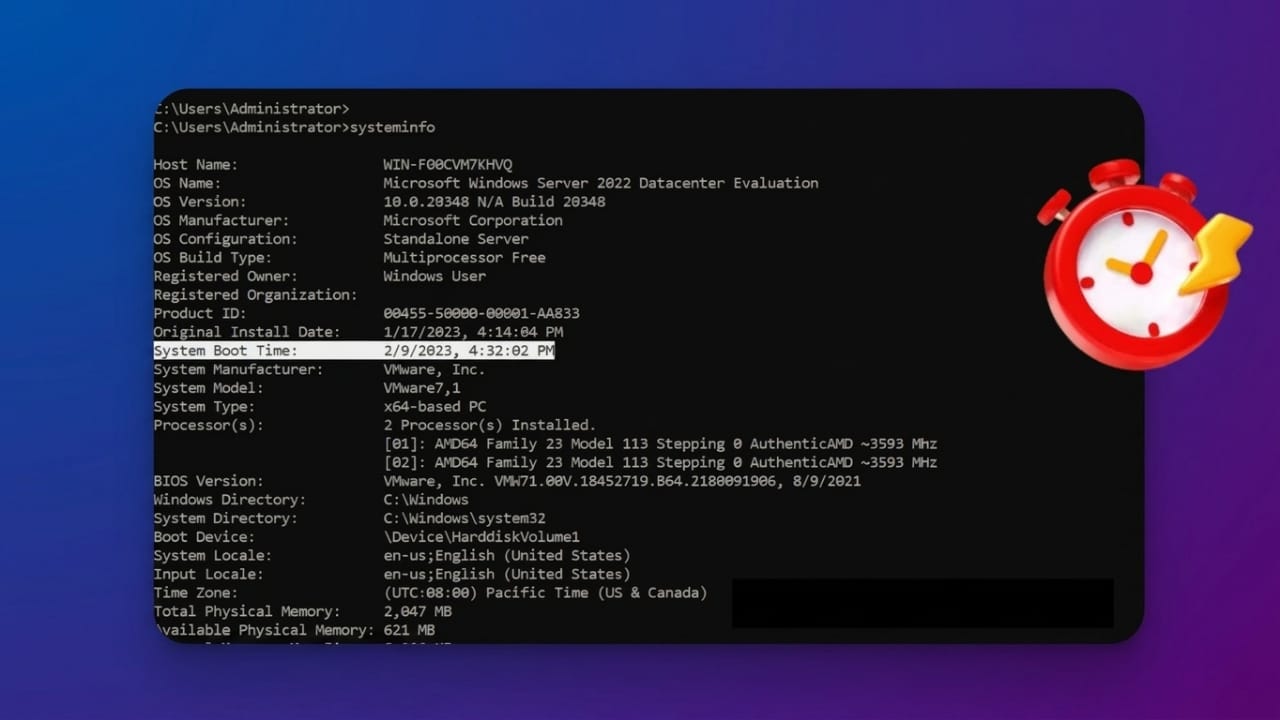
Check Startup Information with systeminfo
Windows also includes built-in commands that display boot information quickly.
Open Command Prompt or PowerShell and type:
systeminfo
Look for the System Boot Time entry.
You can also run:
net statistics workstation
The “Statistics since” line shows when Windows services started running.
Use PowerShell for Advanced Details
PowerShell is useful for advanced users and administrators.
Steps:
- Open PowerShell as Administrator.
- Run this command:
Get-CimInstance Win32_OperatingSystem
- Find the LastBootUpTime value in the results.
This method is commonly used in automation scripts and system monitoring tasks.
How to Check Boot Time on Mac
Check Uptime with Terminal
macOS does not display BIOS startup time like Windows, but you can still view uptime information.
Steps:
- Open Applications > Utilities.
- Launch Terminal.
- Type:
uptime
- Press Enter.
The command shows how long the Mac has been running, along with system load information.
Use System Information
You can also view uptime details from the built-in system information panel.
Steps:
- Hold the Option key and click the Apple logo.
- Select System Information.
- Open the Software section.
You’ll find details such as Time Since Boot.
If your Mac has been running continuously for a very long time, restarting it may improve performance and memory usage.
How to Check Last Boot Time on Linux
Use systemd-analyze for Startup Speed
Linux users can check detailed startup performance using systemd tools.
Open Terminal and run:
systemd-analyze time
This command shows kernel and user-space startup times. It helps identify slow boot performance.
Check Uptime
The uptime command displays how long the system has been active.
Run:
uptime
You’ll see the current time, uptime duration, active users, and load averages.
Find Last Boot Time with who
A simple way to check the last startup time is:
who -b
This displays the exact date and time of the most recent boot.
View Reboot History
Linux also stores reboot history logs.
Run:
last reboot
This command lists previous reboot sessions along with timestamps and uptime duration.
It is useful for troubleshooting and system auditing.
Use journalctl for Detailed Boot Logs
For systems using systemd, journalctl provides detailed boot records.
To list previous boot sessions:
journalctl --list-boots
To view logs from the previous boot:
journalctl -b -1
These logs help diagnose failed startups or performance problems.
Identify Slow Services
You can also check which services are slowing down startup.
Run:
systemd-analyze blame
This command lists services along with the time they take during boot.
Disabling unnecessary services can improve startup speed.
Why Monitoring Boot Time Is Useful
Checking boot time regularly helps maintain system performance and stability.
It can help you:
- Detect slow startup problems
- Identify unexpected restarts
- Monitor system health
- Troubleshoot crashes
- Verify update installations
- Improve startup speed
For businesses and IT teams, boot logs also support security checks and system monitoring.
Unexpected reboots may sometimes point to malware, driver issues, or hardware failures. Reviewing logs can help locate the cause before the problem becomes serious.
Also read: How to Fix Steam Disk Write Error (Simple and Effective Methods)
Final Thoughts
Monitoring your computer’s last boot time is a simple way to keep track of system performance and uptime.
Windows, macOS, and Linux all provide built-in tools that make this process easy. Regular checks can help you catch startup problems early and keep your system running smoothly.

Jatin Rajput (Tech Golu) — Tech blogger & YouTuber with 6+ years of experience in WhatsApp, Instagram, Facebook, and mobile guides. Founder of TechGolu.in.