Most people think zooming on an iPhone only changes how the video looks. But it can also change how your audio is recorded—and not always in a good way. If your videos sound strange when you zoom in, this could be the reason.
Also read: How to Message on WhatsApp Without Saving a Number (Simple Official Way)
What’s Actually Happening?
While recording a video, your iPhone uses a feature called Audio Zoom. It automatically turns on when you zoom in, even though you won’t see any alert or message.
This feature tries to match the sound with what you’re focusing on visually. So when you zoom closer to a subject, your phone narrows the microphone range to capture sound mainly from that direction.
It sounds helpful, but in real-life use, it doesn’t always perform well.
Common Problems You Might Notice
After testing this feature, here are some issues that can show up in your recordings:
- Background sounds may suddenly fade or get cut off
- Your voice can sound far away, even if you’re close to the phone
- Audio may feel slightly unnatural or processed
- Small camera movements can confuse the microphone direction
- Sound levels may keep changing during the video
The tricky part is—you usually don’t notice these problems while recording. They become obvious only when you play the video later.
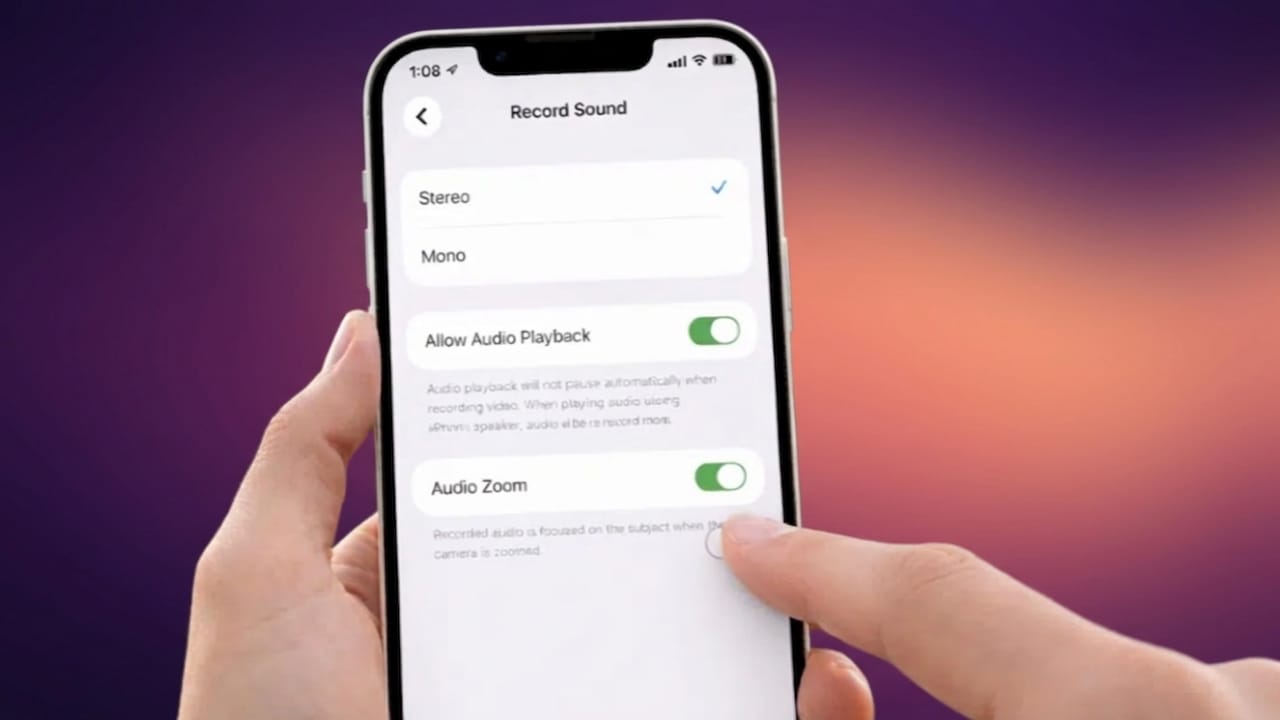
How to Turn Off Audio Zoom
The good news is that fixing this is very simple. Newer iPhone updates include an option to disable Audio Zoom.
Follow these steps:
- Open Settings
- Tap Camera
- Select Record Sound
- Turn Audio Zoom OFF
If the option is disabled (greyed out), your audio might be set to Mono. Change it to Stereo or Spatial Audio first, and the setting should become available.
What Improves After Turning It Off?
Once you disable Audio Zoom, the difference is easy to notice:
- Voices sound clearer and more natural
- Background sound stays steady instead of changing randomly
- No sudden audio drops while adjusting the frame
- The recording feels more true to real life
If you care about natural sound—like during events, travel videos, or casual recordings—this small change can really help.
A Few Things to Keep in Mind
- Zooming doesn’t just affect visuals—it also changes how audio is captured
- “Smart” features don’t always give better results
- Fixing bad audio later is difficult, even with editing tools
- Stable and consistent sound is usually better than overly processed audio
When Audio Zoom Can Be Useful
Even though it has drawbacks, Audio Zoom isn’t completely useless. It can work well in certain situations:
- Face-to-camera videos
- Interviews or conversations
- Walking vlogs with a steady subject
- Noisy environments where you want to focus on one voice
In these cases, it can help reduce unwanted noise and highlight the main speaker.
Also read: Google Vids Now Offers Free AI Video Creation With New Veo 3.1 Update
Final Thoughts
Audio Zoom is one of those features that sounds great in theory but doesn’t always deliver the best results in everyday use. Since it runs automatically, many users don’t even realize it’s affecting their recordings.
If your videos sound strange whenever you zoom in, try turning this setting off. It’s a quick fix that can make your audio sound much more natural.

Jatin Rajput (Tech Golu) — Tech blogger & YouTuber with 6+ years of experience in WhatsApp, Instagram, Facebook, and mobile guides. Founder of TechGolu.in.