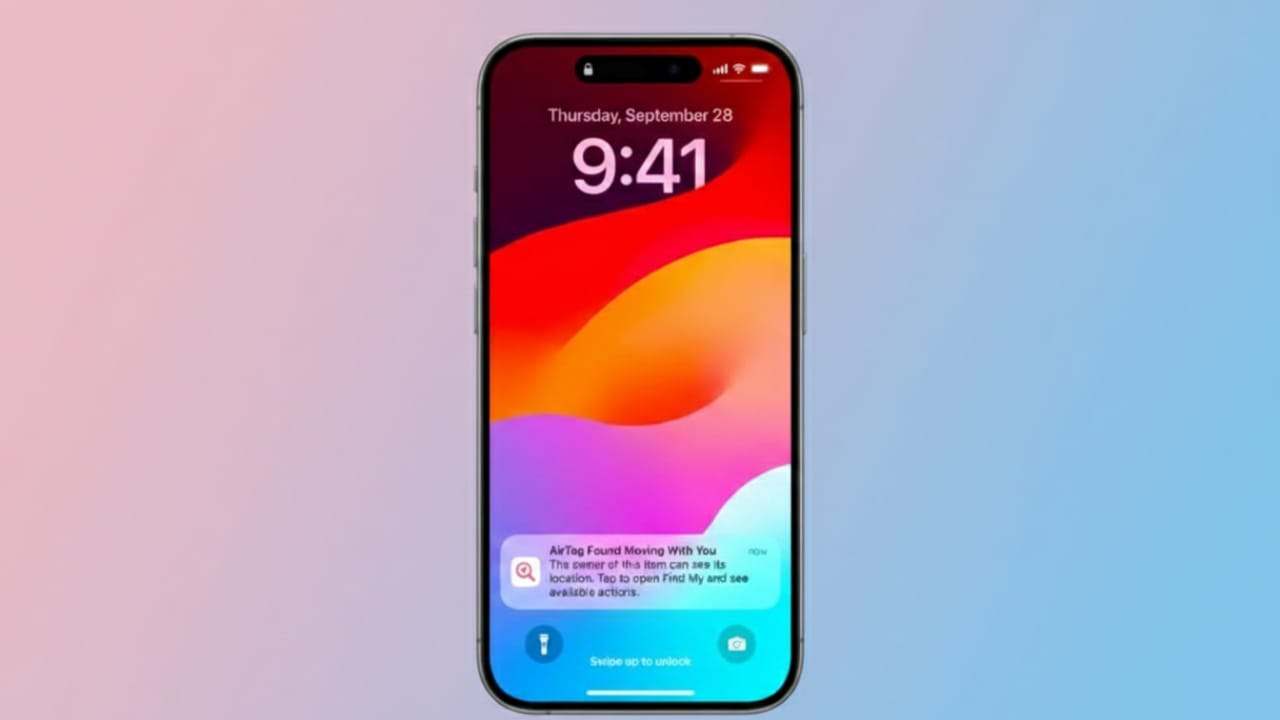
Your iPhone quietly looks out for you every day. One of the most important safety tools it offers is Tracking Notifications. This feature alerts you if an unfamiliar tracking device appears to be moving with you, helping prevent unwanted or secret tracking. Apple designed it with privacy and personal safety in mind, and it works automatically in the background.
AirTags are helpful tools, but like any technology, they can be misused. Tracking Notifications exist to make sure you are aware when something doesn’t feel right.
Also read: Apple Year of the Horse 2026 Wallpapers: How to Download and Use Them
What Are Tracking Notifications on iPhone?
Tracking Notifications are a built-in privacy feature linked to the Find My system. They are available on iPhones running iOS 14.5 or later. Apple introduced this feature after growing concerns about small trackers being used without someone’s consent.
Before this update, tiny tracking devices could be hidden in bags, cars, or clothing without the owner knowing. This raised serious safety and stalking concerns. Tracking Notifications were created to close that gap.
Why AirTags Needed Extra Protection
AirTags were released to help people locate everyday items like keys, wallets, backpacks, and luggage. They work by showing the item’s location on a map and sending alerts when the item is left behind.
However, problems appeared when AirTags were placed in someone else’s belongings without permission. A person could then follow another individual’s movements without them realizing it. To prevent this misuse, Apple added multiple safety layers, with Tracking Notifications being one of the most important.
How Tracking Detection Works
Your iPhone regularly scans for nearby tracking devices using Bluetooth. This process is designed to be efficient and does not noticeably affect battery life.
An alert is triggered only when a specific pattern is detected:
- An unknown tracking device is found nearby
- The device is separated from its original owner
- It keeps traveling with you over time
- This pattern continues for several hours
If these conditions are met, your iPhone sends an alert, usually within 8 to 24 hours. Brief or one-time contact does not trigger notifications. Devices linked through Family Sharing are also ignored to reduce false alerts.
What the Notification Looks Like
The alert appears just like a regular iPhone notification. You’ll see it on your lock screen or in Notification Center.
Common messages include:
- “AirTag Found Moving With You”
- “Unknown Accessory Detected Near You”
Tapping the notification opens the Find My app, where you can see helpful details such as:
- The type of device detected
- A serial number
- A partially hidden phone number or email linked to the owner
- Lost Mode status, if enabled
This information helps you understand what’s going on and decide what to do next.
Making Sure Tracking Notifications Are Active
Tracking Notifications are turned on by default, but it’s a good idea to double-check your settings.
Settings That Must Be Enabled
For alerts to work properly, ensure the following are turned on:
- Location Services
- Bluetooth
- Find My
- Airplane Mode is turned off
If any of these are disabled, alerts may not appear.
How to Turn Tracking Notifications On
- Open Settings
- Tap Notifications
- Scroll to Tracking Notifications
- Turn on Allow Notifications
You can also check this inside the Find My app by tapping Me and selecting Customize Tracking Notifications.
Turning Off Tracking Notifications (Not Recommended)
Apple advises keeping this feature enabled for safety reasons. Turning it off removes an important layer of protection.
If you still choose to disable it:
- Open Settings
- Tap Notifications
- Select Tracking Notifications
- Turn off Allow Notifications
Once disabled, your iPhone will no longer warn you about unknown trackers.
Common Issues and Simple Fixes
If you don’t receive alerts:
- Make sure your iPhone is updated to iOS 14.5 or later
- Confirm Bluetooth and Location Services are on
- Ensure Find My is enabled
- Keep Airplane Mode turned off
Occasionally, alerts may appear for shared or borrowed items. Apple continues improving the system to reduce unnecessary warnings.
As an extra safety measure, AirTags also play a sound after being separated from their owner for a long period. This makes them easier to find.
What to Do If You Get a Tracking Alert
Seeing a tracking alert can feel unsettling, but it doesn’t automatically mean danger. Take a moment to review the details calmly.
Step 1: Find the Device
Your iPhone can help you locate it by:
- Playing a sound from the tracker
- Showing directions and distance (if supported)
Check bags, pockets, jackets, and nearby personal items. If needed, inspect your car as well.
Step 2: View Device Information
If the tracker is unfamiliar, select Learn About This AirTag and hold it near the top of your iPhone. You may see:
- The serial number
- A partially hidden contact detail
- Lost Mode instructions
If it’s marked as lost, you may be able to return it safely.
Step 3: Pause Alerts if It’s Harmless
Sometimes the tracker belongs to someone you know, such as a borrowed item or shared keys. In that case, you can pause alerts for a day or manage settings for Family Sharing items.
Step 4: Disable the Tracker
If the device doesn’t belong to you and makes you uncomfortable, choose Disable AirTag and follow the on-screen steps. This usually involves removing the battery.
If you believe there is a serious safety concern, contact local authorities and share the device details. Apple can assist when required.
Why This Feature Matters
Tracking Notifications work quietly in the background without interrupting daily phone use. They only alert you when something unusual is detected. This balance helps protect your privacy while avoiding unnecessary alarms.
Also read: How to Skip CAPTCHA Automatically on iPhone and Mac
Final Thoughts
Tracking Notifications on iPhone are a powerful safety feature. They help expose hidden tracking devices and reduce the risk of unwanted monitoring. Keep the required settings enabled, review alerts carefully, and take action when needed.
It’s a simple tool, but it offers real peace of mind.

Jatin Rajput (Tech Golu) — Tech blogger & YouTuber with 6+ years of experience in WhatsApp, Instagram, Facebook, and mobile guides. Founder of TechGolu.in.