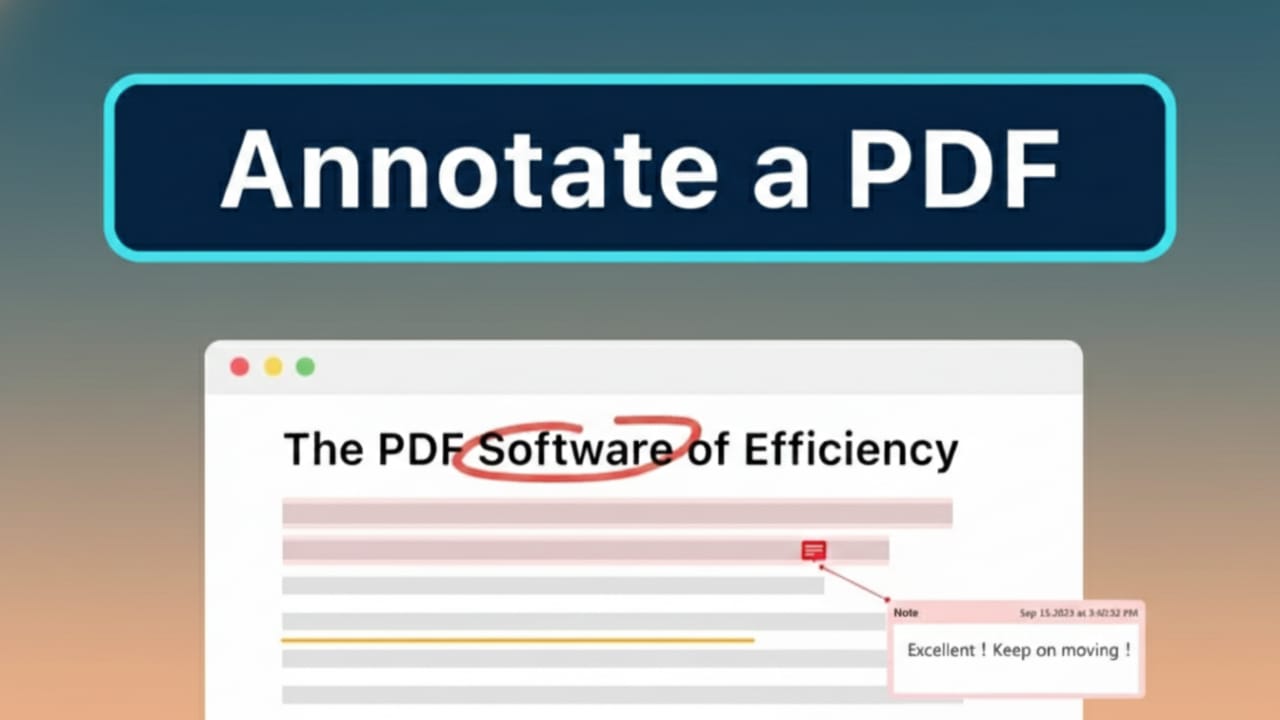
Working with PDF files is part of everyday life for students, teachers, and office users. Whether it’s reading notes, checking documents, or signing forms, PDFs show up everywhere. The good news is that macOS already includes solid tools to handle most PDF tasks. In many cases, you don’t need to install any extra apps at all.
macOS lets you highlight text, add comments, fill forms, and even sign documents digitally. These features are simple, reliable, and perfect for daily use.
Also read: How to Fix the “Rate Limit Reached” Error in DeepSeek (Error 429)
Built-In PDF Tools in macOS
Apple designs macOS to be practical and user-friendly. Its built-in PDF features cover most common needs like reviewing, marking, and sharing documents. You can add notes, draw shapes, underline key lines, or leave quick comments without downloading anything new.
These tools are especially helpful for students, teachers, and professionals who want fast results without complicated software.
Editing PDFs Using Preview
Preview is the default app that opens PDFs on a Mac. It is lightweight, fast, and surprisingly powerful for basic editing and annotation.
Opening a PDF in Preview
- Open Finder and locate your PDF file.
- Double-click the file to open it in Preview.
- If it opens in another app, right-click the file, choose Open With, and select Preview.
Using Markup Tools
Once the PDF is open:
- Click the Markup button (it looks like a pen).
- A toolbar will appear at the top with annotation tools.
You can:
- Highlight important lines
- Underline or cross out text
- Add text boxes anywhere on the page
- Draw arrows, circles, or rectangles
- Leave comments near specific content
- Make freehand drawings using the trackpad
When you’re done, press Command + S to save your changes.
Organizing PDF Pages in Preview
Preview also helps you manage pages in multi-page PDFs.
- Open the thumbnail view from the left sidebar
- Drag pages to rearrange their order
- Select a page and press Delete to remove it
- Rotate pages using options in the Tools menu
This is useful when working with long documents or scanned files.
Filling Forms and Adding Signatures
Filling PDF Forms
If a PDF includes fillable fields:
- Click the Form Filling icon near the Markup tools
- Click on highlighted fields and type your details
- Enter names, dates, numbers, or addresses easily
Adding a Digital Signature
Preview allows you to sign documents without printing them.
Steps:
- Click the Signature icon in the toolbar
- Choose an existing signature or create a new one
You can create a signature using:
- The trackpad
- A camera to scan a handwritten signature
- An iPhone to sign directly
After saving the signature, drag it onto the document and resize it as needed.
Quick Edits with Quick Look
Quick Look is designed for speed and works directly from Finder.
How to use it:
- Select a PDF file in Finder
- Press the Spacebar
- Click the Markup icon at the top
With Quick Look, you can:
- Highlight text quickly
- Add short notes
- Draw simple shapes or lines
Click Done to save changes instantly. This method is best for small, urgent edits rather than detailed work.
Editing PDF Text Using Pages
Pages can edit actual text inside some PDFs, but this only works with editable files. Scanned or image-based PDFs usually won’t work.
When you open a PDF in Pages:
- The file is converted into an editable document
- You can change text, replace images, and adjust basic formatting
This works best for simple documents like resumes or plain text files. Complex layouts may not convert properly, and macOS does not include built-in OCR for scanned PDFs.
Using Free Third-Party PDF Tools
Adobe Acrobat Reader
Adobe Acrobat Reader is a free option for viewing and annotating PDFs.
It allows you to:
- Highlight and underline text
- Add comments and notes
- Draw shapes
- Sign documents digitally
Advanced features like OCR require a paid subscription.
PDFgear
PDFgear is another free PDF tool with no watermarks or account signup.
Key features include:
- Text and image highlighting
- Notes, shapes, and strikethroughs
- OCR for scanned documents
- AI tools for summarizing long PDFs
- Multiple reading modes like dark mode and eye protection
To use it:
- Install the app
- Open or drag your PDF into it
- Add annotations
- Save the file from the menu
Common PDF Problems on Mac and Simple Fixes
Some issues appear frequently when editing PDFs. Here are common causes and solutions:
- Text can’t be edited
The PDF may be locked or flattened. Try Pages or another editor. - Form fields don’t work
The file may not be interactive. Use text boxes instead. - Pages can’t be rearranged
The thumbnail sidebar may be hidden. Enable it manually. - Signature looks blurry
Zoom in before placing the signature. - PDF won’t open in Pages
The layout may be complex or scanned. - Highlights don’t save
File permissions may be restricted. Duplicate the file and edit the copy. - Editing is blocked
The PDF may be password-protected. Remove protection only if permitted.
Also read: How to Fix Game Sound Not Working on Android (Simple Solutions That Really Help)
Final Thoughts
Editing and annotating PDFs on a Mac is easier than many people realize. Built-in tools like Preview and Quick Look handle most everyday tasks without extra software. Pages can help with limited text edits, while free third-party tools are available for advanced needs like OCR.
With the right approach, you can manage PDFs smoothly, save time, and stay productive—right from your Mac.

Jatin Rajput (Tech Golu) — Tech blogger & YouTuber with 6+ years of experience in WhatsApp, Instagram, Facebook, and mobile guides. Founder of TechGolu.in.