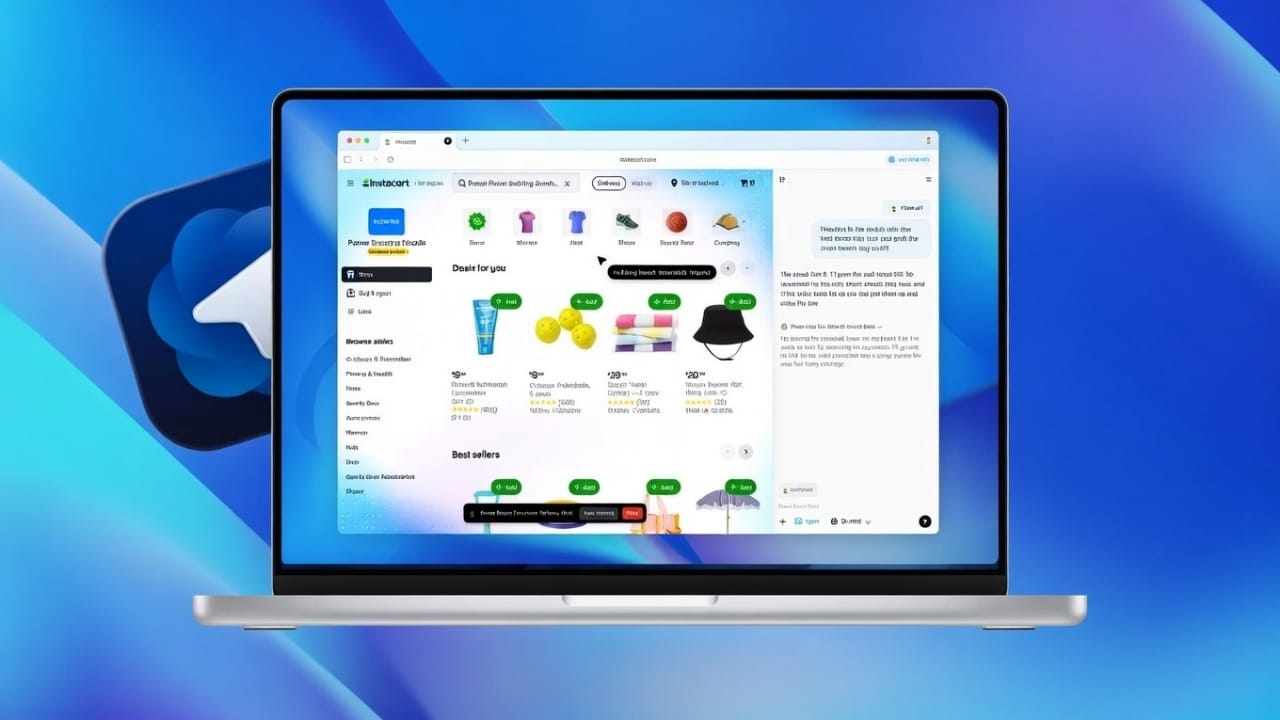
ChatGPT Atlas changes the way people use the internet. Instead of switching between tabs, tools, and apps, Atlas keeps ChatGPT right next to every webpage. You can search, read, understand, and take action from one place.
This browser is built to save time and reduce effort. It works well for students, writers, office workers, and everyday users who want a simpler browsing experience.
Also read: How to Protect Your OpenAI Account Using Passkeys (Easy Security Guide)
Getting Started with ChatGPT Atlas
What the Atlas browsing experience feels like
Using Atlas feels smooth and distraction-free. ChatGPT is built directly into the browser, so there is no need for extra extensions or external AI tools. Everything happens in a single window, which makes browsing faster and more focused.
Searching the Web with Atlas
Atlas comes with a smart address bar at the top of the browser. Click on it, type what you are looking for, and press Enter to search.
When you open a new tab, Atlas shows useful suggestions. These include frequently visited sites and previous searches, which helps you get back to what you need quickly.
You can also use different search engines. Just type a website name before your search, or set your preferred search engine from the Settings menu under Search options.
Finding Words on a Page
Looking for specific information on a long page is easy. Press Command + F, then type the word or phrase you want to find. All matches are highlighted instantly.
Use the arrow buttons to jump between results. This is helpful when reading long articles or detailed pages.
Understanding the Atlas Interface
The Atlas layout is clean and simple:
- Back, forward, and reload buttons are on the top left
- The address bar stays at the center
- Tabs run across the top of the window
You can right-click on any tab to see more options.
Useful tab features include:
- Pinning important tabs
- Muting noisy tabs
- Duplicating tabs for side-by-side work
- Moving tabs into new windows
Helpful shortcuts:
- Open a new tab: Command + T
- Close a tab: Command + W
- Reopen a closed tab: Shift + Command + T
- Switch tabs: Control + Tab or Option + Command + Arrow keys
You can also search through open tabs by clicking the address bar or using Command + Shift + A.
Using the ChatGPT Sidebar While Browsing
Atlas includes a built-in ChatGPT sidebar that stays visible next to your webpage. You can ask questions or request help without leaving the page.
Common uses include:
- Summarizing long articles
- Writing or improving emails
- Explaining complex paragraphs
- Rewriting selected text
This setup helps you stay focused and work more efficiently.
Smart Tools Inside ChatGPT Atlas
Autofill for forms
Atlas can store and fill in common details like addresses, passwords, and payment information. This reduces the time spent filling out forms.
You can manage these settings from Settings → Web Browsing.
Address details
You can add, edit, or delete saved addresses whenever needed.
Passwords and passkeys
Atlas can save login details securely. You can view, update, or remove saved passwords from the Passwords section.
Some websites support passkeys, which allow secure sign-ins without passwords. You can manage passkey preferences from the same settings area.
Payment methods
Card details can be saved on your device to speed up online checkouts. Support for wallets like PayPal depends on the website you are using.
Downloading Files with Atlas
Downloading files is straightforward. Click any download link, and a progress indicator appears in the bottom-right corner. Click it to open the file once it finishes.
To view all downloads, click the profile icon and select Downloads. You can also change where files are saved by going to Settings → Web Browsing → Downloads location.
Switching Between ChatGPT Workspaces
If you use more than one ChatGPT account, Atlas makes switching easy. Click the profile icon in the top-right corner and choose the workspace you want.
Each workspace keeps its own settings, memories, and data. This is useful for separating personal and work-related browsing.
Safe Search in Atlas
Atlas includes a Safe Search option that filters explicit search results. This affects web search results only and does not change ChatGPT’s responses.
Filtered content may include:
- Adult websites and images
- Pornographic services
- Graphic violence
Adults can turn Safe Search on or off from Settings → Web Browsing → Search options.
For users under 18, Safe Search stays enabled. In some regions, it may be locked by default.
Installing ChatGPT Atlas
What makes Atlas unique
Atlas is OpenAI’s first browser designed around AI. It removes the need to jump between tabs and tools. ChatGPT can understand on-screen content, summarize articles and PDFs, remember preferences, and help with simple online tasks—all without leaving the page.
System Requirements
Currently, Atlas works only on macOS devices with Apple Silicon.
Supported processors:
- Apple M1 series
- Apple M2 series
- Apple M3 series
- Apple M4 series
Your Mac must run macOS 12 or newer. Intel-based Macs are not supported yet. Windows and mobile versions are planned.
All ChatGPT account types are supported, including Free, Plus, Pro, Go, Business, Enterprise, and Edu.
Step-by-Step Installation Guide
Step 1: Check compatibility
Make sure your Mac has an Apple Silicon chip, runs macOS 12 or later, and you have a ChatGPT account.
Step 2: Download Atlas
Open a browser and visit chatgpt.com/atlas. Click Download for Mac. The DMG file will download to your system.
Step 3: Install the app
Open the DMG file and drag the Atlas icon into the Applications folder. Eject the installer and launch Atlas from Applications or Spotlight. Approve any macOS security prompts if shown.
Step 4: Sign in
Log in using your ChatGPT account. This connects ChatGPT with your browsing activity so it can understand page content.
Step 5: Import browser data
Atlas allows you to import data from Chrome, including bookmarks, history, and saved passwords.
To import:
- Open the Atlas menu
- Select Import data
- Choose Chrome
- Start the import and allow Keychain access when prompted
Step 6: Set Atlas as default browser
Go to Settings → General and choose Set Default Browser. Confirm in system settings if asked.
Step 7: Customize settings
From the Settings menu, you can:
- Control AI memory
- Adjust privacy permissions
- Choose your default search engine
- Manage which sites ChatGPT can view
You stay in control of what the AI can access.
Step 8: Add Atlas to the Dock
If it does not appear automatically, drag the Atlas icon from the Applications folder to the Dock for quick access.
Step 9: Keep Atlas updated
Atlas receives regular updates. Check for updates under Settings → About Atlas, or enable automatic updates for convenience.
Also read: How to Use the Handwashing Feature on Apple Watch
Final Thoughts
ChatGPT Atlas brings browsing and AI together in a natural way. It reduces distractions, saves time, and makes everyday internet tasks easier. Built-in safety tools help protect users, including families.
Installation is simple on supported Macs, and future updates are expected to expand availability. Atlas is a practical choice for students, professionals, and creators who want a smarter way to browse the web.

Jatin Rajput (Tech Golu) — Tech blogger & YouTuber with 6+ years of experience in WhatsApp, Instagram, Facebook, and mobile guides. Founder of TechGolu.in.