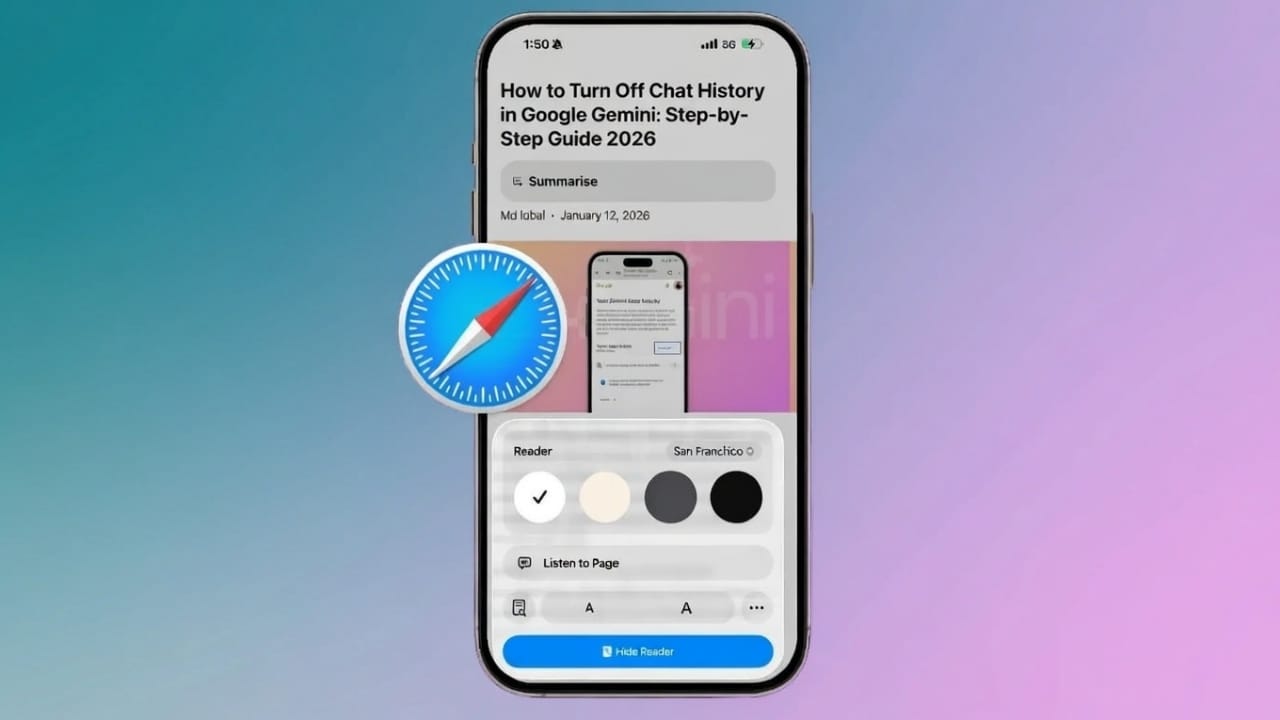
Reading articles on the internet can often feel messy and distracting. Many websites are filled with advertisements, pop-ups, sidebars, and banners that make it hard to concentrate. These elements break your focus and make reading uncomfortable.
To solve this problem, Apple includes a feature in Safari called Reader Mode. This tool removes unnecessary clutter and shows only the main content of a webpage in a clean, easy-to-read format.
Also read: How to Secure Safari Private Tabs with Face ID or Touch ID
What Is Reader Mode and Why It Is Useful
Reader Mode is a built-in feature in Safari that simplifies web pages. When you enable it, Safari hides ads, menus, pop-ups, and other distractions. Only the main article text and important images remain visible.
This makes reading smoother and more enjoyable, especially for long articles. Reader Mode works best on blog posts, news articles, and educational websites. However, not all websites support it. If a page does not allow Reader Mode, the option will not appear in Safari.
Another benefit of Reader Mode is improved readability. The layout becomes cleaner, spacing between lines improves, and text looks more comfortable to read. This helps reduce eye strain, especially when reading for a long time.
Many people use Reader Mode daily for reading news, tutorials, research articles, or study material. It works perfectly on both iPhone and iPad without needing any extra app or download.
You can also customize how Reader Mode looks. Safari lets you change font style, text size, and background color. You can choose a light theme for daytime, dark mode for night reading, or a sepia tone that feels gentle on the eyes.
How to Turn On Reader Mode in Safari on iPhone
Turning on Reader Mode in Safari is very simple. First, open Safari and visit an article page. Make sure it is a supported website.
Look at the top of your screen near the website address bar. On the left side, you will see a small page settings icon (two A letters). Tap on it once. A small menu will appear.
From this menu, tap Show Reader. Instantly, the page will switch to Reader Mode. The clutter will disappear, and the text will become clearer and more readable. Images will still appear properly within the article.
There is also a faster method. You can press and hold the page settings icon instead of tapping it. Safari will automatically turn on Reader Mode. This is useful if you read articles frequently.
If you want to leave Reader Mode, tap the same icon again and select Hide Reader. The webpage will return to its original format with ads and menus.
On older iPhones running older iOS versions, the steps are slightly different. Instead of the page settings icon, you tap the Aa button in the address bar and then choose Show Reader. To exit, tap Aa again and select Hide Reader.
Customize and Automatically Use Reader Mode
Safari allows you to personalize Reader Mode to match your reading style. You can change the background color easily. A white background is good for bright environments, while a dark background is better for nighttime reading. The sepia option feels softer and more natural on the eyes.
To customize this, first turn on Reader Mode. Then tap the page settings icon again. You will see color and font options. Choose your preferred background, and it will change instantly.
You can also change the font style. Some people prefer bold fonts, while others like softer styles. Safari gives you multiple font choices. You can also adjust text size to make reading easier for your eyes.
If you read from certain websites regularly, you can make Safari automatically open them in Reader Mode. Visit the website, tap the page settings icon, and enable Use Reader Automatically. After this, every article from that site will open in Reader Mode by default. You can turn this off anytime using the same steps.
If you want Reader Mode to turn on automatically for all supported websites, open your iPhone Settings, scroll down, tap Safari, then go to Settings for Websites and select Reader. Under Other Websites, turn on automatic Reader Mode. Safari will now use it wherever possible.
Also read: How to Fix the “Something Went Wrong” Error in Gemini (2026 Guide)
Final Thoughts
Reader Mode in Safari is a simple but powerful feature that makes online reading much better. It removes distractions, improves focus, and makes articles easier to read. You can use it manually or automatically, customize its appearance, and disable it whenever you want.
Overall, Reader Mode makes browsing calmer, cleaner, and more enjoyable—especially for people who love reading on their iPhone.

Jatin Rajput (Tech Golu) — Tech blogger & YouTuber with 6+ years of experience in WhatsApp, Instagram, Facebook, and mobile guides. Founder of TechGolu.in.