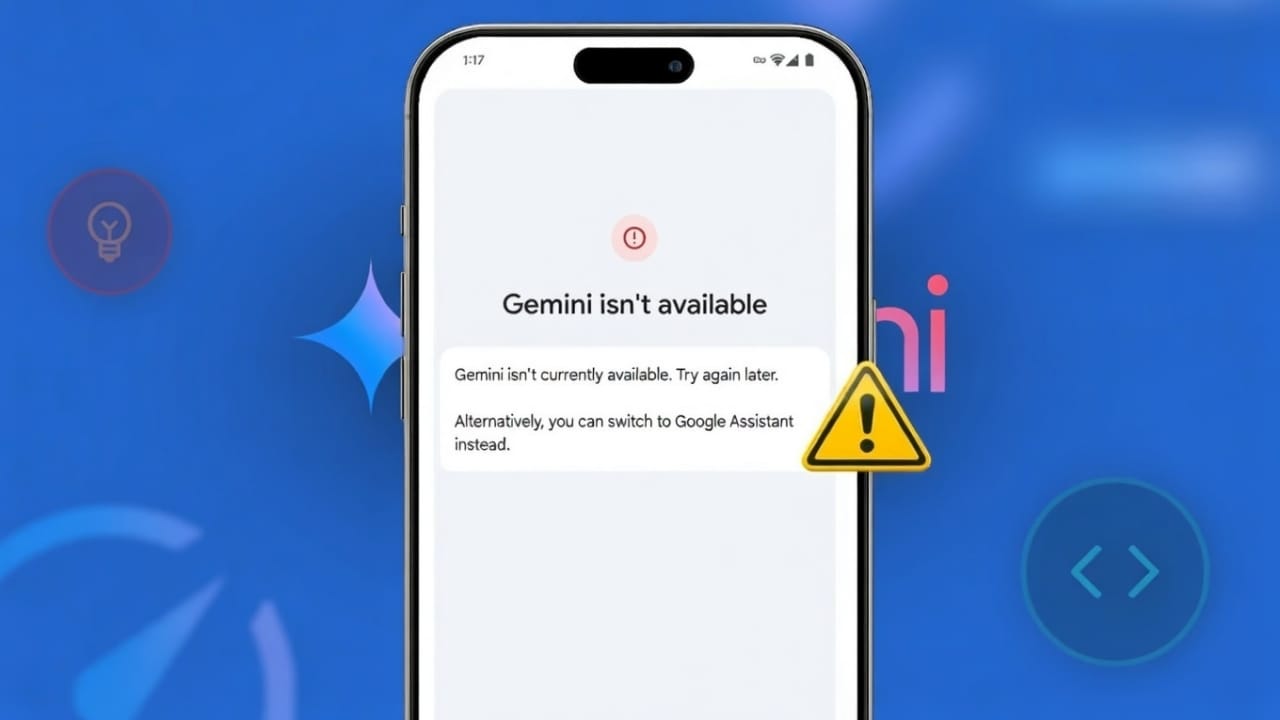
Many Gemini users suddenly see a message that says, “Something went wrong.” This error can appear in the middle of a chat or while Gemini is processing a request. When this happens, responses stop, and users feel stuck.
This issue affects both mobile and desktop users. It appears on Android, iPhone, and web browsers. Sometimes it disappears after refreshing, but other times it keeps returning.
The good news is that this problem is usually temporary. In most cases, it can be fixed with simple steps.
Also read: How to Disable Chat History in Google Gemini (Complete Privacy Guide 2026)
What Does This Error Mean?
The “Something went wrong” message is a general system error. Gemini does not explain the exact reason behind it. It can happen while loading, thinking, or generating an answer.
This issue is not new. It has been present since Gemini’s early days. However, in 2026, more users are reporting it, especially Android users.
Most of the time, the problem is not serious. It is usually related to servers, internet, or app performance.
Common Causes of the Gemini Error
1. Google Server Problems
Sometimes the issue comes from Google’s side.
- Too many users online at once
- Temporary server overload
- Scheduled maintenance
- Internal technical glitches
In these cases, users cannot do much. The problem usually fixes itself after some time.
2. Account or Login Issues
Your Google account can also cause problems.
- Login session may expire
- Account sync may fail
- Temporary authentication glitch
Logging out and logging back in often solves this.
3. App or Device Problems
Mobile users often face app-related issues such as:
- Corrupted app cache
- Outdated Gemini version
- Old Android or iOS version
- Compatibility problems
Clearing cache or updating the app usually helps.
4. Weak Internet Connection
A slow or unstable internet connection can interrupt Gemini.
Common signs include:
- Half-finished responses
- Long loading time
- Frequent error messages
Switching to stronger WiFi or stable mobile data can fix this.
5. Long or Complex Prompts
Gemini may fail if:
- Your message is too long
- You ask too many questions at once
- The topic is restricted or sensitive
- You exceed usage limits
Keeping questions simple works better.
Easy Ways to Fix the Gemini Error
Step 1: Check Your Internet
Before doing anything else:
- Open another website
- Switch between WiFi and mobile data
- Turn airplane mode on and off
- Restart your router
Stable internet is very important.
Step 2: Restart Your Device
A simple restart fixes many problems.
- Close Gemini completely
- Remove it from background apps
- Restart your phone or computer
- Open Gemini again
This clears temporary glitches.
Step 3: Clear Cache (Mobile Users)
Android:
- Open Settings
- Go to Apps → Gemini
- Tap Storage
- Clear Cache and Data
- Restart phone
iPhone:
- Go to Settings → General
- Tap iPhone Storage
- Find Gemini
- Offload or delete the app
- Reinstall from App Store
This solves most app problems.
Step 4: Update Gemini and Your Phone
Outdated software causes errors.
- Open Play Store / App Store
- Update Gemini
- Update your phone’s operating system
Updates improve performance and stability.
Step 5: Fix Browser Issues (Web Users)
If you use Gemini on the web:
- Update your browser
- Use Chrome, Edge, or Firefox
- Clear cookies and cache
- Turn off extensions temporarily
- Try another browser
Step 6: Start a New Chat
Old conversations sometimes cause issues.
Try this:
- Open a new chat
- Use short and simple messages
- Ask one question at a time
If Gemini stops replying, type:
- continue
- or finish your answer
This often brings back the response.
Step 7: Try Another Google Account
If errors keep happening:
- Log out
- Sign in with a different Google account
- Test Gemini again
If it works, your main account may have a temporary issue.
Step 8: Use Gemini in Browser Instead of App
If the mobile app is buggy:
- Open gemini.google.com in a browser
- Use it from your phone or PC
The web version often works better.
Step 9: Check Gemini Service Status
Before troubleshooting too much, check if Gemini is down.
- Visit the official status page
- If it shows yellow or red, wait
- If green, the problem is likely on your side
Step 10: Report the Issue to Google
If nothing works:
- Open Gemini settings
- Tap Help → Send Feedback
- Attach a screenshot
- Mention your device and OS
- Write your country/region
This helps Google fix bugs faster.
Tips for a Better Gemini Experience
To avoid errors in the future:
- Don’t send extremely long messages
- Avoid restricted topics
- Rephrase questions in simple words
- Take breaks in long chats
- Clear cache occasionally
- Try another device if needed
Also make sure:
- Background data is enabled
- Internet permission is allowed
Improving Gemini’s Writing Style
Some users feel Gemini sounds robotic. If you want more natural writing, you can manually edit its responses or use writing tools to refine them.
Many editing tools can:
- Rewrite AI text in human style
- Keep the original meaning
- Improve grammar and flow
Use such tools responsibly.
Also read: YouTube Videos Not Playing on Safari on Mac: Simple Fixes That Work
Final Thoughts
The “Something went wrong” error in Gemini is common, but usually fixable. Most problems come from servers, internet, cache issues, or outdated software.
Restarting, updating, and clearing cache solve most cases. Checking service status can save time. If the issue continues, reporting it to Google helps improve Gemini.
With a few simple steps, Gemini can work smoothly again.

Jatin Rajput (Tech Golu) — Tech blogger & YouTuber with 6+ years of experience in WhatsApp, Instagram, Facebook, and mobile guides. Founder of TechGolu.in.