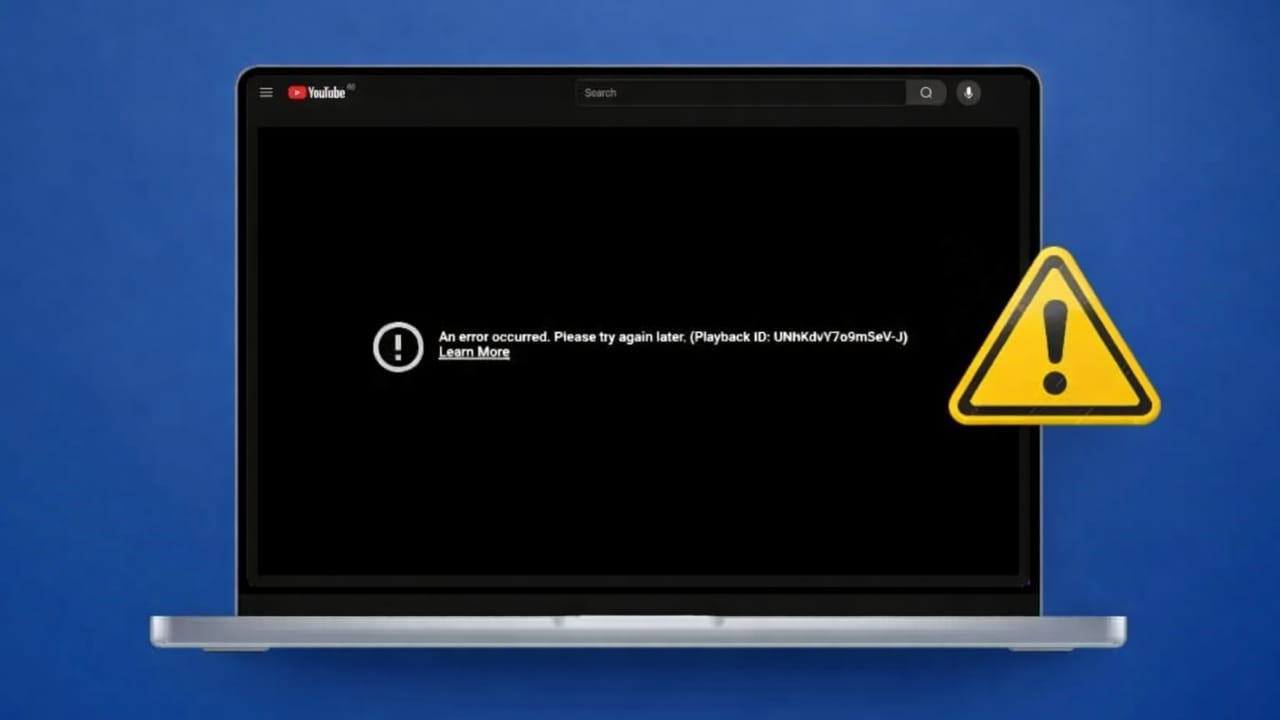
Many Mac users face a common problem where YouTube videos refuse to play in Safari. Sometimes the screen stays black. Other times, the loading icon keeps spinning without starting the video. In some cases, YouTube shows unclear error messages that do not explain what went wrong.
Since Safari is the default browser on macOS, this issue can feel annoying, especially when YouTube works fine on other browsers. Most streaming platforms depend entirely on browsers for Mac, so when Safari fails, it disrupts daily use.
The good news is that this problem usually happens because of small setting conflicts, outdated software, or browser data issues. In this guide, you’ll learn why YouTube stops working on Safari and how to fix it using easy, beginner-friendly steps.
Also read: How to Set or Change a Passcode on Apple Watch (Complete 2026 Guide)
Why YouTube Stops Playing on Safari
YouTube depends on modern web features like JavaScript, HTML5, and adaptive video loading. Safari supports these technologies, but it follows strict privacy and security rules. When certain settings or tools interfere, videos may stop working.
Here are the most common reasons:
- Safari privacy features may block required YouTube scripts
- Ad blockers or content blockers can interrupt video loading
- Corrupted cache or outdated cookies can break playback
- VPNs or proxy services may block YouTube servers
- Network interruptions can stop video segments from loading
- Outdated macOS or Safari versions may lack compatibility updates
- Safari extensions may conflict with YouTube’s player
- User account settings can create hidden browser issues
Understanding these causes makes troubleshooting much easier.
Easy Ways to Fix YouTube Not Playing on Safari
Follow the steps below one by one. After each step, check YouTube to see if the issue is resolved.
Check Your Internet Connection
Open a few other websites to test your network. If pages load slowly, your internet may be unstable. Try switching Wi-Fi networks or use a mobile hotspot to confirm.
Restart Safari
Temporary browser glitches often disappear after a restart.
Click the Apple menu, choose Force Quit, select Safari, and reopen it.
Use a Private Window
Private windows disable extensions automatically.
Click File → New Private Window, open YouTube, and try playing a video.
If it works, one of your extensions is likely causing the problem.
Disable Safari Extensions
Go to Safari Settings → Extensions.
Turn off all extensions temporarily.
Restart Safari and test YouTube again.
Enable extensions one at a time to find the one causing issues.
Make Sure JavaScript Is Enabled
YouTube cannot function without JavaScript.
Open Safari Settings → Security and confirm JavaScript is turned on.
Adjust Privacy Settings
Sometimes Safari blocks video elements while preventing tracking.
Go to Safari Settings → Privacy and temporarily disable Prevent cross-site tracking.
Reload YouTube and test playback.
Clear Safari Cache and Website Data
Old or corrupted data often breaks video loading.
Open Safari Settings → Privacy → Manage Website Data.
Remove YouTube data, restart Safari, and sign in again.
Turn Off VPN or Proxy
VPNs can block YouTube’s video servers.
Disable your VPN and reload the page.
If videos play, switch to another VPN server later or whitelist YouTube.
Update macOS
Safari updates come through macOS updates.
Go to Settings → General → Software Update.
Install any available updates and restart your Mac.
Check for System Performance Issues
System-level problems can affect browser performance.
Some Mac optimization tools scan for hidden system issues and improve stability. Use only trusted software and review suggestions carefully.
Test with a New macOS User Account
Create a temporary user account from system settings.
Log in, open Safari, and test YouTube.
If it works, the issue is tied to your main user profile.
Try Another Browser
If nothing works, open YouTube in Chrome or Firefox.
This confirms whether the issue is Safari-specific.
Also read: Best Alarm Apps for Mac in 2026 (That Actually Work)
Final Thoughts
When YouTube videos stop playing on Safari, the issue is usually easy to fix. In most cases, adjusting browser settings, clearing data, or updating macOS solves the problem quickly.
Safari works well for streaming once these small issues are resolved. Follow the steps above carefully, and you should be able to enjoy smooth YouTube playback on your Mac again.

Jatin Rajput (Tech Golu) — Tech blogger & YouTuber with 6+ years of experience in WhatsApp, Instagram, Facebook, and mobile guides. Founder of TechGolu.in.