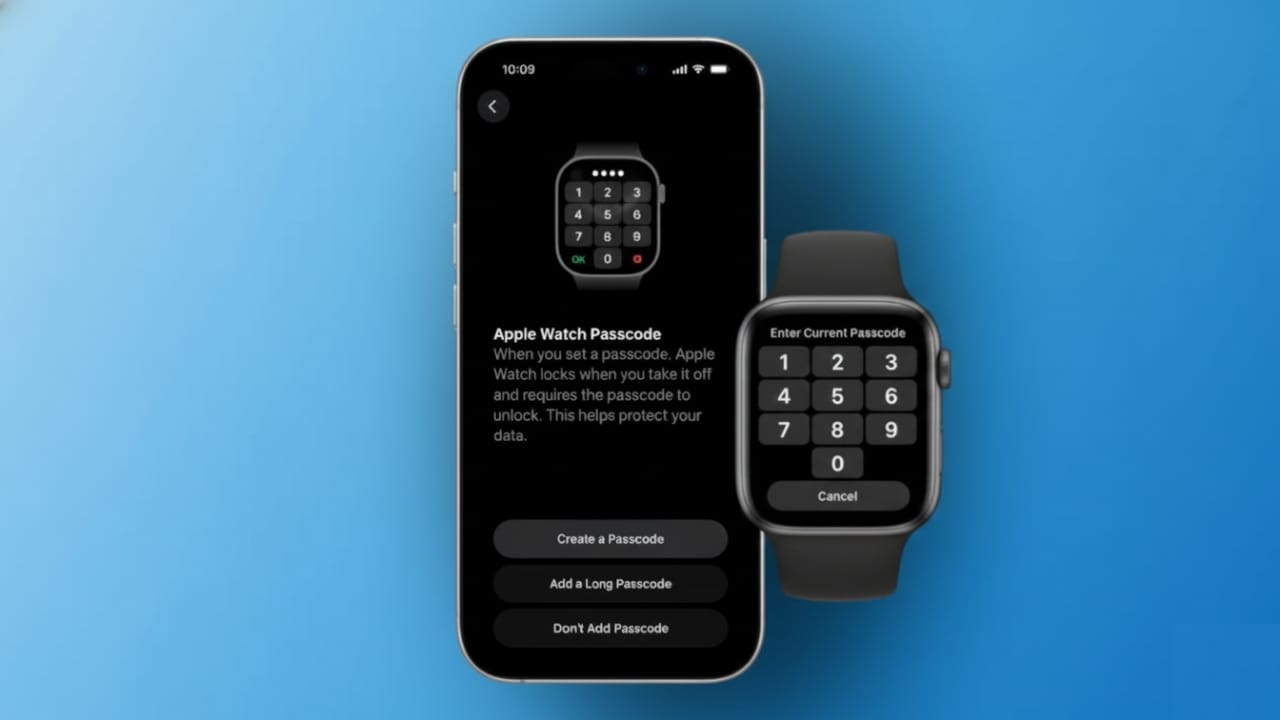
Keeping your Apple Watch protected is more important than ever. This small device carries a lot of personal information, including health data, messages, notifications, and payment access. If someone else gets hold of your watch, they could see things that were meant to stay private. That is why setting a passcode is a smart and necessary step.
Apple makes it easy to add or update a passcode, and the process takes only a few minutes. Let’s go through everything in a simple and clear way.
Also read: How to Fix the “iMessage Needs to Be Enabled” Error on iPhone, iPad, and Mac
Why a Passcode on Apple Watch Is Important
An Apple Watch works like a personal assistant on your wrist. It shows message previews, call alerts, fitness activity, and health details throughout the day. Without a passcode, anyone nearby can view this information if the watch is unlocked.
A passcode blocks unwanted access the moment the watch is removed from your wrist. This helps keep your personal data private at all times.
Another key reason is payment security. Apple Pay will only work if a passcode is enabled. This ensures that no payment can be made without verification. Even if the watch is lost or stolen, your card details remain protected.
Using a passcode also gives peace of mind. You know your data stays safe even if the device is misplaced. For best results, avoid simple number patterns, repeated digits, or easy guesses like birthdays. A passcode that is easy for you to remember but hard for others to guess offers better protection.
How to Set a Passcode Directly on Apple Watch
You can set a passcode using the watch itself in just a few steps.
- Wake up the Apple Watch screen.
- Press the Digital Crown to open the app list.
- Open Settings.
- Scroll down and tap Passcode.
- Select Turn Passcode On.
- Enter a numeric passcode of your choice.
- Re-enter the same passcode to confirm.
Once done, a small lock icon appears on the screen, confirming that your watch is now protected.
How to Set a Passcode Using iPhone
If you prefer using your iPhone, you can set the passcode from there as well.
- Open the Watch app on your iPhone.
- Tap Passcode.
- Select Turn Passcode On.
- Enter the passcode on your Apple Watch.
- Confirm the passcode again.
After setup, the watch automatically locks when you take it off. When you put it back on, the passcode is required, adding an extra layer of daily security.
Using a Stronger Passcode for Better Protection
By default, Apple Watch uses a four-digit passcode. While this offers basic security, longer passcodes are much harder to guess.
To use a stronger passcode:
- Open Settings on the Apple Watch or Watch app on iPhone.
- Go to Passcode.
- Turn off Simple Passcode.
- Enter a longer numeric passcode.
You can use up to ten digits. A longer passcode provides stronger protection for health data, messages, and payment features without affecting normal use.
How to Change or Remove the Passcode
You can update your passcode anytime for better long-term security.
To Change the Passcode on Apple Watch:
- Open Settings.
- Tap Passcode.
- Enter the current passcode.
- Select Change Passcode.
- Enter and confirm the new passcode.
To Remove the Passcode:
- Go to Passcode settings.
- Enter your current passcode.
- Tap Turn Off Passcode.
You can also change the passcode through the Watch app on your iPhone by following similar steps.
What to Do If You Forget the Passcode
If the passcode is forgotten, the only option is to reset the Apple Watch. This process removes all data from the device, including the passcode.
Steps to reset:
- Keep the Apple Watch and iPhone close together.
- Open the Watch app on iPhone.
- Tap My Watch → General → Reset.
- Select Erase Apple Watch Content and Settings.
After resetting, pair the watch again with your iPhone. During setup, you can create a new passcode and restore data from a backup if available.
If the watch behaves unusually, restarting it can help. Keeping both the iPhone and Apple Watch software updated also improves stability and security. Avoid entering the wrong passcode repeatedly, as too many attempts can lock the device and force a reset.
Also read: How to Move Spotify Playlists to Apple Music Easily (Updated 2026 Guide)
Final Thoughts
Setting or changing a passcode on Apple Watch is a small step that makes a big difference. It protects personal messages, health records, notifications, and payment access. The setup is quick, and stronger passcodes offer better protection.
Whether you are setting a passcode for the first time, updating it, or resetting the watch, these options ensure your Apple Watch stays secure at all times. Taking a few minutes today can save you from problems later.

Jatin Rajput (Tech Golu) — Tech blogger & YouTuber with 6+ years of experience in WhatsApp, Instagram, Facebook, and mobile guides. Founder of TechGolu.in.