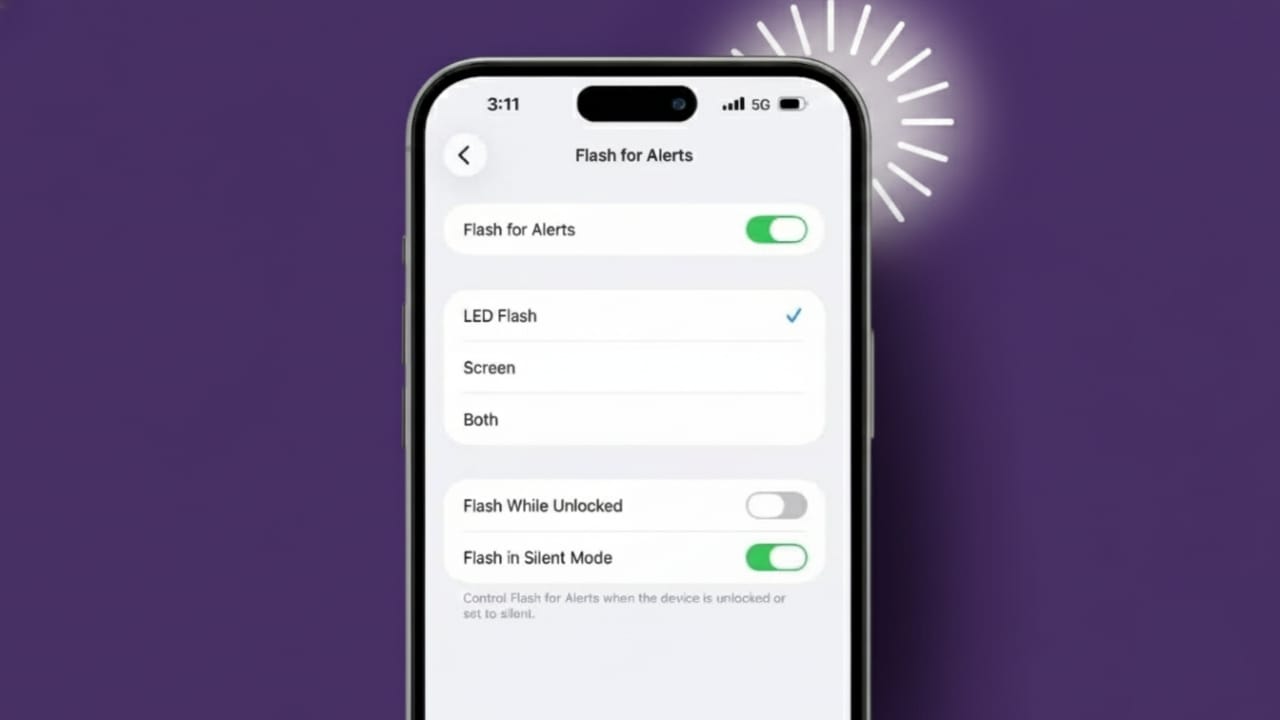
It’s easy to miss calls or messages on an iPhone, especially in loud places. Sometimes the phone is on silent mode. Other times, it’s lying face down on a table or kept far away. In such situations, sound alerts are not always reliable.
To solve this problem, Apple offers visual notification options on the iPhone. These alerts use light instead of sound. Your phone can flash its rear light or briefly light up the screen when a call, message, or notification arrives. This makes alerts much easier to notice.
Below is a simple guide to help you understand and enable iPhone flash alerts.
Also read: How to Create a Personal Contact Poster on Your iPhone
What Are Flash Alerts on iPhone?
Flash alerts turn normal notifications into visual signals. When you receive a call, text, or app alert, your iPhone can respond with a flash instead of relying only on sound or vibration.
There are two types of flash alerts available:
- Rear LED flash, which blinks near the camera
- Screen flash, which lights up the full display
These alerts work even when the phone is on silent mode. They are especially helpful in noisy environments or quiet settings where sound is not practical. Many users also find them useful when the phone is placed face down or kept on a desk.
Flash alerts follow your existing notification settings. You can enable the LED flash, the screen flash, or both at the same time for better visibility.
How to Turn On LED Flash Alerts
The LED flash uses the small light next to the rear camera. It is very effective when the phone is placed face down or kept on silent.
To enable it:
- Open Settings on your iPhone
- Tap Accessibility
- Go to Audio & Visual
- Scroll down and select Flash for Alerts
- Turn on Flash for Alerts
- Choose LED or Both for more visibility
Make sure to enable Flash While Silent if you want the light to flash even when your phone is muted. This ensures you never miss an alert.
There is also an option to allow flashing while the phone is unlocked. Some people turn this off to avoid distraction, while others keep it on for constant awareness.
LED flash alerts use very little battery and work well in meetings, classrooms, or quiet places.
How to Enable Screen Flash Alerts
Screen flash alerts briefly light up the entire display when a notification arrives. This option works best when your phone is face up.
To turn it on:
- Open Settings
- Go to Accessibility
- Tap Audio & Visual
- Select Flash for Alerts
- Enable Screen or choose Both
Screen flashing is brighter than the rear LED, making it easier to notice in busy surroundings. It is useful when the phone is charging, on a desk, or actively being used.
Keep in mind that screen flash applies to all allowed notifications. It cannot be limited to only calls or messages without changing notification permissions for other apps.
Using Flash Alerts for Messages and Apps
Flash alerts work for all notifications that are enabled on your iPhone. This means texts, calls, and app alerts will all trigger a flash.
If you want fewer flashes, the best solution is to turn off notifications for apps you don’t need. This helps you focus only on important alerts without disabling the flash feature completely.
Using both the LED and screen flash together provides stronger visibility, especially if you rely on silent mode throughout the day.
Tips to Improve Flash Alert Performance
To get the best results from flash alerts:
- Use vibration along with flash for stronger alerts
- Avoid covering the rear light with your hand or phone case
- Place the phone where the flash can be easily seen
- Enable both LED and screen flash if possible
- Keep your iPhone updated with the latest software
Regular updates help improve system stability and notification behavior.
Also read: How to Hide Contacts on iPhone Without Removing Them
Final Thoughts
Making your iPhone flash for calls, texts, and notifications is a simple but powerful feature. It helps in silent mode, noisy environments, and situations where sound alerts are easy to miss.
The rear LED works best when the phone is face down, while the screen flash is ideal when the phone is face up. Using both together gives the best results.
With just a few settings, flash alerts can ensure you never miss an important call, message, or notification again.

Jatin Rajput (Tech Golu) — Tech blogger & YouTuber with 6+ years of experience in WhatsApp, Instagram, Facebook, and mobile guides. Founder of TechGolu.in.