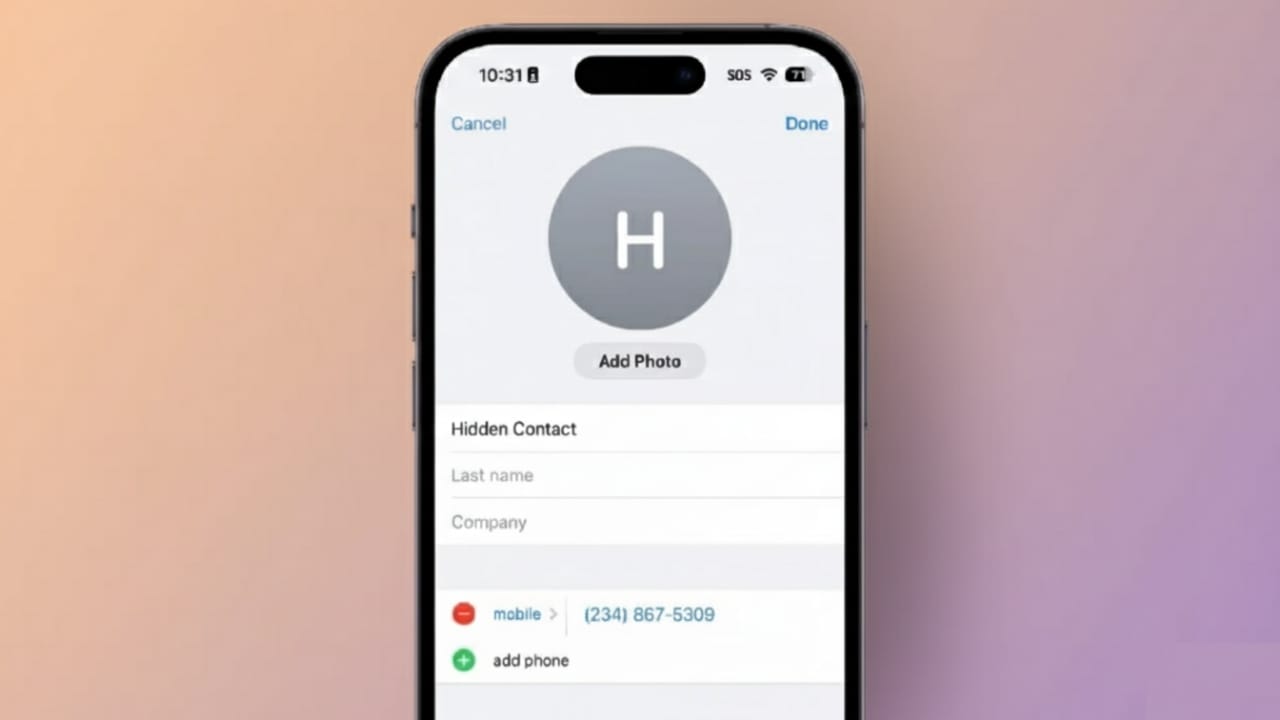
Keeping personal contacts private is important, especially when you share your iPhone with family members, friends, or colleagues. Some contacts may contain sensitive details that you don’t want others to see accidentally.
On iPhones, caller names can appear on the lock screen, message previews may reveal identities, and Siri suggestions can show recently contacted people. Since iOS does not offer a direct “hide contact” option, users need to use smart and safe alternatives to protect their privacy.
Below are practical and effective ways to hide contacts on an iPhone without deleting them.
Also read: How to Merge Duplicate Contacts on iPhone Using iOS Features
Using iPhone’s Built-In Settings to Hide Contacts
People hide contacts for many everyday reasons. Some want to keep personal relationships private, while others prefer a clean and organized contact list. Notifications, missed calls, and voice assistant suggestions can expose names unexpectedly, so different solutions are needed for different situations.
Lock the Phone App for Extra Privacy
One reliable method is limiting access to the Phone app. This helps prevent others from viewing your contacts and call history when they borrow your phone.
Using Face ID or a passcode ensures only you can open the app. This also protects voicemail and recent call logs from being seen by others.
Use Contact Groups to Reduce Visibility
Creating separate contact lists can help keep certain contacts out of your main address book. These contacts remain saved but are not visible in the default list.
You can use services like Gmail to create and sync separate contact groups. Once synced, you can remove those contacts from your main iPhone list and turn off Gmail contact syncing. The contacts stay safe in your Gmail account and can be restored anytime.
Save Contacts Using Nicknames
Another simple trick is replacing real names with nicknames. When enabled, iOS will display nicknames instead of full names during calls and notifications.
This makes it harder for others to recognize who is calling or messaging you. You can enable this by turning on the “Prefer Nicknames” option in Short Name settings.
Remove Contact Photos
Even if names are hidden, photos can still reveal identities. You can replace contact photos with simple initials or monograms.
This removes visual clues during incoming calls and notifications, adding an extra level of discretion.
Store Sensitive Contacts in Locked Notes
The Notes app is useful for securely storing private contact details. You can save names and numbers inside a locked note protected by Face ID or a password.
Once saved safely, you can remove those contacts from your Contacts app. Even if someone accesses your phone, they won’t be able to see the locked content.
Disable Siri and Search Suggestions
Spotlight search and Siri suggestions can show contact names based on your usage habits. This can expose private contacts without warning.
To avoid this, disable Siri learning and search visibility for Contacts in settings. After doing this, contacts will no longer appear in search results, widgets, or suggestions.
Hiding Contacts Using External Options
Use Google Contacts for Cloud Storage
Google Contacts is a secure option for storing sensitive contacts online instead of on your iPhone.
You can add contacts directly through a web browser and choose not to sync them with your iPhone. Hidden contacts remain stored safely online and are not visible on the device. If needed, you can access them anytime from your Google account.
Try Trusted Third-Party Apps
Some privacy-focused apps allow you to store contacts separately from the iPhone’s default contact list. These apps often support Face ID or passcode protection.
It’s important to choose only reliable and well-reviewed apps to avoid data risks. Secure apps add an extra layer of protection for private contact information.
Use Files, Notes, or Hidden Albums
Contacts can also be saved as files, screenshots, or text inside secure apps like Files or Notes. Hidden photo albums can store screenshots discreetly and reduce accidental exposure.
How to Hide All Contacts Completely
In some cases, users want to hide all contacts temporarily or for a longer period. This is useful when a phone is shared frequently.
Use Screen Time Restrictions
Screen Time allows you to restrict access to specific apps, including Contacts.
By disabling the Contacts app under allowed apps, the entire contact list disappears until you remove the restriction. This works well for short-term privacy needs.
Use a Separate Apple ID
For long-term privacy, you can move contacts to another Apple ID. Once the contacts are synced, you can remove that Apple ID from your device.
The contacts remain accessible on other Apple devices linked to that account, while staying hidden on the current iPhone.
Also read: How to Create a Personal Contact Poster on Your iPhone
Final Thoughts
Hiding contacts on an iPhone is possible, even without an official hide feature. With the right combination of settings, cloud storage, and secure apps, you can protect personal information effectively.
Built-in options help reduce accidental exposure, cloud services keep contacts safely stored online, and third-party apps add extra security. Choosing the method that fits your needs ensures better privacy and peace of mind.

Jatin Rajput (Tech Golu) — Tech blogger & YouTuber with 6+ years of experience in WhatsApp, Instagram, Facebook, and mobile guides. Founder of TechGolu.in.